
PDF Guides
How to Fill Out a PDF Form Online (and Fix One That Will Not Save)
Application forms, intake sheets, tax documents, and government paperwork are often distributed as PDFs. Filling them out on screen instead of printing and handwriting them saves time and produces a cleaner, more legible result.
By GaryLast updated 4 min read
Fill out a PDF formFillable fields vs. plain PDFs
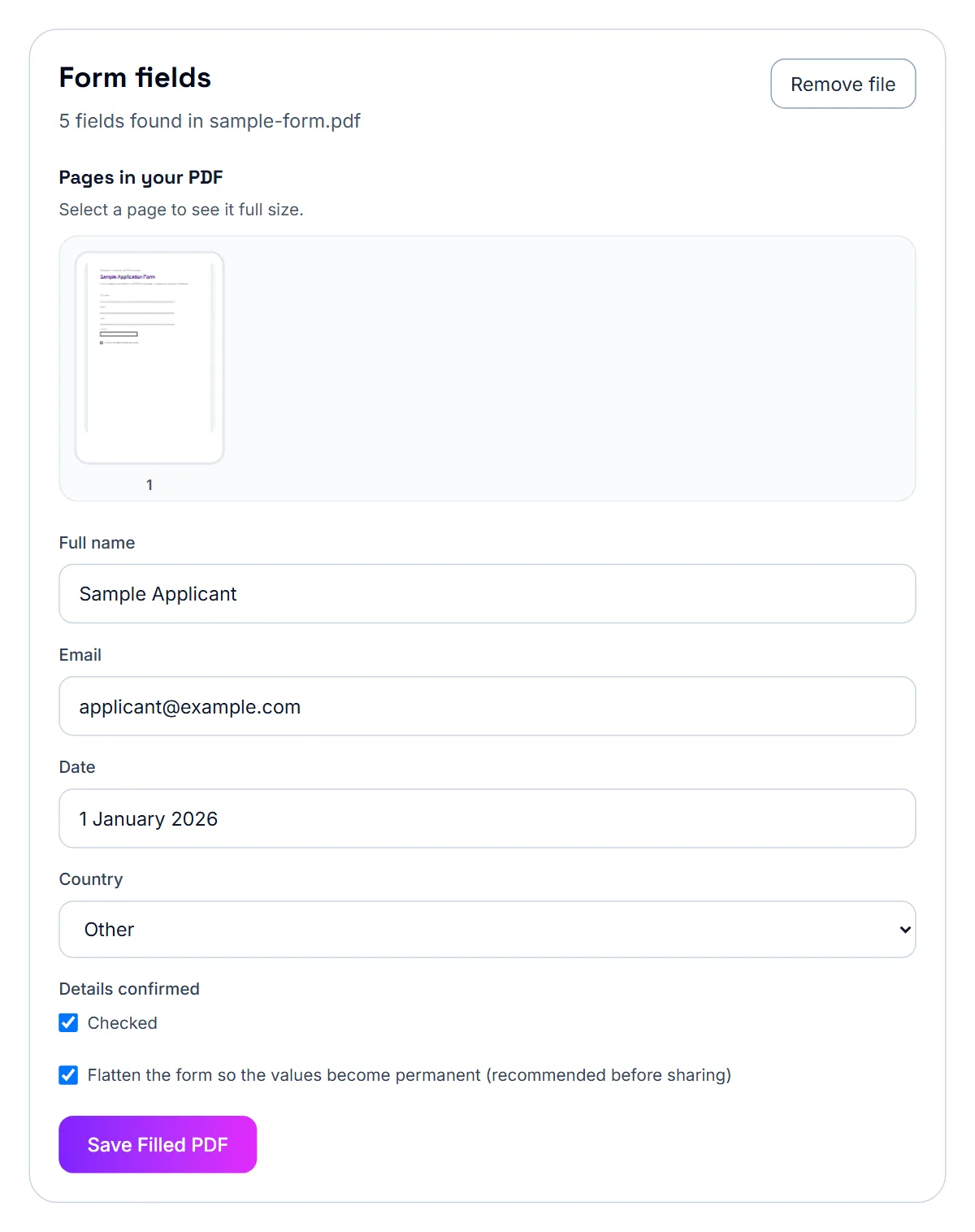
Some PDF forms have built-in fillable fields that you can click into and type — these are the easiest to complete. Others are just flat, scanned pages with no interactive fields at all. PDF Forms works with the first kind: it lists the form's fields so you can fill them in. If a PDF has no fillable fields, the tool tells you so; for those, print the form, or add short answers with the PDF Annotator's comment boxes.
How to fill out a PDF form
The steps are the same regardless of what the form is for.
- Open the PDF form
- Fill in each field the tool lists, and tick the checkboxes that apply
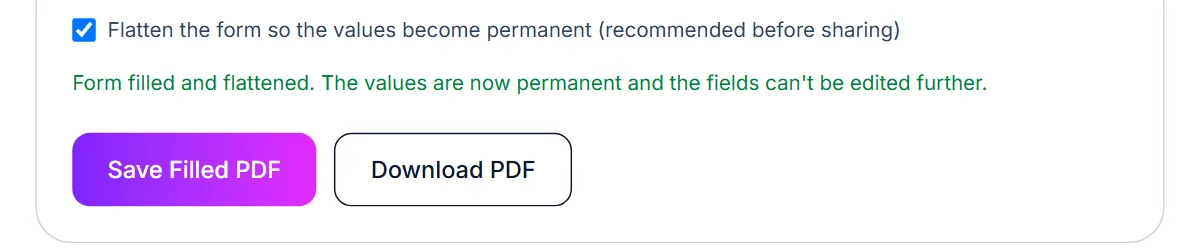
- Tick the flatten option if the answers should become permanent
- Download the completed form
Common forms people fill out this way
Job applications, rental applications, W-9 and tax forms, medical intake forms, and school enrollment paperwork are some of the most common documents people complete online instead of by hand.
Why a filled-in form will not save
The free version of Adobe Acrobat Reader can fill in form fields, but by default it can't save those entries into the file — Reader's ability to save form data is a feature that historically needed to be specifically enabled by the person who created the PDF form ('Reader-enabled'), and most forms aren't. You end up able to type into the fields, but the moment you close without the right save permissions, the entries don't persist.
Printing to a new PDF, taking a screenshot, or emailing the form directly can all produce a version that looks blank to the next person who opens it, even though you filled it in correctly on your end.
The fix: fill it in a tool that flattens the form
A browser-based form filler that lets you flatten the form after filling it solves this permanently. Flattening converts your typed entries into permanent page content, so the values are baked into the file itself — no save permissions required, and it looks correct for anyone who opens it afterward.
- Open the PDF form in a form-filling tool
- Type your answers into each field
- Choose to flatten the form so the values become permanent
- Download the completed PDF and confirm the fields show your entries
If you need to edit it again later
Flattening is one-way — once applied, the fields are no longer editable. If you might need to change your answers again before submitting, save an unflattened copy first, and only flatten the final version you're ready to send.
Why flatten a filled-in form
Once a form is filled out and submitted, there's usually no reason for the fields to stay editable — and every reason not to want them to. Flattening prevents accidental changes, keeps the submitted answers exactly as intended, and makes the form display consistently across different PDF viewers, some of which render fillable fields inconsistently.
How to flatten a PDF form
Fill out the form first — flattening should be the last step, after the answers are final.
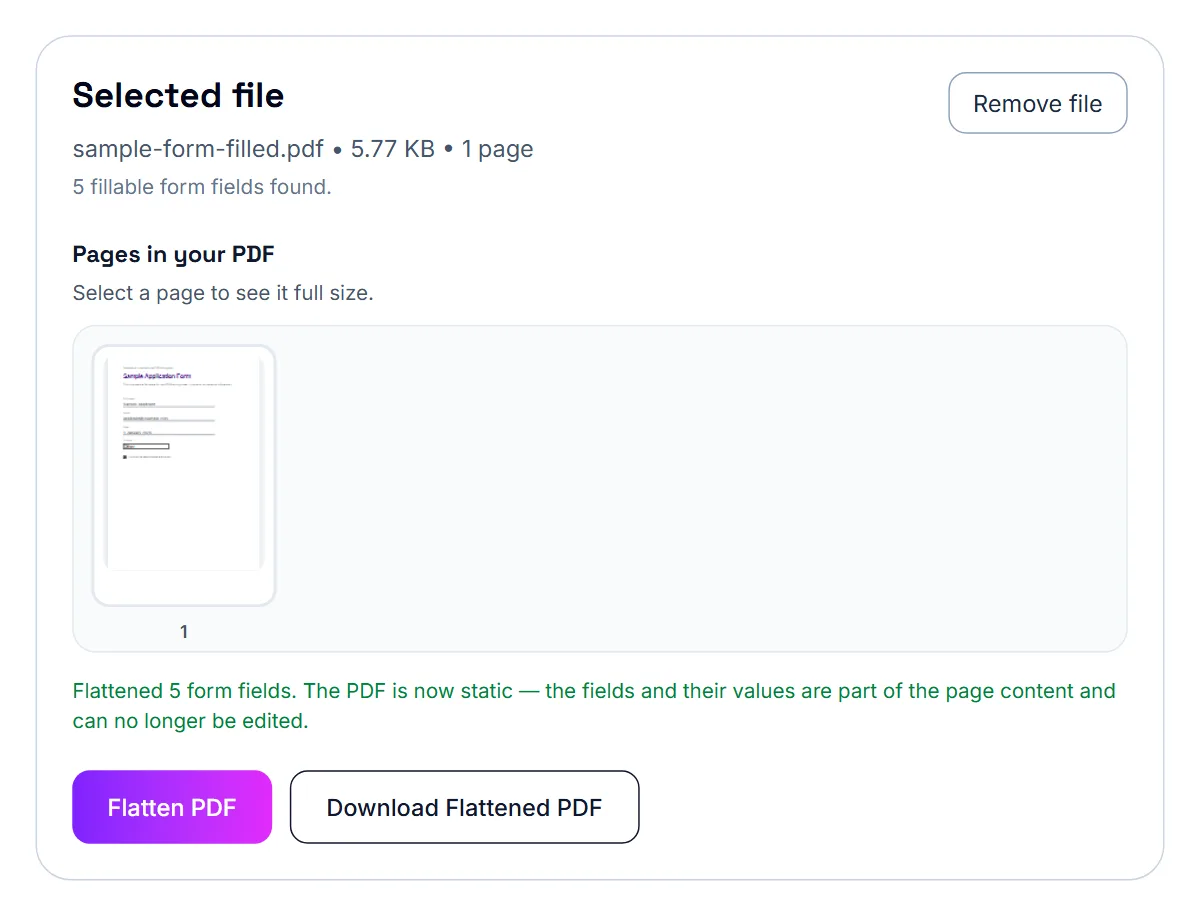
- Open your filled-in PDF form
- Let the tool convert the field values into static page content
- Check that all your answers still appear correctly
- Download the flattened PDF
Flattening is a one-way step
Once a form is flattened, the fields can no longer be edited — including by you. Keep a copy of the original fillable version if there's any chance you'll need to make changes later.
For HR and recruiters: common hiring documents
Job application forms, reference check consent forms, offer letters, NDAs for candidates, and new-hire onboarding packets are the documents recruiters and HR teams handle most often as PDFs.
For HR and recruiters: a typical workflow
Most hiring paperwork follows the same basic pattern from first contact to signed offer.
- Fill out application or intake forms directly in the browser
- Merge multiple documents (application, resume, references) into one packet
- Add a signature to offer letters or agreements
- Password protect anything containing sensitive candidate information
Handling sensitive candidate information
Applications and onboarding forms often include personal details — addresses, ID numbers, salary history. When sharing these internally, consider password protecting the file, and redact any information a specific recipient doesn't need to see.
Frequently asked questions
Can I fill in a PDF that doesn't have interactive fields?
Not with PDF Forms, which needs fillable fields. For a flat or scanned form, print it, or add short answers with the PDF Annotator's comment boxes.
Can I add a signature to the form as well?
Yes. Fill in and download the form first, then add your signature with Sign PDF.
Will the filled form look neater than handwriting it?
Yes, typed text is consistent and legible, which matters for forms that get scanned or processed automatically.
Why doesn't Acrobat Reader save my form entries?
Free Acrobat Reader can only save typed-in form data if the PDF was specifically enabled by its creator to allow that. Most forms aren't set up this way, so entries disappear on reopening.
What does 'flattening' a form actually do?
It converts your typed answers into permanent page content, the same as if they'd been printed on the page, so the values stay visible regardless of what software opens the file next.
Can I still edit the form after flattening?
No, flattening is permanent. Keep an unflattened copy if you might need to change your answers before the final version.
Is my form data uploaded anywhere?
No, using a browser-based form filler processes everything on your own device.
Will my answers look the same after flattening?
Yes — flattening keeps the visual appearance of your entered answers exactly as they were, it just removes the ability to edit them.