
PDF Guides
How to Sign a PDF Online for Free (and When an E-Signature Is Valid)
Printing a document just to sign it and scan it back in is one of the most avoidable steps in dealing with paperwork. An eSignature tool lets you sign directly on the PDF and send it back the same way you received it — digitally.
By GaryLast updated 9 min read
Sign a PDFWays to create your signature
There's more than one way to get your signature onto a document, and different situations call for different ones.
- Draw it with your mouse, trackpad, or finger on a touchscreen
- Type your name and pick a handwriting-style font
- Use a photo of your signature on paper
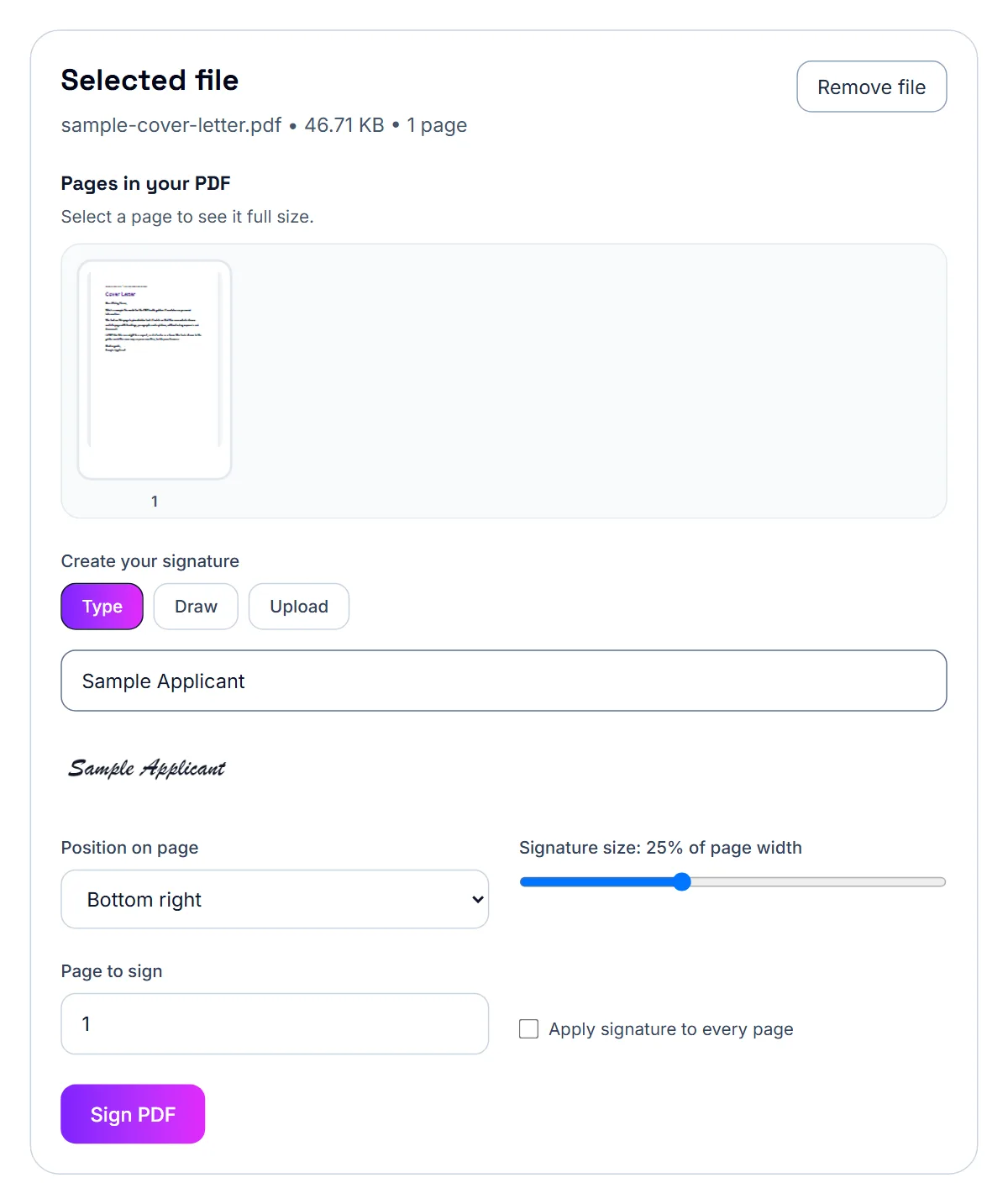
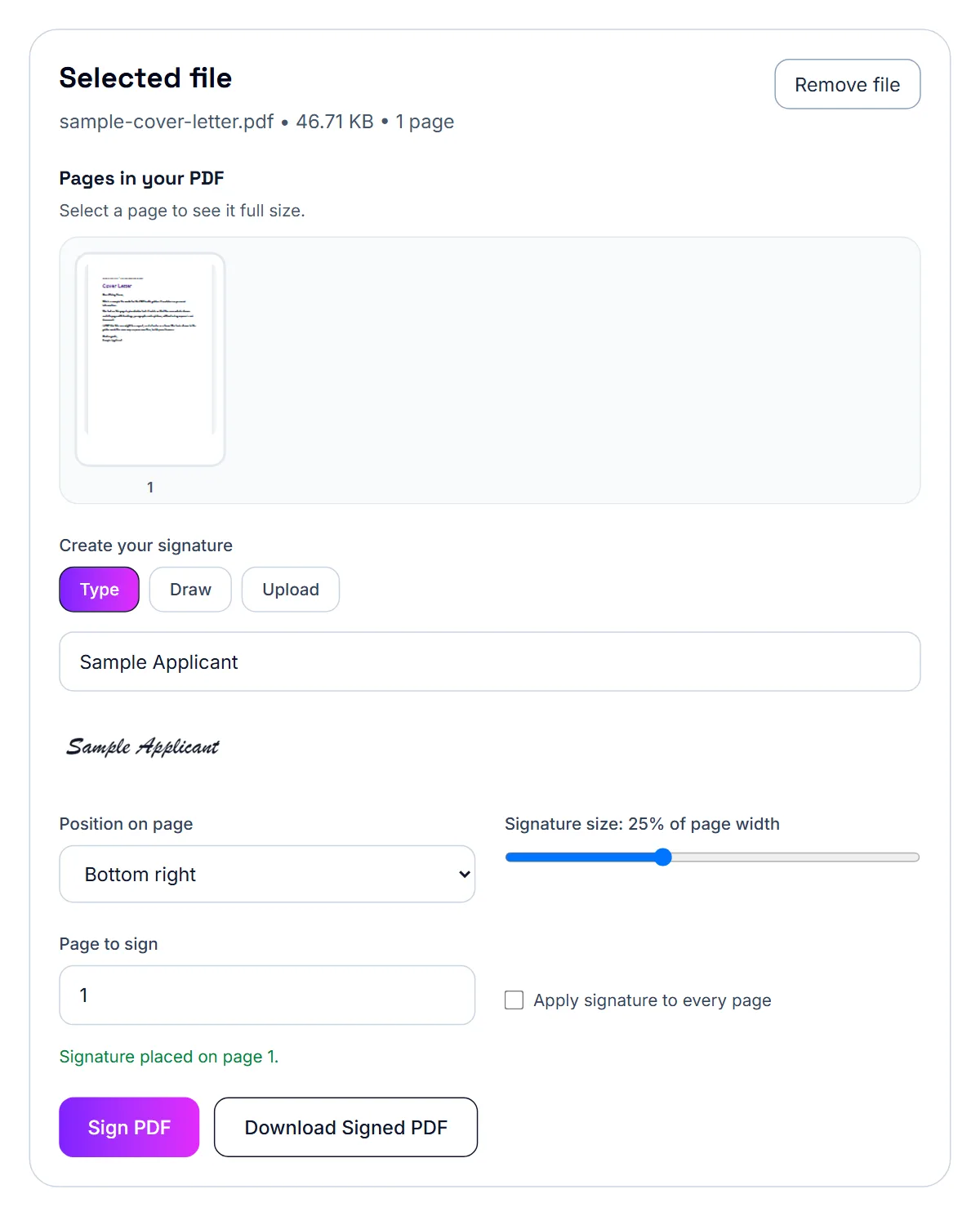
How to sign a PDF
Once you have a signature ready, placing it on the document takes a few clicks.
- Open the PDF you need to sign
- Create your signature (draw, type, or use an image)
- Drag it into position on the page
- Download the signed PDF
When a typed or drawn signature is enough
For everyday documents — internal approvals, informal agreements, forms, and acknowledgments — a drawn or typed signature is usually all that's needed. For documents requiring a certified or notarized digital signature, check whether your specific use case (some legal contracts, for example) requires additional verification.
What a simple signature tool does not provide
The sign PDF tool places a visible signature image on the document. It does not verify your identity, create a timestamped audit trail or apply a certificate-based digital signature. Many everyday agreements are fine with a visible signature when both parties agree to it, but some counterparties require a dedicated e-signature service with an audit trail. If yours does, use the service they specify.
On an iPhone: Markup in the Files app
Open the PDF in the Files app, tap the markup (pen tip) icon, then the plus button, and choose Signature. You can draw a signature with your finger, save it for reuse, and drag it onto the page. This works offline and requires no download, but it's fiddly for precise placement and doesn't fill in typed text fields well.
On an iPhone: sign it in Safari
For a cleaner result — typed signatures, adjustable size, and easy repositioning — open the PDF signing tool directly in Safari on your iPhone. Open the file, type, draw, or add an image of your signature, place it on the page, and download the signed copy. Nothing installs on your phone, and the file never leaves your device.
- Open the sign PDF tool in Safari
- Open the PDF from Files or your photo library
- Type, draw, or add a signature image
- Position it on the page and download the signed PDF
Contracts and agreements: keeping the turnaround fast
The whole point of signing digitally is speed — a contract that arrives by email can be signed and sent back within minutes instead of sitting until you're near a printer and scanner.
- Open the contract PDF in the signing tool
- Draw, type, or add an image of your signature once
- Place it wherever the document needs it — signature lines, initials, dates
- Download and send the signed copy back
Emailing a signed contract within the attachment limit
If the file is too large after combining the signed contract with supporting exhibits, compressing it is usually the fastest fix and rarely affects the text's readability. If it's still too large after that — which is unusual for a document-only PDF — splitting it into a main contract plus a separate exhibits file, sent as two attachments, is a reasonable fallback.
Sending and storing the signed contract
Email the signed PDF to the other party and keep your own copy in a safe place. If the file is large, compress it before sending. For sensitive agreements you can also add a password with the protect PDF tool and share the password through a separate channel.
Good habits when signing contracts electronically
Never sign something you have not read, and do not skip the clauses that define confidentiality, payment terms and termination. If anything is unclear, ask for clarification in writing before you sign.
Keep every version of the document, including the signed copy, the date you signed and the email that carried it. If a dispute ever arises, that trail can be useful. For anything with significant financial or legal consequences, a short consultation with a lawyer is usually worth the cost.
United States: are electronic signatures valid?
The federal ESIGN Act, passed in 2000, gives electronic signatures the same legal standing as handwritten ones for most transactions, provided the parties agree to sign electronically. Most states have also adopted the Uniform Electronic Transactions Act, which works in a similar way. Validity generally depends on a few basics: you intended to sign, you agreed to do business electronically, the signature can be linked to you, and a record of the signed document is kept.
This is general information, not legal advice. If a contract is high-value or unusual, ask a lawyer.
United States: documents that usually cannot be signed electronically
Certain documents are commonly excluded from electronic signing, including wills and similar estate documents, many family law matters such as divorce and adoption papers, court orders, and some formal notices like eviction or foreclosure notices. An NDA or a freelance services agreement is not in that group, but if you are unsure whether your document qualifies, check before you sign.
United Kingdom: the legal basis
Electronic signatures are generally valid for contracts and tenancy agreements under existing English law, building on the Electronic Communications Act 2000. The Law Commission's 2019 report on the electronic execution of documents confirmed this general position and gave practical guidance on how it applies to everyday contracts, including tenancy agreements and employment contracts.
United Kingdom: deeds are more complicated
Some property and legal documents need to be executed as a deed rather than a simple contract, and deeds carry a specific requirement: the signature must be made in the physical presence of a witness. The Law Commission's report concluded that this "presence" requirement means genuine, physical presence — signing electronically while a witness watches over a video call doesn't satisfy it. If your document needs to be executed as a deed, check whether it requires an in-person witnessed signature rather than assuming a standard e-signature is enough.
United Kingdom: wills are a separate, unsettled area
Wills have their own formality requirements, and whether they can be validly e-signed has been a more actively debated and shifting area — including a temporary pandemic-era easement that isn't the same as a settled, permanent rule. If you're dealing with a will, treat wet-ink signing as the safe default rather than relying on general e-signature validity.
United Kingdom: tenancy and employment contracts
For a standard assured shorthold tenancy agreement or an employment contract — documents that are ordinary contracts rather than deeds — electronic signatures are generally accepted and widely used by landlords, letting agents, and employers across the UK.
Canada: it is provincial law, not PIPEDA
PIPEDA (the Personal Information Protection and Electronic Documents Act) does address electronic documents, but it's aimed at federal and privacy-related requirements, not the day-to-day validity of a private contract like a residential lease or an employment agreement. The law that actually governs whether an e-signature is valid for that kind of contract is each province's own electronic commerce legislation — for example, Ontario's Electronic Commerce Act, 2000 — which most provinces adopted in a broadly similar form. Quebec has its own separate civil-law framework rather than following this common-law-province pattern.
Canada: what is generally excluded
Under Ontario's Electronic Commerce Act, common exclusions include wills, codicils, powers of attorney for property or personal care, and negotiable instruments like cheques and promissory notes. Most other provinces have broadly similar exclusions for these document types, though the exact wording can vary — a residential lease or standard employment contract is not typically on these exclusion lists, which is why e-signing them is common practice.
- Wills and codicils are typically excluded
- Powers of attorney for property or personal care are typically excluded
- Negotiable instruments (cheques, promissory notes) are typically excluded
- Standard leases and employment contracts are generally not excluded
Canada: leases and employment contracts
Because these document types generally fall outside the common exclusions, e-signing a lease or an employment offer is routine in Canada — many landlords, property managers, and employers already handle these agreements digitally from start to finish.
Australia: the legal foundation
The Electronic Transactions Act 1999 (Cth) is the foundational Commonwealth law establishing that electronic signatures can satisfy legal signature requirements, and each state and territory has its own mirroring Electronic Transactions Act. Together, these give electronic signatures broad legal recognition for everyday contracts across Australia, including employment contracts and job offer acceptances.
Australia: documents commonly treated differently
Wills, powers of attorney, and — in most states — land title or property transfer documents are commonly cited as exceptions where extra formality is expected, based on legal and industry commentary rather than something we independently verified against the full statutory text ourselves. If you're dealing with one of these document types specifically, it's worth confirming the current rule directly rather than assuming a standard e-signature is sufficient.
- Wills are commonly treated as needing traditional execution
- Powers of attorney are commonly treated as needing traditional execution
- Land title and property transfer documents often have state-specific extra requirements
- Standard employment contracts and job offers are not typically on these exception lists
Australia: statutory declarations are a moving target
Requirements around statutory declarations have been actively changing, including reforms allowing digital signing tied to Australia's digital identity system. Because this area is shifting, don't assume a fixed rule for statutory declarations — check the current federal and relevant state rules if you need one signed.
Australia: job offers
For a standard employment contract or a job offer acceptance — the kind of document most people are dealing with day to day — electronic signatures are widely accepted and used routinely by Australian employers and recruitment platforms.
This is not legal advice
This is general information, not a legal opinion on your specific document. If you're unsure whether your particular agreement needs to be executed as a deed, or you're dealing with a will or another formality-heavy document, speak with a solicitor before relying on an electronic signature.
Frequently asked questions
Do I need to print and scan the document to sign it?
No. You can add your signature directly onto the PDF in your browser and download the signed file without ever printing it.
Can I sign on my phone?
Yes, the process works the same way on a phone or tablet browser — you can draw your signature with your finger.
Can I add my signature to multiple pages?
Yes, you can place your signature (or initials) on as many pages as the document requires.
Is a typed or drawn signature valid for a business contract?
For most everyday business agreements, a typed or drawn signature is accepted practice. If a specific contract requires a certified or notarized digital signature, check that requirement before relying on a basic eSignature.
Can I add initials as well as a full signature?
Yes, you can place your signature on the final page and initials on any other page that requires them.
Do I need to download an app to sign a PDF on iPhone?
No. iPhone's Files app has a built-in markup signature, and browser-based tools let you sign a PDF in Safari without installing anything.
Is a signature added this way legally valid?
For most everyday documents, a typed or drawn electronic signature is treated the same as a signature added on desktop. For contracts with specific legal requirements, check what your situation requires.
Does the file get uploaded anywhere?
No, when using a browser-based tool that processes files locally, the PDF stays on your device the whole time.