
PDF Guides
Document Prep Checklist for OFW and Overseas Job Applications (Philippines)
Applying for work abroad usually means sending a bundle of documents to a recruitment agency or employer — a resume, passport copy, certificates, and sometimes a medical or training record. Exact requirements vary by agency, country, and job type, but the file preparation habits below apply almost universally.
By GaryLast updated 6 min read
Scan a document to PDFStart with a resume as a PDF, not a Word file
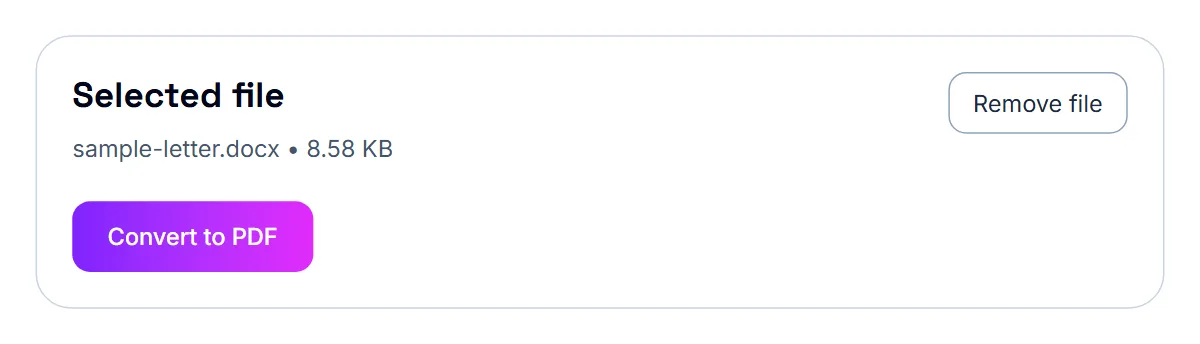
A resume saved as a PDF opens the same way on every device, while a Word document can shift formatting depending on what software the recipient uses. If your resume is currently a .docx file, converting it to PDF before sending it anywhere keeps the layout exactly as you intended.
Passport and ID copies
A clear photo or scan of your passport's information page, converted to PDF, is one of the most commonly requested documents for overseas applications. Photograph it flat, in good lighting, capturing the full page — recruiters and employers typically need to read every detail clearly, including the machine-readable code at the bottom.
- Photograph the passport information page flat and well-lit
- Convert the photo into a PDF
- Do the same for any other required ID or certificate
- Name each file clearly so the recipient can identify it at a glance
Transcript of Records: start with the right copy
For job applications, employers may accept a photocopy or scan of your TOR at the application stage and ask for certified copies later. Requirements differ by employer, so follow the job posting. If the posting says to send a scanned copy, a good-quality PDF is exactly what it is asking for. If it specifies a particular format or file name, use that.
Transcript of Records: scan every page cleanly
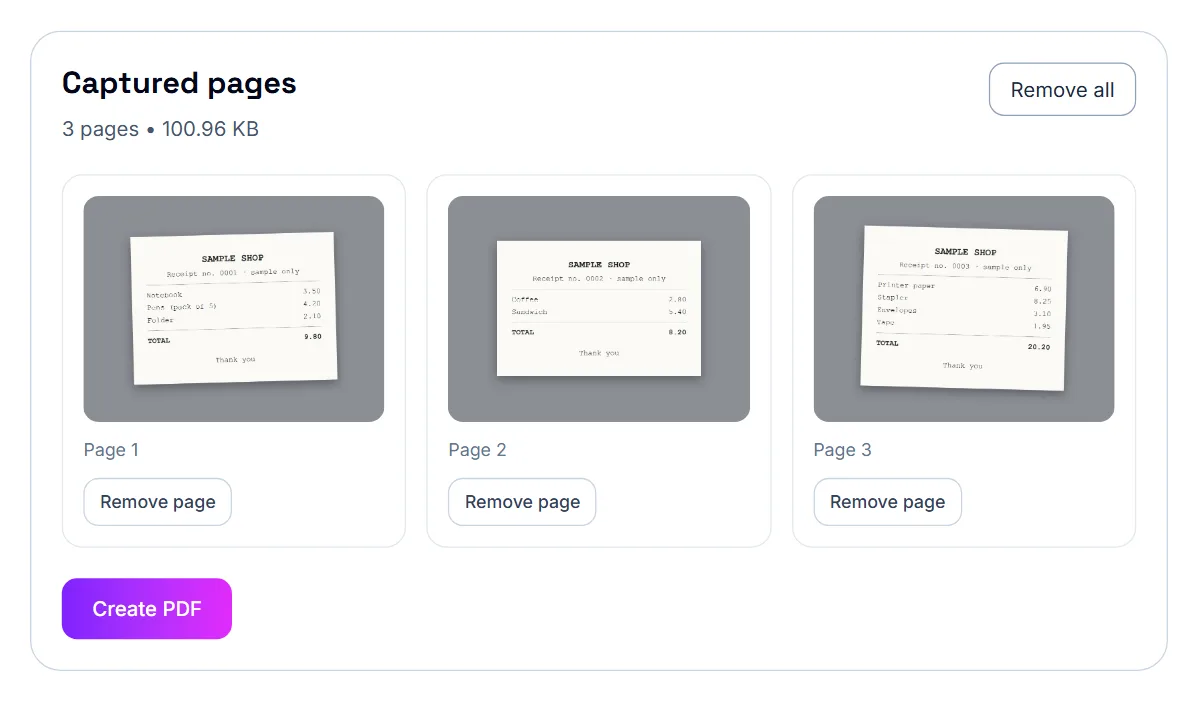
A TOR usually has several pages, and some schools print on both sides. Scan every page and every side that has content. Lay the document flat on a plain background, use even light, and keep the whole page in the frame. Shadows and tilted angles make grades and subject codes harder to read.
If you are using your phone, the scan to PDF tool turns each photo into a page. If a scan comes out slightly crooked, the deskew tool can straighten it, and the rotate tool can fix any page that is sideways.
Transcript of Records: put the pages in order and combine them
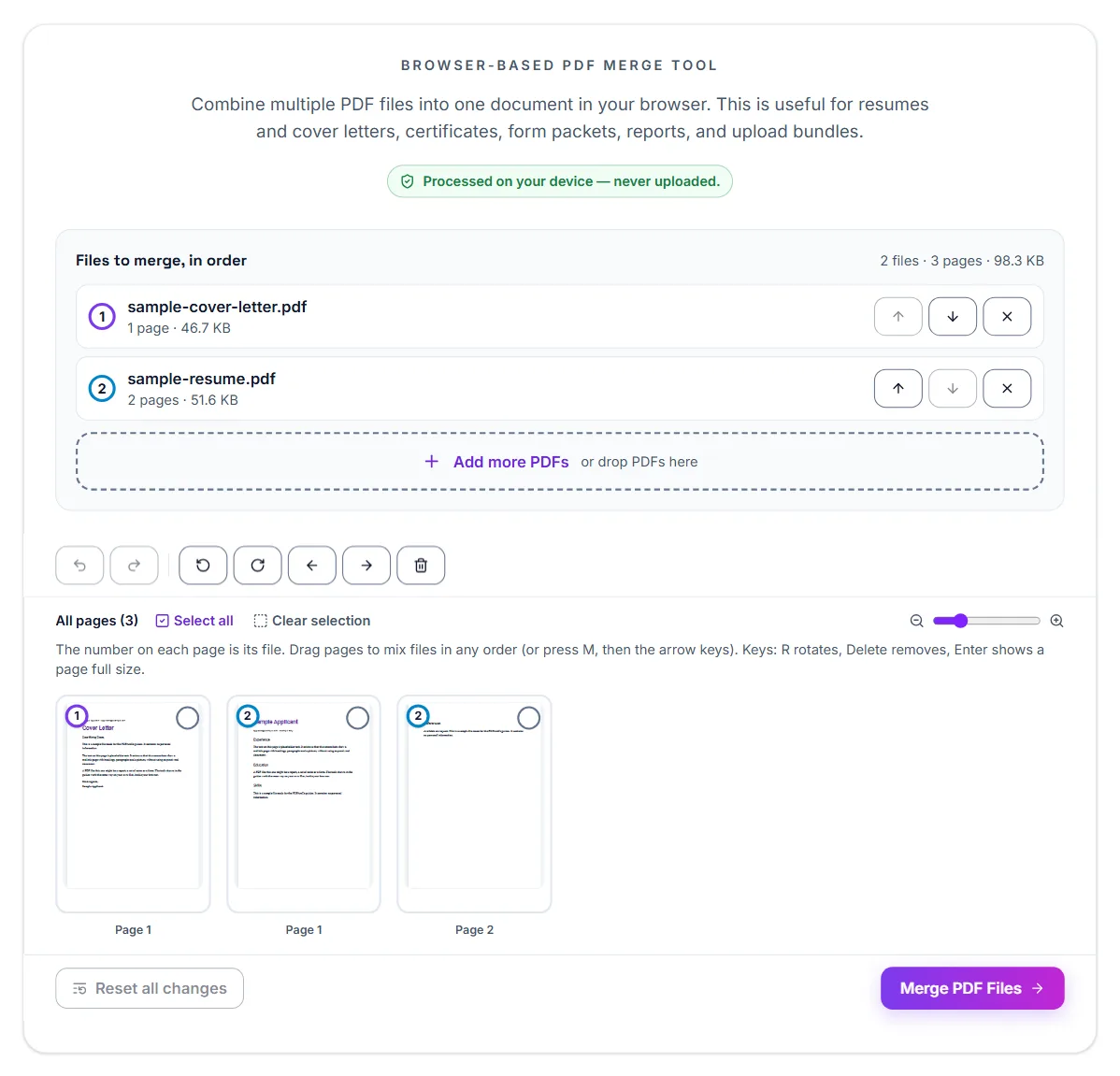
Sort the pages before you merge them. Page order matters on a transcript, because semesters run in sequence and the summary usually appears at the end. Use the merge tool to combine the pages into one file and, if you scanned them out of order, the reorder tool to fix the sequence. Scroll through the final PDF to confirm nothing is missing.
- Scan every page and every printed side
- Straighten and rotate pages where needed
- Merge into one PDF in the correct order
- Check that grades and subject codes are readable when zoomed in
PSA birth certificate: ordering is separate from digitizing
The PSA Serbilis and PSAHelpline ordering process is request-and-deliver: you provide your registry details, pay, and the physical document is mailed to you. There's no digital upload step in that process itself. The digitizing step — turning your physical copy into a PDF — is something you do afterward, once the document is in your hands, whenever a job, school, or visa application asks for one.
PSA birth certificate: photographing vs. scanning your copy
A PSA birth certificate is printed on security paper with a visible border and watermark pattern, so it photographs well as long as the lighting is even and the whole page is captured, including the edges. A flat scanner works too, but a clear phone photo converted straight to PDF is usually just as good and much faster.
- Lay the certificate flat on a plain, dark surface for contrast
- Photograph it straight-on in even light, capturing the full page including edges
- Convert the photo into a PDF
- Check that the text and security markings are clearly legible before submitting anywhere
NBI clearance and valid ID: start with a clear, flat photo or scan
Both an NBI clearance printout and a valid ID card photograph well as long as the lighting is even and there's no glare — a common problem with laminated IDs held at an angle under overhead light. Lay the document flat, angle it slightly if needed to avoid a direct light reflection, and capture the entire item in one frame.
- Use natural light or an evenly lit room, avoiding direct overhead glare on laminated cards
- Capture the full document or card, including all four corners
- Convert the photo into a PDF
- Review the PDF to confirm all text is legible before sending it anywhere
Combining multiple documents into one file
Many application forms ask for several documents together — an NBI clearance, a valid ID, and sometimes a resume or certificates. Rather than sending several separate attachments, merging them into a single PDF in a sensible order (ID first, then clearance, then anything else) makes the application easier for whoever reviews it, and is often exactly what's requested.
Combining certificates and training records
If an application asks for multiple certificates — training completions, licenses, or prior employment records — merging them into a single, ordered PDF is usually easier for a recruiter to review than several separate attachments, and matches how many application portals expect documents to be submitted.
Keep every file size-reasonable
Recruitment platforms and email systems often have attachment size limits, and a batch of full-resolution phone photos can add up quickly. Compressing a merged document, or compressing each photo before combining them, keeps the whole package within typical limits without losing legibility.
Small details that make a difference
Employers reviewing many applications notice tidy files. Keep the pages upright, in order and consistent in size, and avoid including scanner backgrounds or your hands in the frame. If the transcript includes remarks or a legend on the last page, make sure that page is included.
If you are applying to more than one employer, keep one clean master PDF and reuse it. That way you send the same well-checked file every time instead of rescanning under pressure before each deadline.
Finally, keep the paper original in a safe place. An employer may ask to see it, or a certified copy, at a later stage, and the scanned PDF is only meant to get you through the first round of the application.
Check the file once more on a phone. If the grades are readable on a small screen, they will be readable for a busy recruiter checking applications on the go.
Keep a master folder for reuse
Since overseas job applications often mean sending the same core documents to multiple recruiters or agencies, keeping one clean, converted set of PDFs ready to go saves you from re-preparing everything for each new application.
Frequently asked questions
Should I send my resume as a Word file or PDF?
PDF is generally safer, since it preserves your formatting exactly regardless of what software the recipient opens it with.
Do all agencies require the same documents?
No, requirements vary by agency, destination country, and job type. Always confirm the specific checklist with your agency or employer before sending anything.
Should I combine my certificates into one file?
It's often easier for the recruiter and matches how many applications expect documents to be submitted, though you should follow whatever the specific application instructs.
What if my documents together are too large to send?
Compress the combined PDF, or compress each document before merging. This usually resolves size limits without hurting readability.
Is a scanned TOR accepted for job applications?
Many employers accept a scanned copy at the application stage, but rules differ. Follow the instructions in the job posting.
How do I fix pages scanned in the wrong order?
Use Organize PDF to drag pages into the right sequence, or Reorder Pages to type the new order, before you send the file.
Does this upload my transcript to a server?
No. The tools run in your browser, so your transcript stays on your device.
Should I include the back of each page?
Include any side that has printed content, such as a grading legend or remarks. Blank backs can be left out.