
PDF Guides
How to Convert PDF to Word
PDFs are meant to be a final, fixed format, which is exactly the problem when you need to edit one. Converting to Word gives you the PDF's text in an editable .docx file, so you can revise it instead of retyping it. This guide shows the steps, explains what the converter keeps and what it leaves out, and covers what to do with scanned or awkward files.
By GaryLast updated 4 min read
Convert PDF to WordWhy you'd convert a PDF to Word
The most common reason is needing to edit a document you no longer have the original source file for — an old resume, a contract template, a report someone sent you as a PDF. Converting to Word gives you back the words in an editable copy without retyping the whole thing.
How to convert PDF to Word
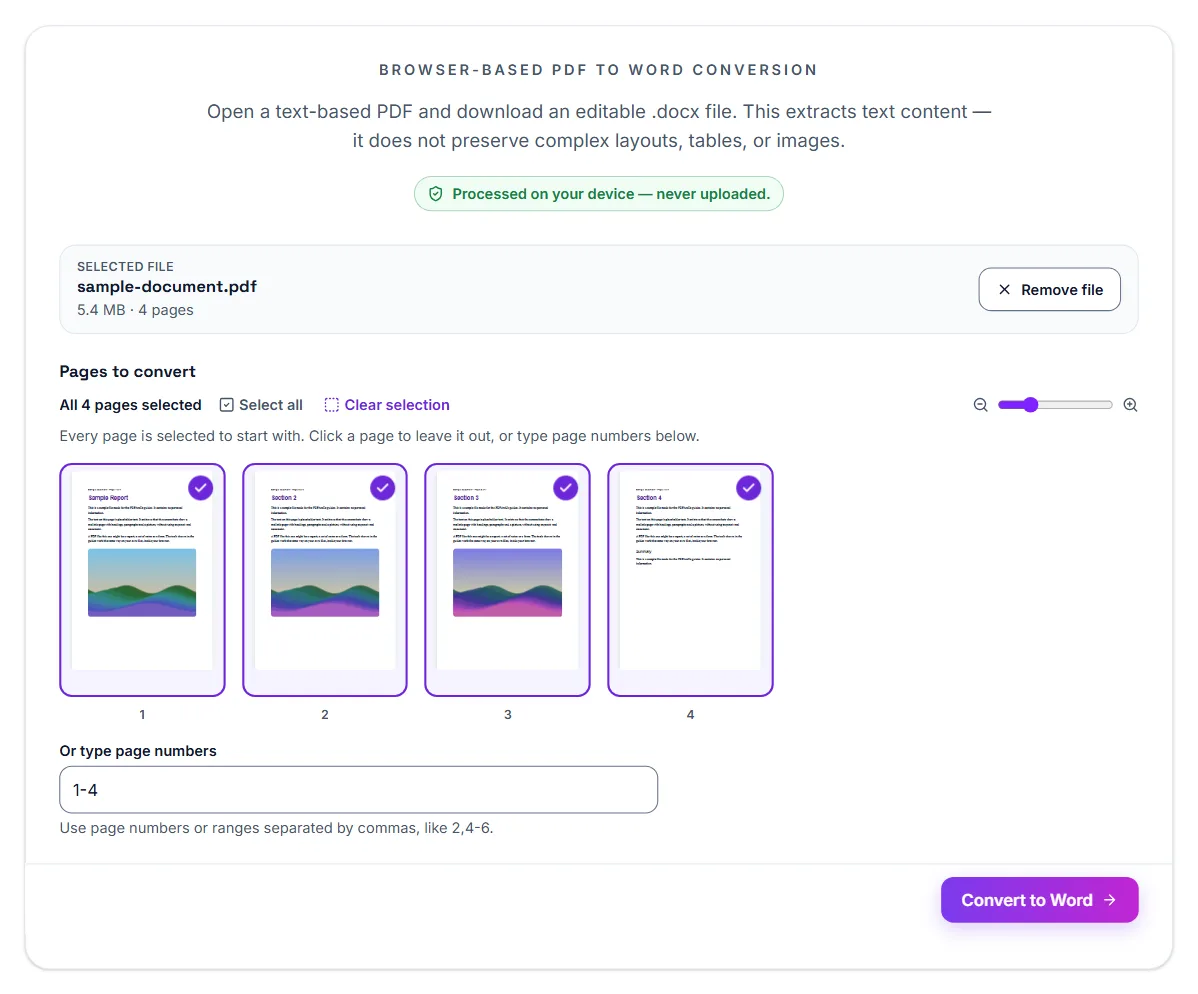
- Open PDF to Word and select Select PDF File, or drop the PDF onto the box
- Check the file name, size and number of pages under Selected file. If the PDF looks like a scan, a warning appears here straight away (see below)
- Under Pages to convert, every page is selected to start with. Click a page to leave it out, or type the pages you want under Or type page numbers, such as 2-5
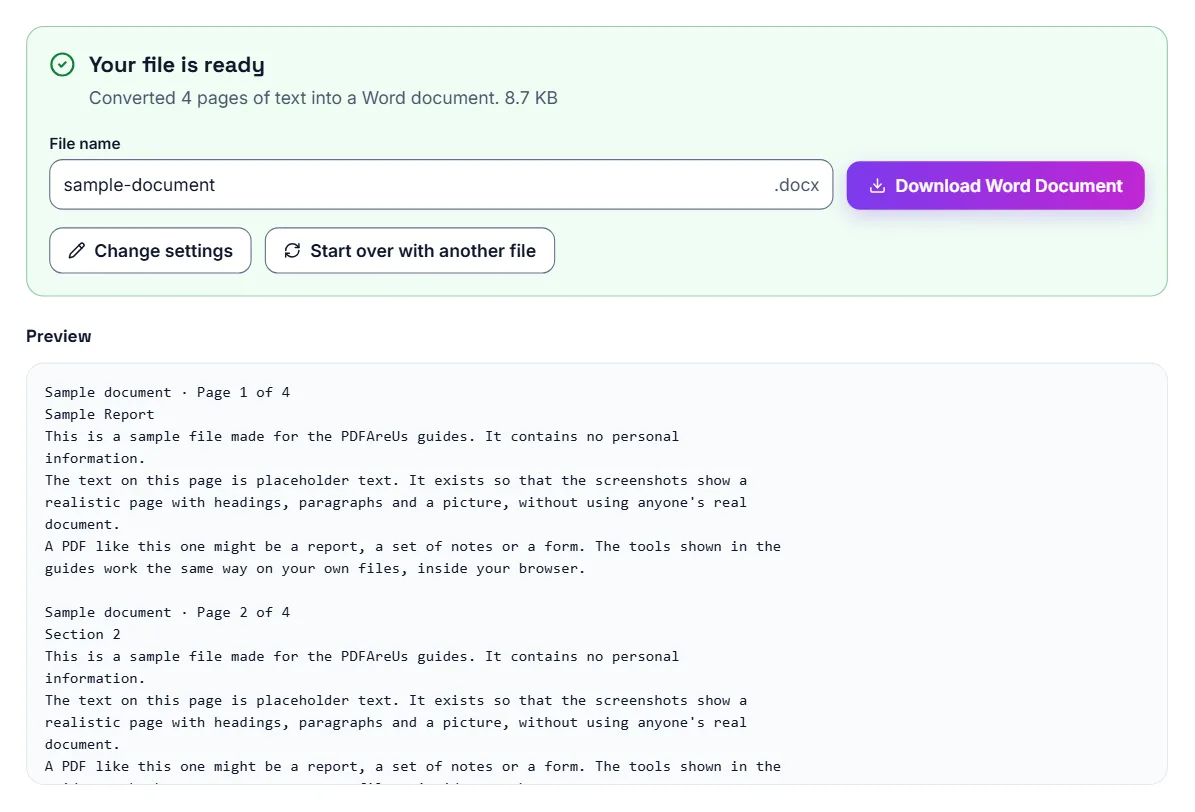
- Select Convert to Word. Under Your file is ready, it says how many pages of text were converted, and a Preview shows the text
- Change the file name if you like, then select Download Word Document to save the .docx file
- Open it in Word, Google Docs or LibreOffice Writer and make your changes
What you get in the Word file
The converter reads the text of each page you selected from top to bottom and writes each line as its own paragraph, with a page break between the PDF's pages. That gives you all the words in reading order, ready to edit. The Preview shows the same lines, so you can see what you will get before you download.
It does not rebuild the design of the page. Fonts, colours, columns, tables, images and exact positions are not carried over, so expect plain text that you format again in Word. Because each line of the PDF becomes a paragraph, long paragraphs come through as several short ones; joining them back up is the main clean-up job.
If you need an exact visual copy rather than editable text, keep the PDF. If you need to change just a few words, Edit PDF can add new text on top of the existing page without converting anything.
Scanned PDFs need OCR first
A scanned PDF is a picture of a page, with no text inside it for the converter to read. PDF to Word spots this as soon as you open the file and warns that the PDF looks like a scan; if you convert anyway, it says that very little text was found. Use OCR PDF instead: select Run OCR, and it recognises the words in the scan, shows them in a text box and offers them with Download as Word (a .docx file) or Download as Text. The OCR tool currently reads English text.
On a Chromebook
Chrome OS is built around web and Android apps rather than traditional Windows or Mac desktop software, so Microsoft Word and Adobe Acrobat can't be installed the normal way. Some Chromebooks support Android apps or Linux, but that's an extra setup step most people don't want just to convert a file.
Converting on a Chromebook, step by step
A browser-based PDF-to-Word converter runs entirely inside Chrome and doesn't need anything installed. Open the PDF, let it convert, and download the resulting Word document straight to your Chromebook's Downloads folder or Google Drive.
- Open PDF to Word in Chrome and select Select PDF File
- Choose your PDF from the Files app
- Select Convert to Word and wait for Your file is ready
- Select Download Word Document. The file goes to Downloads, and you can move it to Google Drive from there
Editing the result
Once you have the .docx file, you can open and edit it in Google Docs (which reads Word files natively) or in Microsoft's web-based Word if you prefer to keep the original formatting as close as possible. Either way, no desktop installation is needed at any step.
If it still doesn't work
- “This PDF looks like a scan” or “very little text was found”: the PDF is a scan or a photo. Get the text with OCR PDF instead
- Lines are broken in odd places: that is how the PDF lays out its lines. In Word, use Find and Replace or simply join the paragraphs you need
- Text from two columns is mixed together: the converter reads across the page. Copy the columns into place by hand, or convert one page at a time by selecting only that page under Pages to convert
- The file will not open in the tool: it may be password-protected. Use Unlock PDF if you know the password
- You only need the text, not a Word file: PDF to Text gives you a plain .txt file, and PDF to Markdown keeps headings and lists
Your file stays on your device
The conversion runs in your browser, so the PDF is never uploaded to a server. That makes it suitable for contracts, statements and CVs.
Frequently asked questions
Will the converted Word file keep the original formatting?
No. You get the text in reading order, one paragraph per line, with a page break between pages. Fonts, tables, images and layout need to be recreated in Word.
Can I convert a scanned PDF to Word?
Not with PDF to Word, which needs real text. Use OCR PDF to recognise the text of the scan (English text), then select Download as Word to get a .docx file.
What file format do I get?
You'll get a standard .docx file that opens in Microsoft Word, Google Docs, and most other word processors.
Is my PDF uploaded?
No. The conversion happens in your browser and the file stays on your device.
Can I install Microsoft Word on a Chromebook?
Not as traditional desktop software. Chrome OS doesn't run Windows or Mac applications directly, though some Chromebooks support Android or Linux apps with extra setup.
Does the PDF need to be text-based to convert well?
Yes, this works best on PDFs that already have selectable text. For scanned, image-only PDFs, use OCR PDF instead: it recognises the English text and lets you download it as a .txt file or Word document to edit.
Where does the converted file go on a Chromebook?
It downloads to your Chromebook's Downloads folder like any other file, and you can move it to Google Drive from there.