
PDF Guides
How to Convert Word, Excel and Office Files to PDF
A Word document can look different depending on the fonts installed, the version of Word, or the device it's opened on. Converting to PDF fixes the result in place, so the recipient sees the same pages you checked. This guide covers the browser tool step by step, what it handles well, and what to do when a layout doesn't come out right.
By GaryLast updated 4 min read
Convert Word to PDFWhy send a PDF instead of a Word file
Once a document is a PDF, it looks the same on a phone, a laptop or a printer, whatever software opens it. That consistency matters for resumes, invoices, letters and anything where formatting shouldn't move around after you hit send. Many job and admissions portals also ask for PDF uploads only.
How to convert Word to PDF
The tool accepts .docx files, the format Word has used by default since 2007. If your file ends in .doc, open it in Word and use Save As to save a .docx copy first.
- Open Word to PDF and select Select Word File, or drop the .docx file onto the box
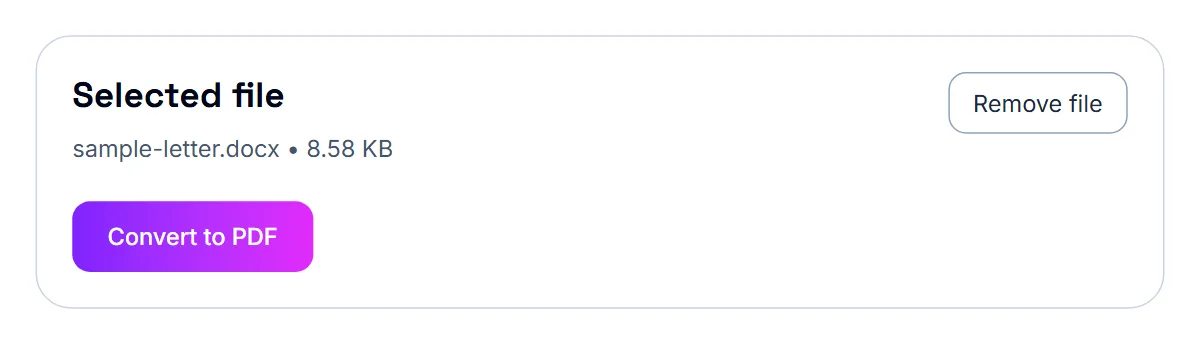
- Check the file name under Selected file
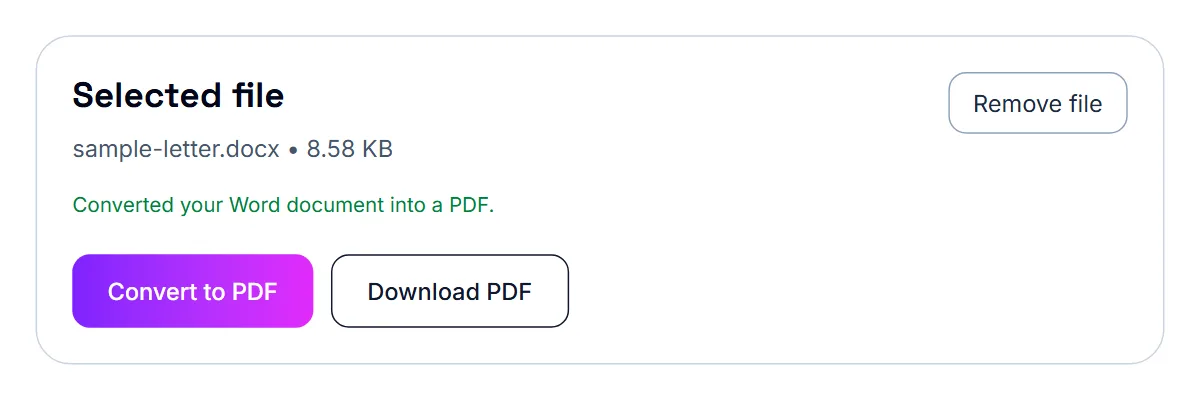
- Select Convert to PDF
- When the status line says the document was converted, select Download PDF
- Open the PDF and scroll through every page before you send it
What converts well, and what doesn't
The converter reads the text and structure of the document: headings, paragraphs, bold and italic text, lists, simple tables and pictures placed in the text. Letters, CVs, essays and reports with a simple layout usually come out cleanly.
Complex Word layouts are drawn as a close approximation rather than an exact copy. Text boxes, multi-column sections, shapes, precise spacing and anything positioned freely on the page may move. Page headers and footers may not carry over. The tool uses fonts with Latin letters (A–Z) only, so text in scripts such as Hindi or Thai will not come out readable.
For a document with a designed layout, or one in a non-Latin script, use Word's own File › Save As › PDF (or Export › PDF) instead. Google Docs and LibreOffice can also download a document as PDF.
When to convert vs. keep it editable
Convert to PDF once a document is finished and ready to share, print, or submit. Keep working in Word while it's still being drafted or revised, and keep the .docx: the PDF is a copy for sending, not the file you edit.
Excel: why convert a spreadsheet to PDF
Invoices, budgets, financial reports, and pricing sheets are usually meant to be viewed, not edited, by the person receiving them. A PDF also avoids the classic spreadsheet problem of columns and print ranges looking different on someone else's screen than they did on yours.
How to convert Excel to PDF
Excel to PDF turns one sheet at a time into a paginated PDF table. It is built for the data in the cells, so check the result if your sheet relies on charts or heavy formatting.
- Open your .xlsx file in Excel to PDF
- Pick the sheet under Sheet to convert, then select Convert to PDF
- Check that the pages break where you expect
- Download the finished PDF
Getting wide spreadsheets to fit the page
Spreadsheets with a lot of columns can end up split awkwardly across multiple PDF pages. Hiding or removing columns the reader does not need, or splitting a very wide sheet into two before converting, usually gives a cleaner result than trying to fix the PDF afterwards.
If it still doesn't work
- “Please select a .docx Word file”: the file is a .doc, .odt, .rtf or .pages file. Save it as .docx first, or use RTF to PDF for .rtf files
- The layout moved: simplify the document (move text out of text boxes, use one column) or export from Word itself
- Some words are missing or unreadable: they may be in a non-Latin script or a special font. Export from Word, Google Docs or LibreOffice instead
- The PDF is too large to upload: run it through Compress PDF, which helps most when the document contains photos
- Nothing happens or you see “Something went wrong”: the file may be damaged or password-protected in Word. Open it in Word, remove the password, save a fresh copy and try again
Your document stays on your device
The conversion runs in your browser. The Word file is not uploaded to a server, which matters for CVs, contracts and letters with personal details.
Frequently asked questions
Will my formatting stay exactly the same in the PDF?
Simple documents usually look the same. Complex layouts with text boxes, columns or shapes come out as a close approximation, so check the PDF, or export from Word itself for an exact match.
Can I convert a .doc file, or does it need to be .docx?
The tool needs .docx. Open a .doc file in Word and save it as .docx first.
Can I still edit the document after converting it?
Not directly — a PDF isn't meant to be edited like a Word file. Keep your original Word document if you might need to make changes later.
Is my document uploaded?
No. The conversion happens in your browser and the file stays on your device.
Will my formulas still work in the PDF?
No — a PDF shows the calculated values from your spreadsheet, not live formulas. If you need the formulas to remain editable, keep the original Excel file.
Will the PDF look exactly like the original file?
Yes, converting to PDF preserves the layout, fonts, and formatting from the original document as closely as possible.