
PDF Guides
How to Split a PDF or Extract Pages Online Free
Splitting a PDF helps you extract only the pages you need. It is useful when a file is too large, includes extra pages, or needs to be separated into smaller documents for upload, email, school, work, or official use.
By GaryLast updated 6 min read
Split a PDFWhy split a PDF file?
Many PDFs contain more pages than you actually need. A school portal, job portal, or government website may ask for one specific document, not a full packet. Splitting the PDF helps you create a cleaner and smaller file.
Common reasons to split PDFs
- Extract only one page from a large PDF.
- Remove blank or unnecessary pages.
- Separate a long scanned document into smaller files.
- Create individual files for invoices, receipts, or forms.
- Reduce file size before uploading or emailing.
How to split a PDF online
- Open Split PDF and select Select PDF File, or drop the PDF onto the box.
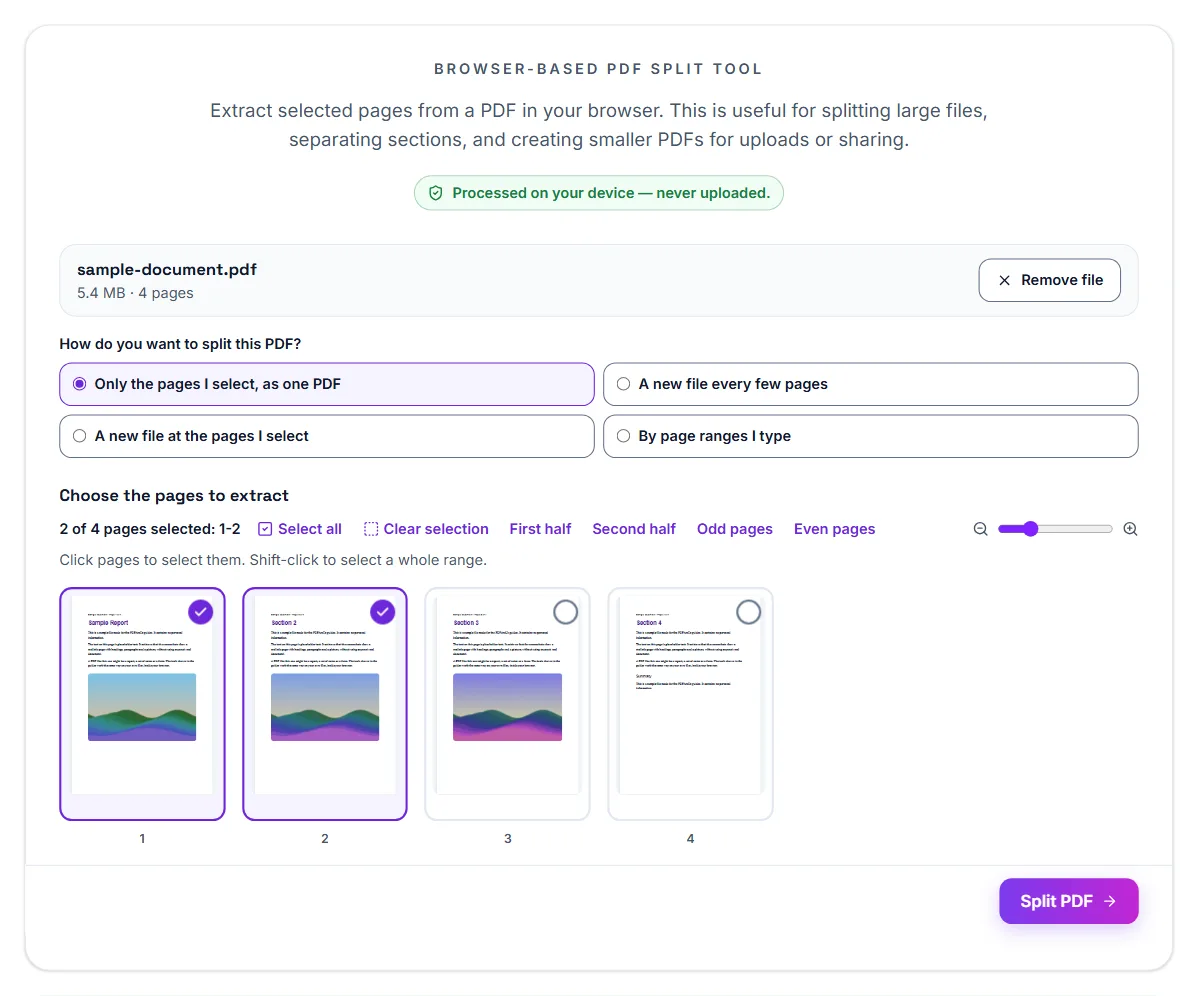
- Under How do you want to split this PDF?, keep Only the pages I select, as one PDF.
- Click the pages you want to keep. They are ticked, and the line above the pages lists them.
- Select Split PDF.
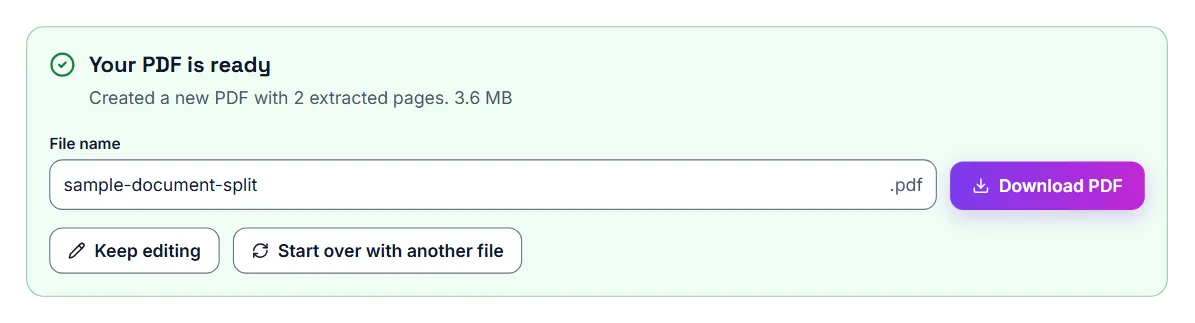
- Under Your PDF is ready, select Download PDF to save the smaller file.
Choosing pages quickly
Split PDF shows every page as a thumbnail. Click a page to select it, or click one page and shift-click another to select everything in between. Select all, Clear selection, First half, Second half, Odd pages and Even pages, above the pages, cover the common cases, such as pulling the front sides out of a double-sided scan.
Splitting one PDF into several files
The other three choices under How do you want to split this PDF? make several files in one go:
- A new file every few pages: type a number under Pages per file. 1 saves every page as its own PDF, and 2 makes files of two pages each.
- A new file at the pages I select: click each page that should start a new file. The first file always starts at page 1.
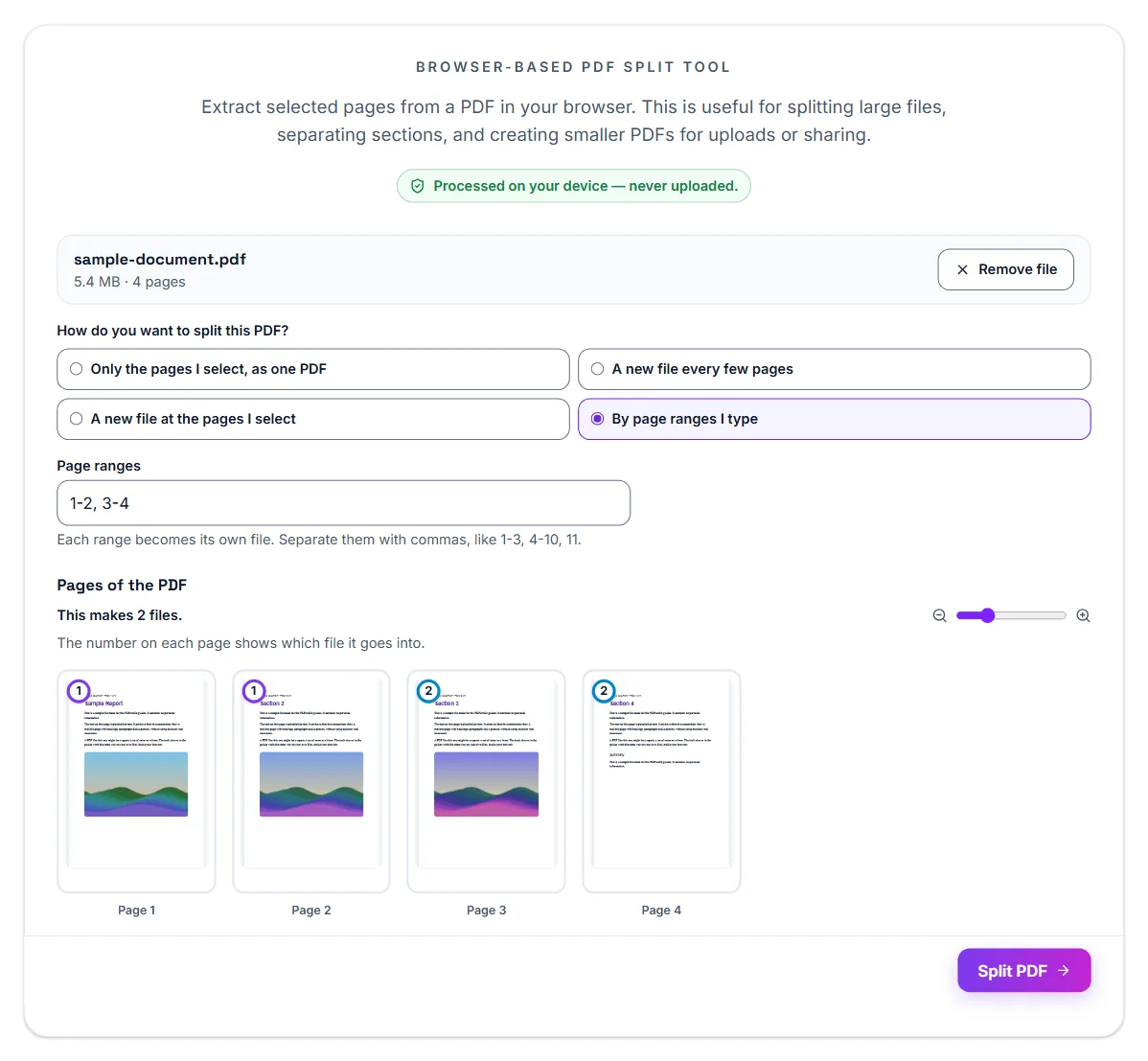
- By page ranges I type: type the ranges under Page ranges, separated by commas, like 1-3, 4-10, 11. Each range becomes its own file.
Downloading the files
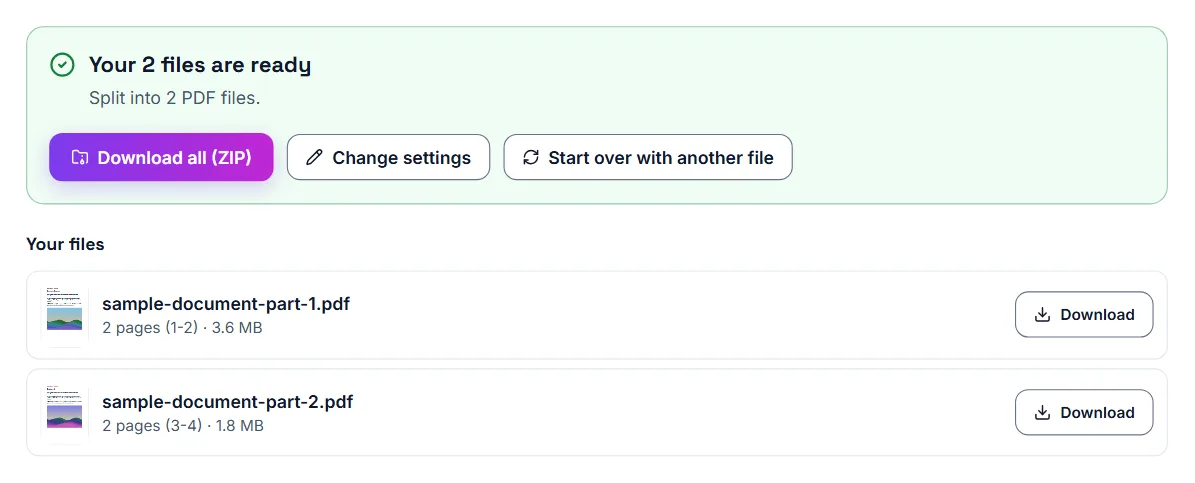
Before you split, the line above the pages says how many files you will get, such as This makes 2 files. After you select Split PDF, Download all (ZIP) saves every file in one ZIP, and the list under Your files has a Download button for each file. Change settings takes you back to the pages if you want different splits.
Example
If your PDF has 20 pages but you only need pages 3 to 5, splitting the file lets you create a new PDF with just those pages. This makes the final document easier to upload and review.
Extracting vs. deleting pages
Extract or Delete Pages works both ways. Under What do you want to do with the selected pages?, choose Extract into a new PDF or Delete from this PDF. Then click the pages, or type them under Or type page numbers, and select Extract Pages or Delete Pages. Choose whichever matches what you want to end up with.
When you extract, Save the selected pages as offers One PDF, or A separate PDF for each page if you want every page in its own file.
On an iPhone: use the browser
Open Split PDF or Extract or Delete Pages in Safari, open the PDF, tap the pages you want, and download a new PDF containing just those pages. No shortcut to build, no app to install, and no permissions to grant beyond picking the file. The steps below use Extract or Delete Pages.
- Open Extract or Delete Pages in Safari on your iPhone
- Tap Select PDF File and choose the PDF from Files
- Keep Extract into a new PDF chosen, and tap the pages you want to keep
- Tap Extract Pages, then Download PDF to save the new PDF with just those pages
On an iPhone: the Shortcuts route (and why it is fiddly)
iPhone's Shortcuts app can extract PDF pages if you build or import the right shortcut, then run it against a file from Files or Photos. It works, but building a shortcut from scratch takes several steps, and running someone else's downloaded shortcut means granting it permissions on your files — more setup than most people want for a one-off task.
University submissions: why students split PDFs
Students often deal with large combined files that include cover pages, notes, transcripts, supporting forms, or scanned packets. But many submission portals only want one part of that file. Splitting the PDF avoids uploading extra pages and helps keep the submission clean.
Common university use cases
- Uploading only a transcript section
- Sending one chapter or assignment from a larger file
- Separating application forms from supporting documents
- Extracting only signed pages
- Submitting one scanned section instead of a full packet
Helpful submission tip
After splitting, check the file size. If the new PDF is still too large for the portal, compress it before uploading. Splitting and compressing together is often the best student workflow.
Split PDFs for job applications
Job portals sometimes ask for separate files such as resume, cover letter, certificates, and references. If all documents are inside one large PDF, splitting helps separate them into the correct files.
When should you use Compress PDF instead?
If you need all the pages but the file is too large, use Compress PDF. If you only need some pages, use Split PDF first. You can also split first and compress afterward.
Check the result
Always review the downloaded file before sending it. Make sure the correct pages are included and the document still looks clear.
Frequently asked questions
Should I upload the whole PDF if the portal only needs one section?
Usually no. It is better to submit only the pages that were requested.
Can splitting help with upload limits?
Yes. A smaller section is usually easier to upload than the full file.
What if I need multiple separate files?
In Split PDF, choose By page ranges I type and type one range for each file the system requires, such as 1-2, 3-5. Each range becomes its own PDF.
Do I need to install anything to extract PDF pages on iPhone?
No. A browser-based extraction tool works directly in Safari with no app or Shortcut needed.
Can I extract multiple separate page ranges at once?
Yes. Select any combination of pages; shift-click selects a whole range in one go.
Can I delete pages instead of extracting them?
Yes. Extract or Delete Pages has both options, and Remove Pages deletes the pages you click or list by number.
Is my file uploaded to a server?
No, if you use a browser-based tool, the PDF is processed entirely on your device.