
PDF Guides
Reduce PDF Size Without Losing Quality
A smaller PDF is easier to email, upload, and share. But compression should not make important text, images, stamps, or signatures unreadable.
By GaryLast updated 5 min read
Compress a PDFHow to compress a PDF and keep it readable
- Open Compress PDF and select Select PDF File, or drop the PDF onto the box.
- Leave Compression level on Balanced for the first try.
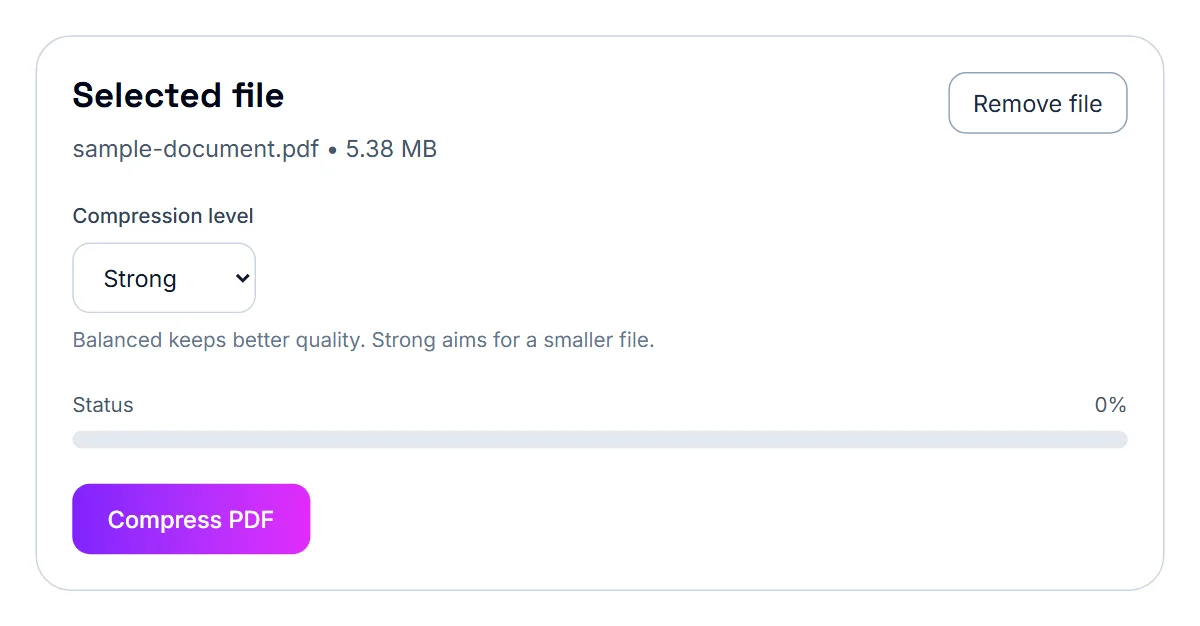
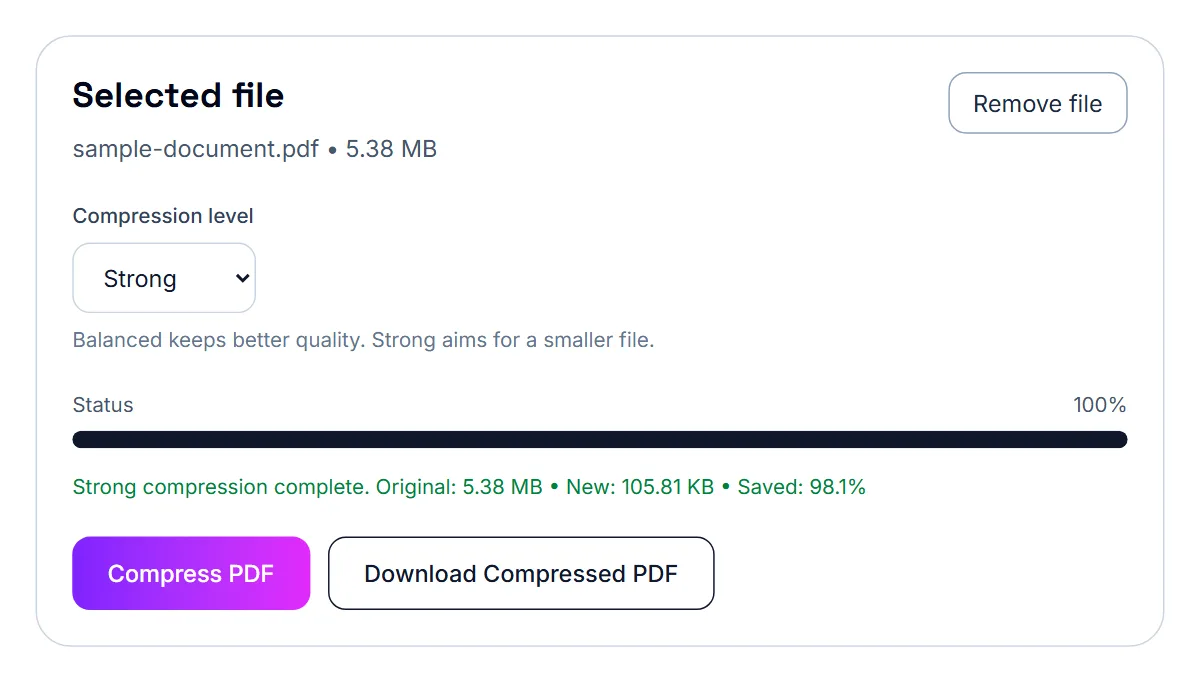
- Select Compress PDF. The status line shows the original size, the new size and the percentage saved.
- Select Download Compressed PDF. The copy is saved with -compressed at the end of its name.
- Open the copy and zoom in on the smallest text, any signature and any stamp before you send it.
What compression does to your pages
It helps to know how the PDFAreUs compressor works before you rely on it. It redraws every page as a picture and saves that picture as a JPEG, then puts the pages back together as a new PDF. Balanced draws the pages at a higher resolution and a higher JPEG quality than Strong, which is why it looks sharper and produces a bigger file.
That has three consequences worth knowing. The text in the compressed copy is part of the picture, so it can no longer be selected, copied or searched. Links and fillable form fields stop working. And very small print can look softer, especially with Strong. For scans and photos this costs nothing, because those pages were pictures already. For a text document you need to search or edit, keep the original, and send the compressed copy only where size matters more.
Tips to keep quality high
- Start with a clear original file.
- Avoid compressing the same PDF many times.
- Remove unnecessary pages before compressing.
- Use JPG to PDF only when images are needed.
- Check the final PDF before submitting it.
When quality matters most
Quality is especially important for resumes, certificates, passports, IDs, immigration files, invoices, signed forms, school assignments, and legal documents.
Why some PDFs shrink a lot and others barely change
Most of a large PDF’s size is usually images: scanned pages, photos, logos exported at print resolution. Compression works mainly by storing those images more efficiently, so image-heavy files shrink the most.
A PDF that is mostly real text, such as a report exported from Word, is often small already. If the compressor reports that the file did not get smaller, it offers no download, and that is normal for this kind of document: the original is fine to send.
Balanced or Strong?
Start with Balanced, which keeps better quality. Check the result: zoom into small print, signatures and stamps. Only switch to Strong if the file is still too large for where it is going.
- Balanced: contracts, certificates, anything with fine print or signatures.
- Strong: long scans, photo-heavy handouts, files with a strict upload limit.
Why scanned PDFs become large
When you scan documents, each page may be saved as a high-resolution image. This can make even a short document very large, especially if it includes colour pages, photos, signatures, stamps, or multiple scans.
How the compressor treats a scan
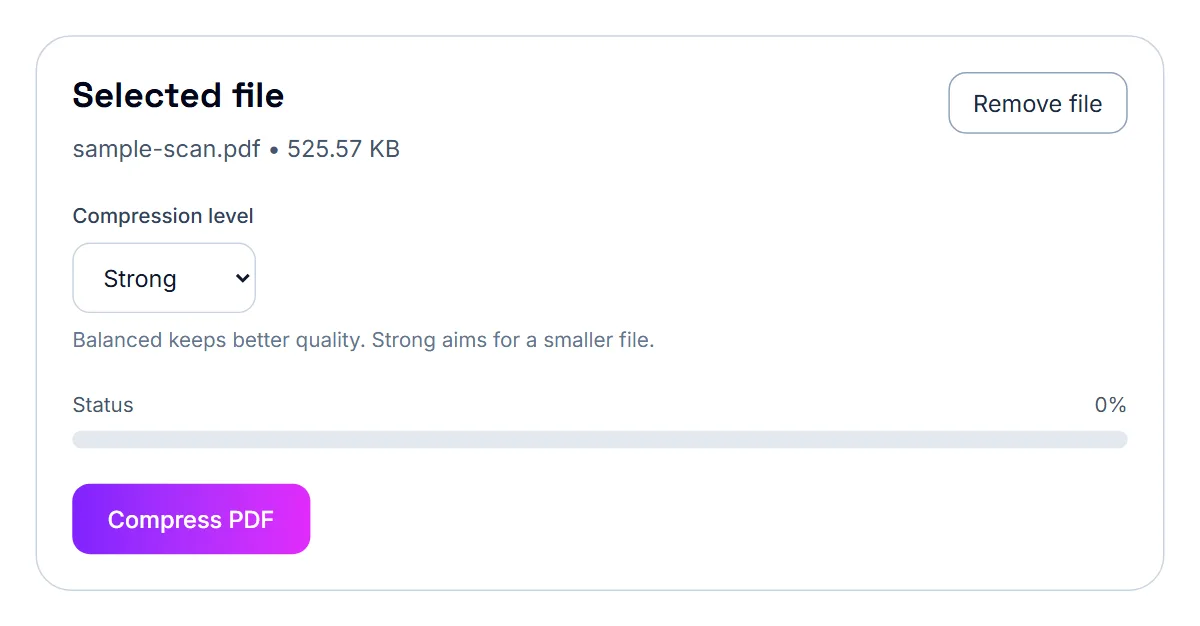
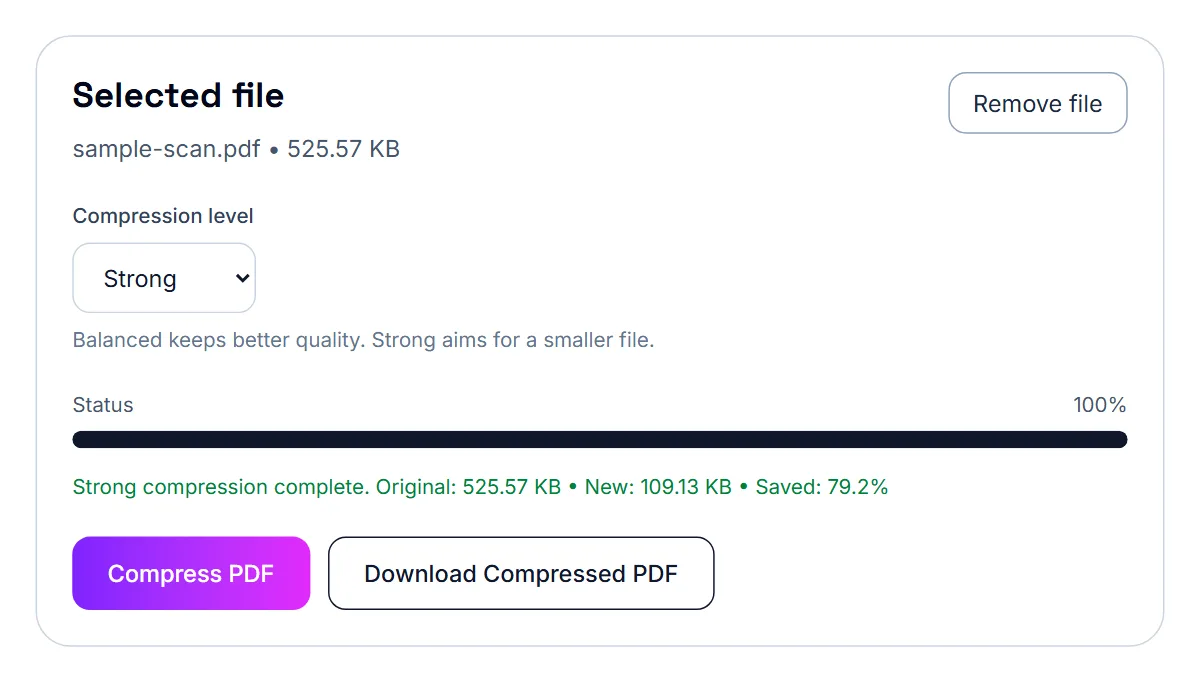
The compressor redraws each page as a JPEG picture at a lower resolution than most scanners use, which is where the saving comes from. A scan is already a set of pictures, so nothing changes about how you use the file: it looks the same, just lighter. Strong uses a lower resolution and a lower JPEG quality than Balanced, so very small print is the first thing to soften.
Scan smaller in the first place
Scanner and phone settings decide most of a scan’s size. If you are about to rescan, a few choices make the file much lighter before compression even starts.
- Use greyscale or black and white for text documents; colour multiplies the size.
- Use a normal document resolution rather than the scanner’s maximum photo setting.
- Scan only the pages you need, and skip blank backs of single-sided pages.
Phone scans
A phone photo of a page is usually far larger than the page needs to be. Photograph on a flat surface in even light so the page fills the frame, then turn the photos into one PDF with Scan to PDF or JPG to PDF and compress the result.
Documents to review carefully
Review passports, IDs, certificates, immigration forms, legal papers, receipts, invoices, and signed documents after compression. If any important detail looks blurry, use a clearer scan or split the document into smaller files.
Do not over-compress scanned documents if signatures, stamps, names, or dates become hard to read.
Getting the text out of a scan
Compression does not make text in a scan selectable. If you need the words themselves, for example to paste them into a form, use OCR PDF: it recognises English text in the scan and gives it to you as text you can copy or download as a .txt file. OCR runs in your browser, so it is slower than compression, but the document never leaves your device.
Reduce the content before compressing it
The cleanest way to keep quality is to send less. Remove pages the recipient does not need, extract only the relevant section, and delete blank scanned pages. A shorter file can then use the lighter compression level and still fit.
Keep the original
Save the compressed copy under a new name and keep the original. If someone later asks for a clearer copy, or you need to print it, you still have the full-quality version.
If it still doesn't work
- “This PDF did not get smaller”: the file is mostly text and already compact. Send the original, or try Strong only if a size limit forces you to.
- Small print or a signature is blurred: go back to the original and use Balanced, or remove pages first so the lighter setting is enough.
- Still too large on Strong: split the file with Split PDF and send it in parts, or remove pages you do not need with Remove Pages.
- The recipient needs to search or copy the text: send the original instead; the compressed copy's pages are images.
- The browser tab stops responding on a very long file: compression happens on your device, so split a long file into parts and compress each one.
Frequently asked questions
Can a PDF be compressed with no quality loss at all?
Not with this tool, because it rewrites each page as a JPEG image. The loss on Balanced is small for most documents; check the result at full zoom before you send it.
Will my text still be selectable?
No. The compressed copy's pages are images. Keep the original if you need to search or copy text.
Is my file uploaded?
No. Compression runs in your browser and the file stays on your device.
Which level should I use for a scan?
Try Strong for typed or printed pages and check the result. Use Balanced for scans with small print, handwriting, photos or official stamps.
Can I compress the same scan twice?
You can, but each pass loses a little more detail. Compress the original again with a different level instead.