
PDF Guides
How to Add Page Numbers to a PDF Online
Long reports, theses, and legal documents are much easier to reference when every page is numbered. If the PDF you're working with doesn't have page numbers, you can add them without opening the original source file.
By GaryLast updated 4 min read
Add page numbersWhen you need to add page numbers after the fact
Not every document starts out with page numbers. PDFs created from scans, exported from design tools, or merged together from several separate files often end up without them — and re-exporting from the original source isn't always possible.
How to add page numbers
You can add consistent numbering to the whole document in a few steps.
- Open your PDF
- Choose where the numbers should appear (top or bottom, left, center, or right)
- Set the starting number if you don't want to begin at 1
- Apply the numbering and download the file
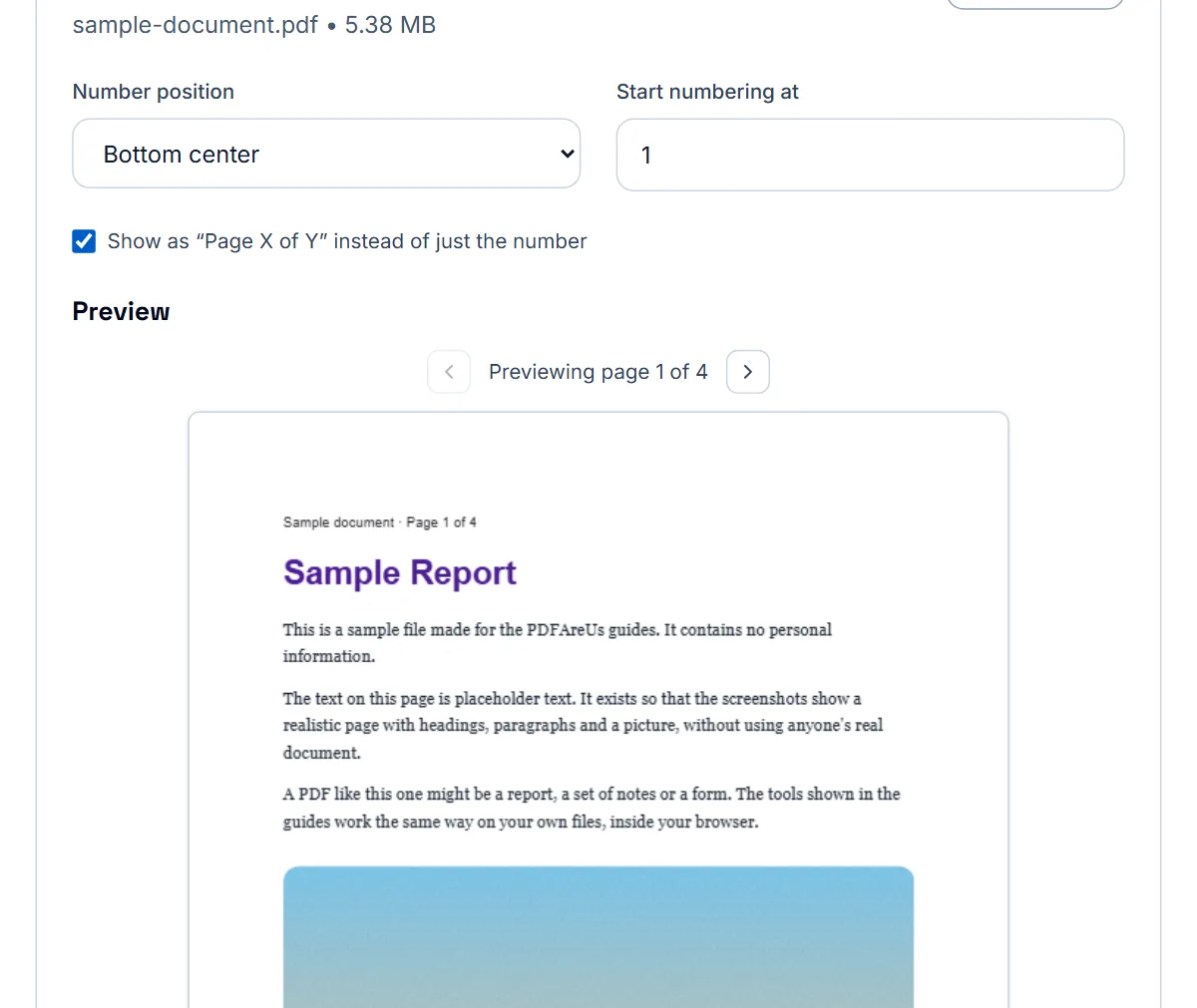

Choosing where the number goes
Number position offers six presets: bottom centre, bottom left, bottom right, top centre, top left and top right. Bottom centre suits most reports. Use a corner when the centre of the footer already holds text, and the top of the page when the bottom carries a footer or a signature line.
If none of the presets fits, drag the number on the preview to wherever it should sit; the position then shows as Custom. The preview updates as you change the settings, so check that the number does not land on existing text before you apply it.
Page X of Y
Tick “Page X of Y” to show the total as well, for example Page 3 of 12 instead of 3. It helps a reader see at a glance whether pages are missing, which is why it is common on contracts, court filings and multi-page forms.
Numbering a merged document correctly
If you've combined several PDFs into one — for example, a cover page, a report, and an appendix — add page numbers after merging, not before. That way the numbering runs continuously through the whole combined file instead of restarting in each section.
When you'd want a custom starting number
This comes up any time a PDF is meant to be read as a continuation of something else — an appendix that should keep numbering from the main report, a chapter split out as its own file that needs to slot into a larger printed binder, or a scanned document that's a continuation of pages you've already numbered by hand.
Setting a custom start number
Open the page numbering tool, choose your PDF, and set the starting number field to whatever the first page should display — for example, entering 12 makes the first page show "12," the second page "13," and so on through the rest of the document. Choose the position (bottom center is the most common) and download the numbered file.
- Open your PDF in the page numbering tool
- Set the starting number to whatever the first page should show
- Choose the position for the numbers
- Download the file and check the first few pages match what you expected
A note on mixed numbering styles
This approach applies one consistent numbering style and starting point across the whole file. If you need genuinely different numbering formats within the same document — for example, roman numerals on a few front pages and Arabic numbers everywhere else — that typically requires numbering each section as a separate file with its own settings, then merging them together afterward.
After numbering
Open the numbered PDF and look at the first page, a middle page and the last page. Numbers are added to every page, including a cover page, so if the cover should stay unnumbered, number the rest of the document as its own file and merge the cover back in afterwards. Keep the original file in case you need to renumber.
Frequently asked questions
Can I start numbering from a page other than 1?
Yes. You can set a custom starting number, which is useful when a cover page or table of contents shouldn't count toward the numbering.
Where can the page numbers be placed?
You can typically choose top or bottom of the page, and align them left, center, or right.
Should I merge my PDF first or add page numbers first?
Merge first, then add page numbers, so the numbering is continuous across the entire combined document.
Can I make my PDF start at page 12 instead of 1?
Yes, set the starting number to 12 in the page numbering tool, and every page numbers sequentially from there.
Can I use roman numerals for some pages and regular numbers for others?
Not within a single numbering pass. Number each section separately with the style you want, then merge the sections into one file.
Is my file uploaded to a server?
No, if you use a browser-based tool, numbering happens entirely on your device.