
PDF Guides
How to Convert a PDF to Markdown or Plain Text (for Notes and AI Tools)
Markdown is the plain-text format behind most documentation sites, wikis, and READMEs. If the content you need lives in a PDF, converting it to Markdown makes it easy to drop into a docs platform, a static site generator, or a note-taking app without carrying over PDF formatting baggage.
By GaryLast updated 6 min read
Convert PDF to MarkdownWhy Markdown instead of Word or plain text
Plain text loses structure — headings, lists, and emphasis all flatten into the same block of text. Markdown keeps that structure using lightweight syntax that renders correctly in GitHub, Notion, documentation platforms, and static site generators, which makes it a better target than Word for technical or web-based content.
It also beats copying text straight out of a PDF viewer, which tends to bring along odd line breaks, uneven spacing and no heading structure. A converted .md file has consistent formatting that note apps and editors parse cleanly.
How to convert PDF to Markdown
The tool extracts the text and reconstructs the structure as Markdown syntax.
- Open PDF to Markdown and select Select PDF File, or drop the PDF onto the box
- Under Pages to convert, every page is selected to start with. Click a page to leave it out, or type page numbers
- Select Convert to Markdown
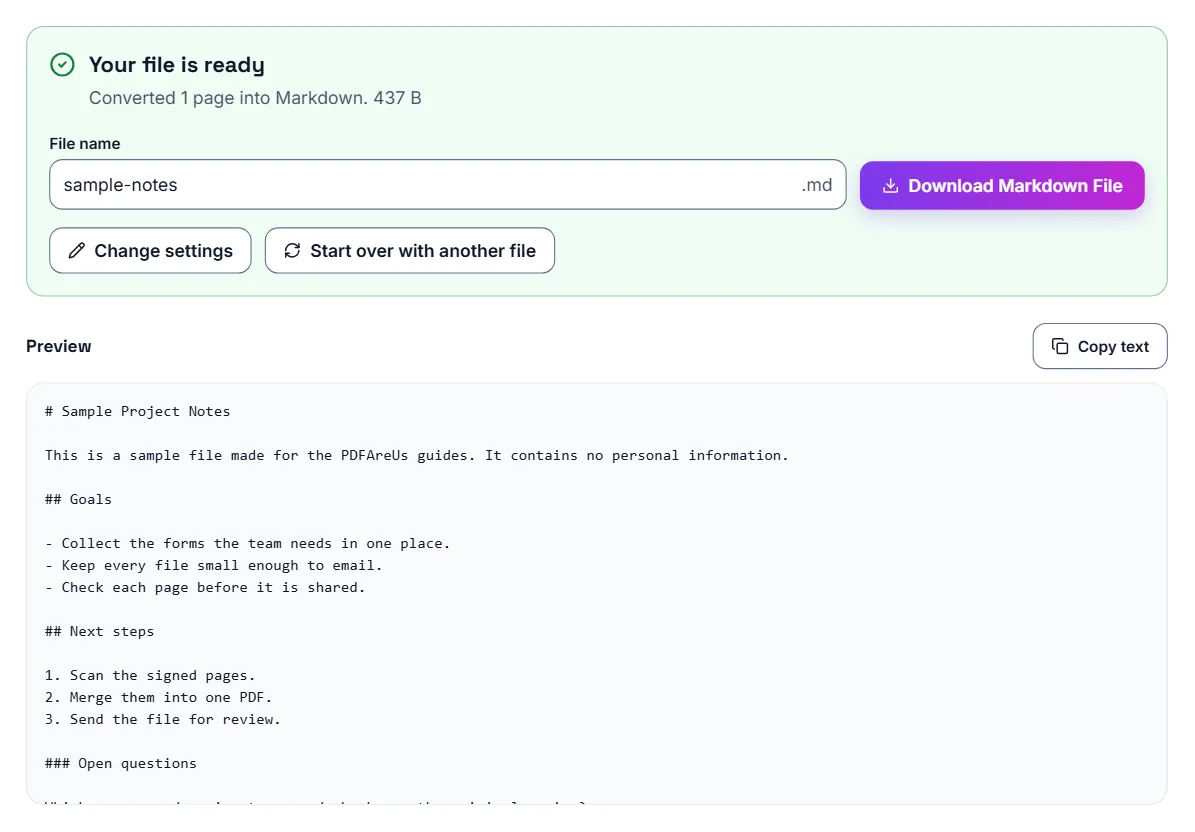
- Read the Preview under Your file is ready. Copy text copies all of it
- Select Download Markdown File to save the .md file
What converts cleanly
Headings, paragraphs and lists convert best. Lines that start with a bullet become - list items, and lines that start with a number, such as 1. or 2), become a numbered list. That works when the bullet or number is part of the PDF's text; some PDFs draw bullets as little shapes, and then the items run together into one paragraph. Lettered items such as a) stay as plain lines.
Tables, multi-column layouts and heavily designed pages come through as plain paragraphs and need some manual cleanup. Bold and italic text is not marked, and images are left out.
How the converter decides what is a heading
The converter compares text sizes. Short lines set clearly larger than the body text become headings: the largest size is a # heading, the next ## and any smaller heading sizes ###. That works well for reports, articles and notes with clear heading sizes. Documents where everything is the same size come out as plain paragraphs, which you can tidy up in any Markdown editor.
The lines of a paragraph are joined into one, and a word split with a hyphen at the end of a line is put back together. A horizontal rule (---) marks where each PDF page ends.
Scanned PDFs need OCR instead
If the tool warns that the PDF looks like a scan, or reports that very little text was found, the PDF is a scanned image with no real text in it. OCR PDF can recognise the words in the scan (English text) and give them to you as a .txt or Word file, which you can paste into a Markdown editor and add headings to.
Using the file in Obsidian or Notion
You do not need an Obsidian plugin to bring a PDF into your notes: the converter gives you an ordinary .md file.
- Obsidian: move the .md file into your vault folder and it appears as a new note
- Notion: open the .md file in any text editor, copy its contents and paste them into a page
- Then tidy any headings or lists that did not come through the way you want
Where to use the Markdown file
The .md file opens in note apps such as Obsidian and Notion, in code editors, and on platforms like GitHub. It is also a compact way to give an AI assistant the text of a document without the formatting overhead of the original PDF.
For AI chatbots: paste the text instead of the whole PDF
Some AI chat tools don't support file uploads at all, especially on free tiers. Others do, but process the document more slowly or less reliably than plain pasted text. And if you only need the AI to look at a page or two out of a much longer document, extracting just the text you need is quicker than uploading the whole file and asking it to find the relevant section.
How to get the text out
The process is the same regardless of which AI tool you're pasting into afterward.
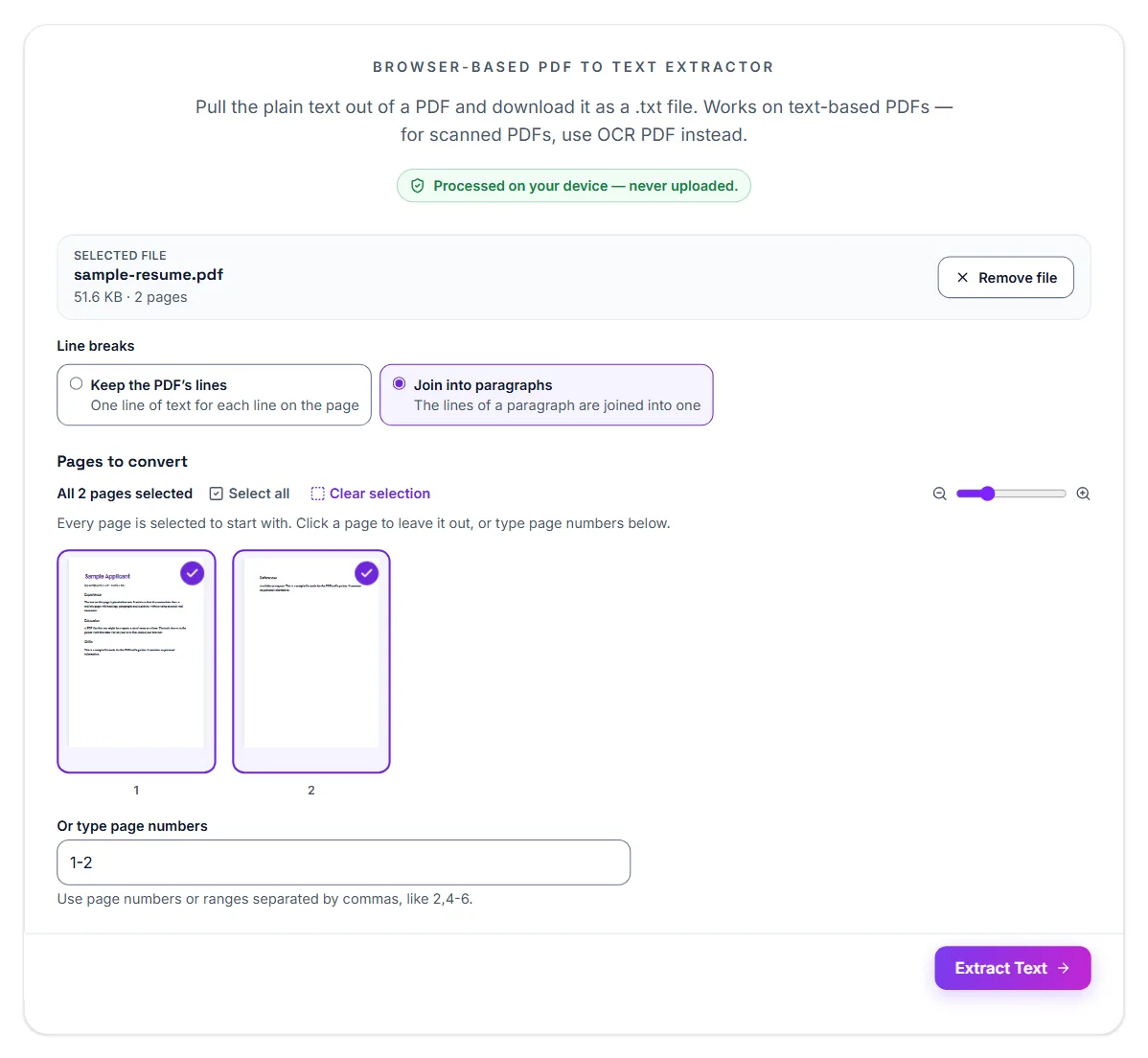
- Open PDF to Text and select Select PDF File
- Under Line breaks, keep Keep the PDF’s lines, or choose Join into paragraphs so each paragraph is one line, which pastes more cleanly into a chat box
- Leave every page selected, or click the pages you don't need
- Select Extract Text
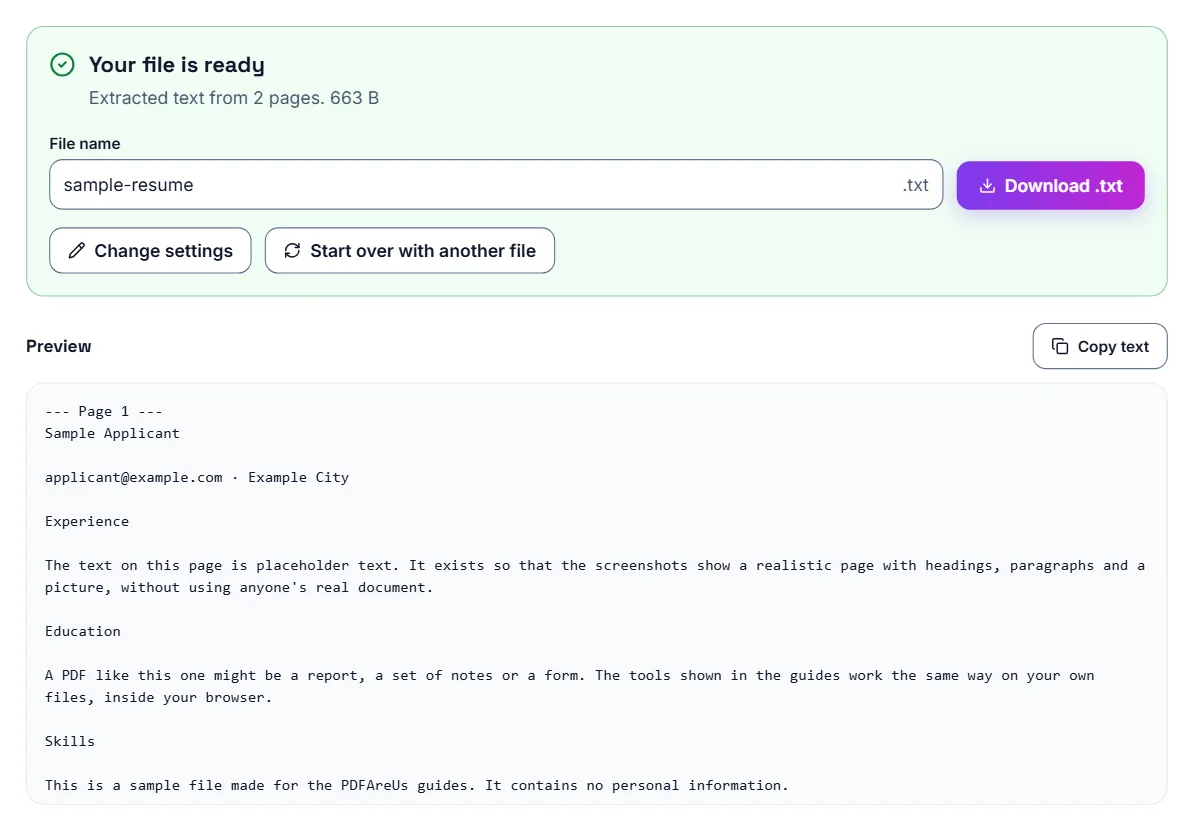
- Select Copy text, next to the Preview heading, or Download .txt to save the file
- Paste it into your AI chat tool of choice
What the text file looks like
When you extract more than one page, each page starts with a line such as --- Page 2 ---, so you can tell where the pages break. The text keeps its reading order from top to bottom; text in two columns is read straight across the page, so check those parts.
Trimming down a long document first
If you only need the AI to look at a specific section of a long PDF — one chapter, one clause, a few pages — select only those pages under Pages to convert. That keeps the amount of text you're pasting manageable, and keeps the AI's attention on the part that actually matters.
What this is actually useful for
Summarizing a long report before a meeting, asking an AI tool to explain a dense clause in a contract, pulling key numbers out of a research paper, or getting a second read on an essay before submitting it are all common reasons people extract text this way. In each case, the AI only needs the words — not the PDF's layout, page numbers, or formatting — so plain text is the more efficient input.
A word on privacy with third-party AI tools
Extracting the text is entirely local to your browser and doesn't involve any server. What happens after you paste that text into an AI chat tool is a separate matter, governed by that tool's own privacy policy — worth a quick check if the document contains anything sensitive.
Frequently asked questions
Will headings and lists be preserved?
Mostly. Headings are detected from larger text and written as #, ## or ### headings, and lines that start with a bullet or a number become Markdown lists. Bold, italics and tables are not kept.
What's this useful for?
Common uses include moving PDF content into documentation sites, wikis, static site generators, or note-taking apps that use Markdown.
Will tables convert accurately?
No. Table cells come through as plain lines of text, so rebuild a table by hand in Markdown if you need it.
Do I need an Obsidian plugin to use the result?
No. The converted file is a plain .md file you can open directly as a new note or paste into any notes app that supports Markdown.
Why does my Markdown file have almost no text?
The PDF is probably a scanned image with no real text; the tool warns about this when you open the file. Use OCR PDF to recognise the text and download it as a .txt or Word file instead.
Does extracted text keep the original formatting?
No — the output is plain text. Tables, columns, and visual layout aren't preserved, which is usually fine since AI chat tools mainly need the words, not the formatting.
Is this better than just uploading the PDF to the AI tool directly?
It depends on the tool. Some AI chat tools don't accept file uploads at all, and even ones that do can be slower or less consistent with a full PDF than with plain pasted text, especially for a document with a lot of layout or images.
Is my file uploaded to a server?
No. Text extraction runs entirely in your browser. Your PDF is never uploaded to a server, and nothing is stored — what you do with the extracted text afterward, including pasting it into a third-party AI tool, is a separate step you control.