
PDF Guides
How to Prepare a Job Application PDF (Merge, Order and Size)
Many job portals and hiring teams prefer one clean PDF instead of several separate files. Merging your resume, cover letter, and supporting documents can make the application look more organized and easier to review.
By GaryLast updated 6 min read
Merge PDFsWhy merge documents for an application
Employers and portals often work better with one final file. Instead of uploading multiple attachments, a merged PDF keeps your application neat, reduces confusion, and helps the reviewer see everything in one place.
What to include in the final PDF
- Resume
- Cover letter
- Certificates or licenses
- Portfolio or writing sample pages
- Reference letters if requested
Best order for the pages
Unless the job advert says otherwise, put the documents in the order a reviewer reads them:
- Cover letter
- Resume or CV
- Portfolio samples, if required
- Certificates or references, if requested
Why PDF is safer than Word for a resume
A Word document can shift its layout depending on the fonts installed on the reader's computer, or the version of Word (or alternative software) they're using. A PDF looks the same everywhere — the spacing, fonts, and page breaks you see are exactly what the hiring manager sees.
Convert Word documents to PDF first
If your resume or cover letter is a Word document, convert each one with Word to PDF before merging. The tool accepts .docx files; save an older .doc file as .docx in Word first. Converting locks in your fonts and layout, so the pages look the same on the recruiter’s screen.
Simple steps to merge PDFs
- Gather the files: Put the resume, cover letter, and any supporting documents in the correct order first.
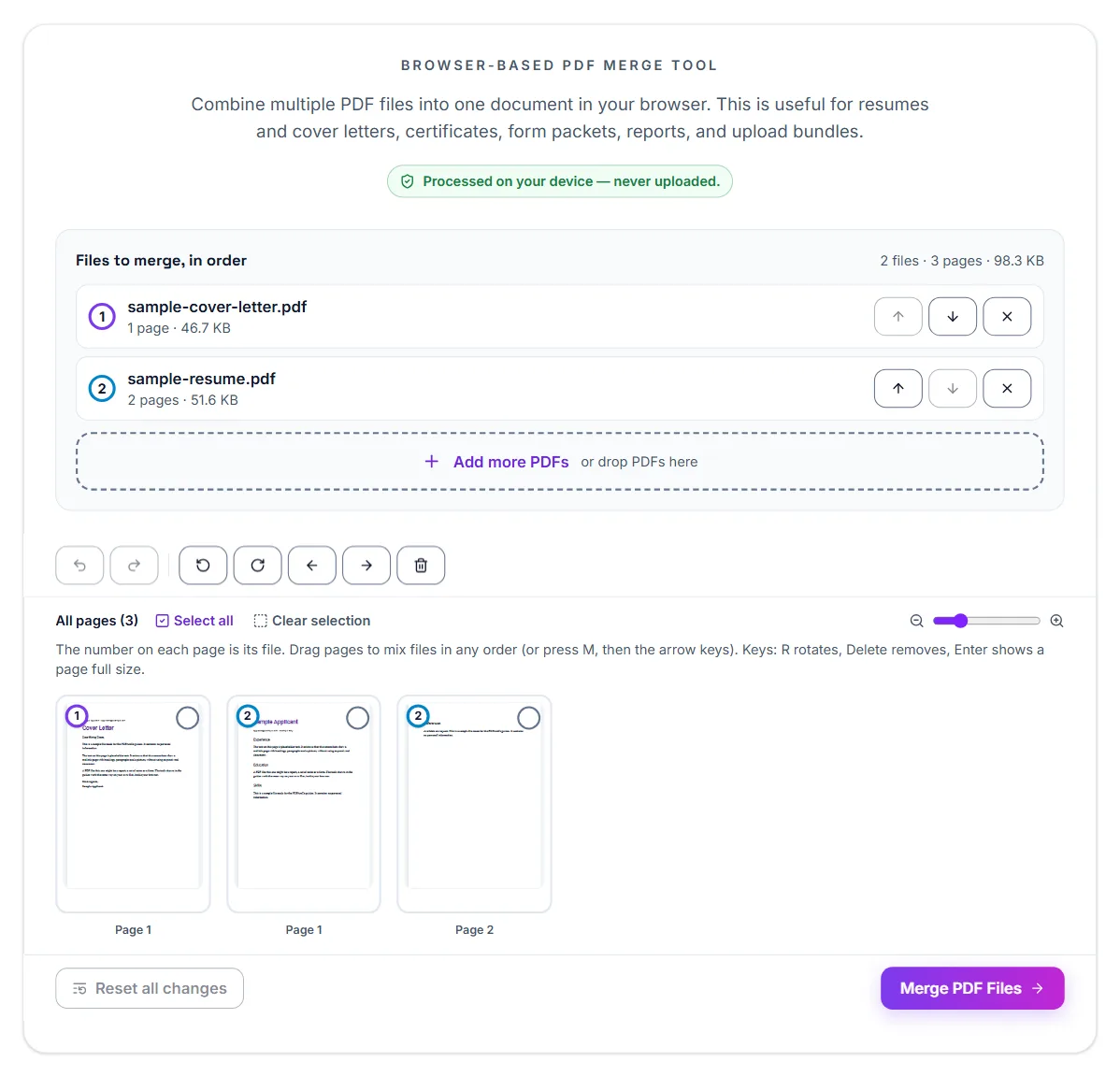
- Open the merge tool: Add all the PDFs you want to combine into one file.
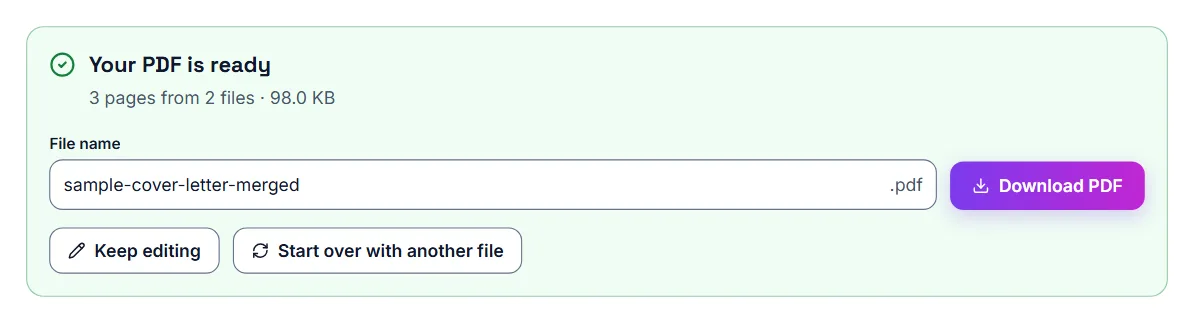
- Download the final file: Save the merged document and review it before submitting the application.
Arranging pages after you add the files
After adding your PDFs, you can move whole files up or down, and rearrange, rotate or delete individual pages before merging. That makes it easy to drop a blank page from a scanned certificate or put the cover letter in front of the resume.
Password-protected PDFs
Some certificates and transcripts arrive password-protected. The merge tool asks for the password when it opens such a file, and the merged result is not password-protected. If the employer needs the combined file protected, add a password afterwards with Protect PDF.
Why job portals have PDF limits
Employers receive many applications, so smaller files are easier to store, review, and share internally. Large PDFs can also slow application systems down, which is why a portal may reject a file without much explanation.
Why a resume PDF ends up oversized
Most bloated resume PDFs fall into one of two categories: a design-tool export (Canva, a resume builder, or a template with a background graphic) that embeds a large, uncompressed image, or a scan/photo of a printed resume saved as a PDF. A plain text-based resume exported from Word or Google Docs is almost never a problem.
How to shrink an oversized resume
The fastest fix, in order of what to try first.
- If you have the original Word or Docs file, export a fresh PDF from it instead of compressing an old one — this usually solves the problem outright
- If a background image or design element is the cause, shrink or remove that image in the original file and export the PDF again. Compressing here turns every page into an image, so hiring software could no longer read the text of your resume
- If it is a scan of a printed resume, compress it with the Balanced level; a scan is already an image, so nothing is lost by compressing it
- Check the result still looks sharp on screen before submitting
If the PDF is still too large
- Remove pages the employer did not ask for.
- Merge only the documents requested in the job posting.
- Keep large photos, decorative graphics, and scanned pages out of your resume unless they are requested.
- Compress the final file again and check it before submitting.
Match the file to what the portal actually wants
Most US job portals ask for a PDF specifically — it preserves formatting across every device and printer, unlike a Word doc that can reflow unpredictably. Double-check the specific portal's stated limit (often 2–5MB) rather than assuming; a handful of larger companies allow more.
If a portal specifically asks for a Word document
Some applicant tracking systems parse Word documents more reliably than PDFs into their own database fields, and occasionally list .docx as the required format. Follow whatever the specific application asks for — when there's a choice, PDF is the safer default.
When not to merge
Follow the application instructions. If the portal has separate fields for the resume, cover letter and certificates, upload each document to its own field. A merged file uploaded into the resume field may be read as one long resume by the system that parses it. Merge when there is one field, or when the employer asks you to email a single file.
Best practice before submission
After merging, check the file size. If the final application PDF is too large, compress it before uploading. Compression turns the pages into images, so where a system needs to read the text of your resume, upload the resume uncompressed and compress only the scanned supporting documents.
Then open the merged PDF and scroll through every page:
- The cover letter is addressed to the right company and role
- You attached the latest version of your resume, not an old one
- No page is sideways or upside down, and there are no blank pages between documents
- Your contact details are the same in every document
Name the final file
Give the merged PDF a name the employer can recognise in a folder of applications, such as FirstName-LastName-Application.pdf, rather than merged.pdf or a long download name.
Portal file size limits
Every figure below comes from the official page linked next to it. Portals change their limits, so confirm on the portal before you submit.
| Portal | Document | Limit | Source |
|---|---|---|---|
| Job Bank | Uploaded resume | 5 MB | Job Bank Help: How do I upload my own resume? |
- Job Bank Help: How do I upload my own resume?: checked
Frequently asked questions
Should I merge my resume and cover letter?
If the employer or portal prefers one file, yes.
What order should the pages be in?
Usually cover letter first, then resume, then supporting documents.
What if the final PDF is too large?
Compress the merged file before submitting it.
Will compressing hurt how ATS software reads my resume?
It can. The PDFAreUs compressor redraws each page as an image, so the text in the compressed copy can no longer be read by applicant tracking software. For a text-based resume, export a smaller PDF from the original document instead, and keep compression for scans and photo-heavy supporting documents.
What if my resume is a scanned copy with no selectable text?
Re-create it as a real document if at all possible — a scanned image can't be parsed by most ATS software regardless of file size, since there's no text for it to read.
Is my resume uploaded to a server when I compress it here?
No. Compression runs entirely in your browser, so your resume never leaves your device before you submit it yourself.
Should I submit my resume as a Word doc or PDF?
PDF, unless the application specifically asks for a Word document. PDF preserves your formatting consistently across every device and viewer.
Will an applicant tracking system still be able to read my PDF?
Yes, as long as your resume is a real text-based document (exported from Word, Google Docs, etc.) and not a scanned image, which most ATS software can't parse.