
PDF Guides
How to Organize PDF Pages: Reorder, Rotate, Remove and Crop
When a PDF's pages are in the wrong order, contain a section you no longer need, or mix documents that were scanned together, organizing lets you fix all of it visually — by dragging page thumbnails instead of editing the file blind.
By GaryLast updated 9 min read
Organize a PDFWhat page organizing covers
Organizing a PDF is really three tools in one: reordering pages, deleting the ones you don't need, and rotating any that are sideways — all from the same visual thumbnail view.
How to organize a PDF
Because you can see every page as a thumbnail, the process is visual rather than guesswork.
- Open your PDF
- View every page as a thumbnail
- Drag pages into the order you want
- Delete or rotate individual pages as needed
- Download the reorganized PDF
A common use case: scanned batches
Documents scanned from a feeder tray often come out in the wrong order, with a stray blank page or two, and a handful of sideways pages. Organizing lets you fix the whole batch — reorder, delete the blanks, rotate the sideways ones — in one pass instead of three separate tools.
Which tool to use: Organize, Reorder or Merge?
Use Reorder Pages when you only need to change the order: drag the page thumbnails, or type the order as page numbers. Use Organize PDF when you also want to rotate or delete pages at the same time. If the pages come from several files, Merge PDF lets you arrange files and pages as you combine them.
Reordering: how pages end up out of order
This usually happens when pages are scanned out of sequence, when several PDFs are merged in the wrong order, or when an export process doesn't preserve the order you expected. Fixing it after the fact is much faster than rescanning or rebuilding the document from scratch.
How to reorder pages
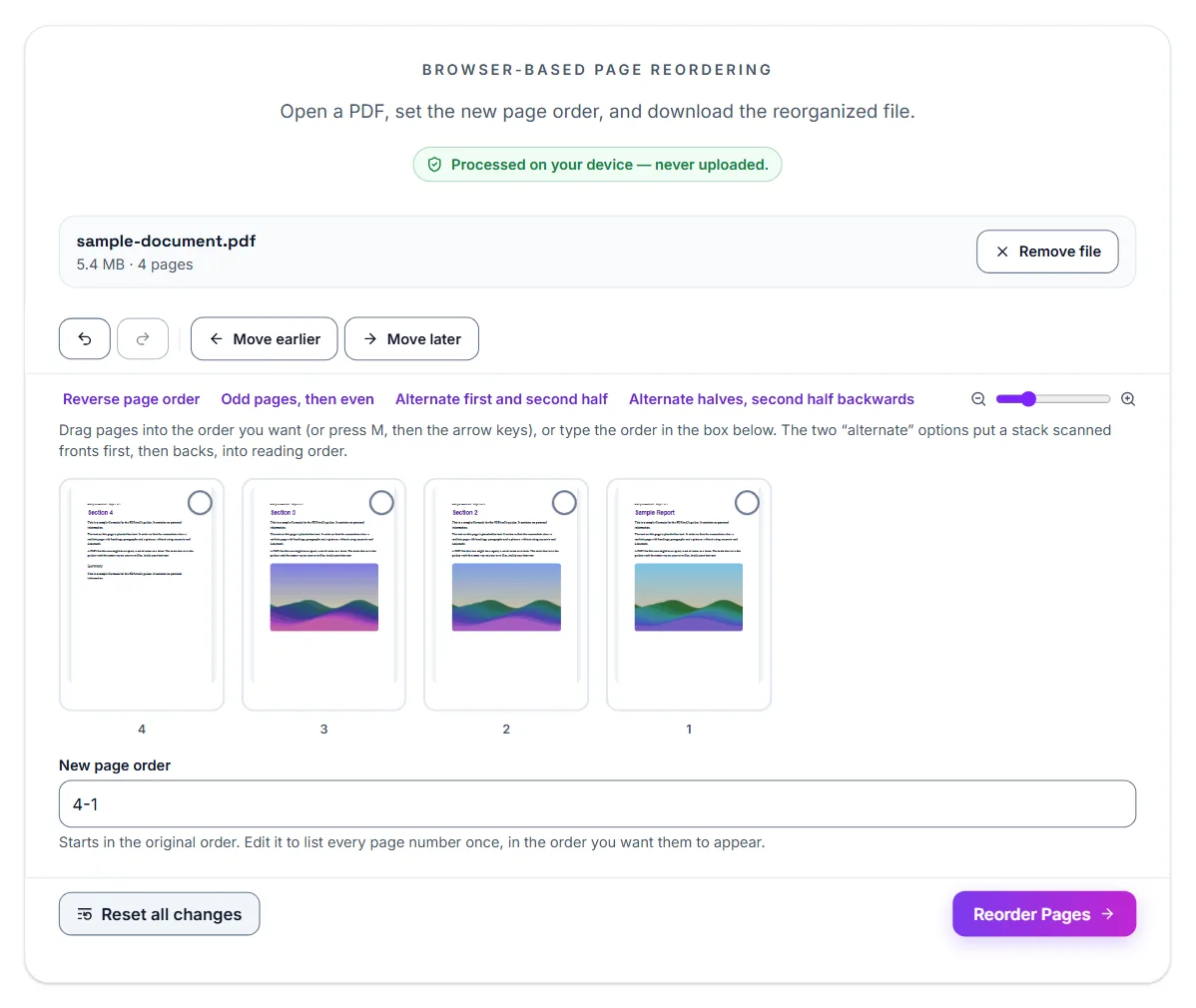
Reorder Pages shows every page as a thumbnail, in its original order, with the order also written out as numbers in the New page order box underneath.
- Open Reorder Pages and select Select PDF File, or drop the PDF onto the box
- Drag each page to where it belongs. With a keyboard, press M on a page, then the arrow keys; on a phone, touch and hold a page, then drag it
- To move several pages together, click them (shift-click selects a range), then use Move earlier or Move later
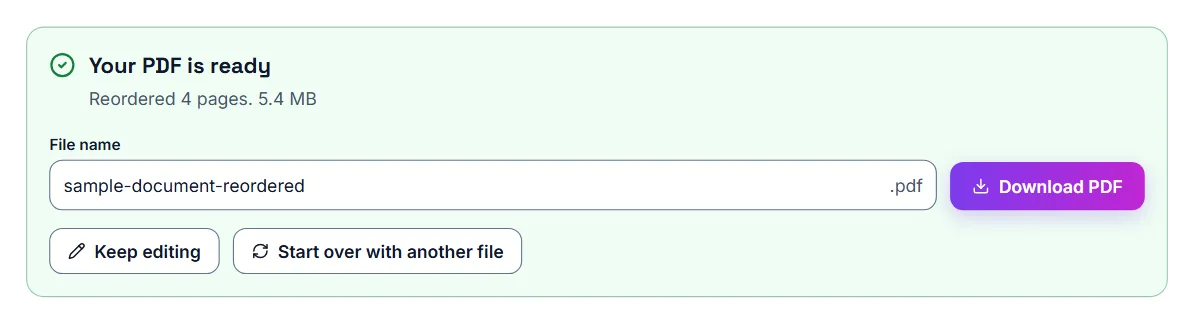
- Select Reorder Pages. Under Your PDF is ready, select Download PDF
Reordering by page number
The New page order box starts with the pages in their original order. Edit it so every page number appears exactly once, separated by commas, in the order you want. For a 5-page file, 1,3,2,4,5 swaps pages 2 and 3. The box can also show a run of pages as a range: 1-5 is the original order, and 5-1 is the same pages backwards. The pages move to match when you leave the box or press Enter, and dragging a page updates the box.
If a number is missing or repeated, the tool tells you before it builds the file, so you cannot accidentally drop a page. Reset all changes puts every page back where it started.
Fixing a two-sided scan in one click
Above the pages are four shortcuts. Reverse page order flips the whole document, which helps when a stack was scanned back to front. Odd pages, then even puts pages 1, 3, 5 first and 2, 4, 6 after them.
The other two are for a stack scanned on a one-sided scanner, fronts first and then backs. If the backs came out in the same order as the fronts, Alternate first and second half puts each back after its front. If you turned the stack over to scan the backs, so they came out last sheet first, use Alternate halves, second half backwards.
Rotating: why pages end up sideways
Rotated pages usually come from scanning a document in landscape orientation, taking a photo of a page sideways, or receiving a file that was saved incorrectly by another program.
The problem compounds when a PDF has some pages right-side up and others sideways — common with multi-page scans from an automatic feeder.
How to rotate a PDF in your browser
You don't need Adobe Acrobat or any desktop software to fix page orientation. Nothing changes in your file until you download it.
- Open Rotate PDF and select Select PDF File, or drop the PDF onto the box
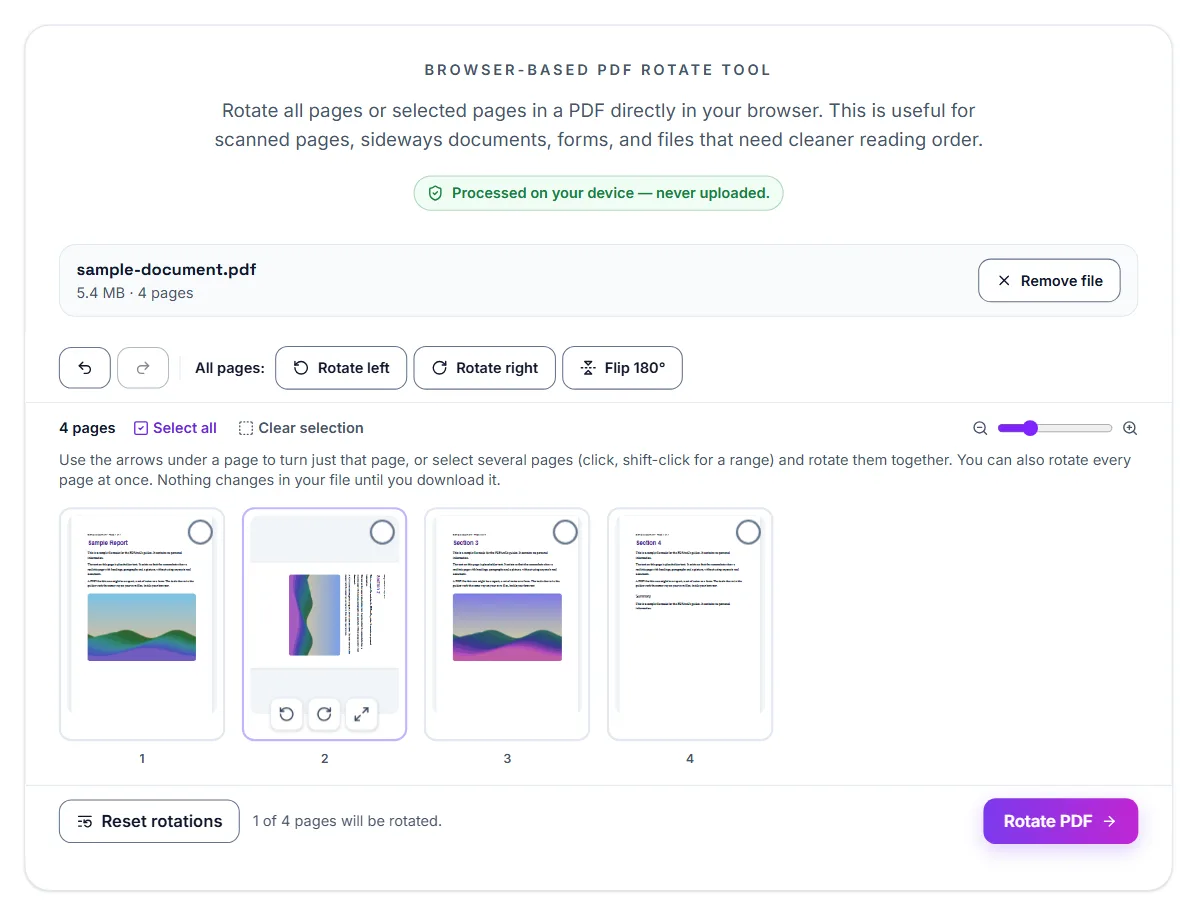
- To turn one page, point at it and use the arrows that appear at the bottom of it. On a phone or tablet the arrows are always shown
- To turn several pages at once, click them (shift-click selects a range). The bar above the pages then says Selected pages instead of All pages
- Use Rotate left, Rotate right or Flip 180° in that bar. With no pages selected, they turn every page. On smaller screens these buttons show only their icons
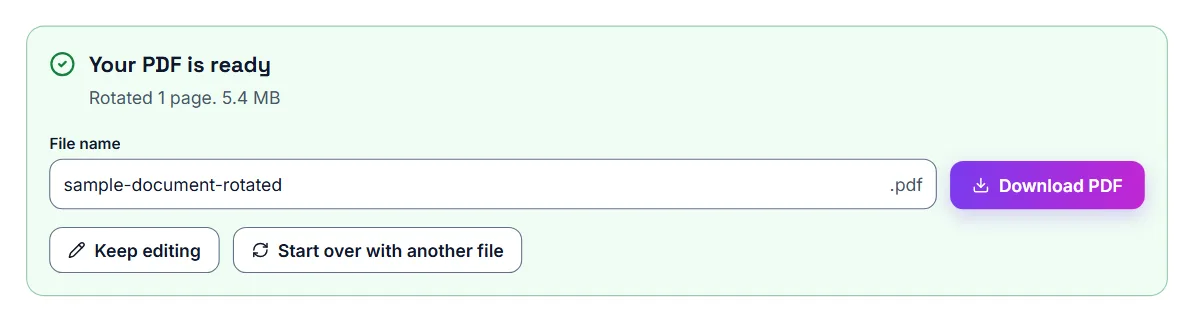
- Select Rotate PDF. Under Your PDF is ready, it says how many pages were rotated. Select Download PDF to save the corrected file
Fixing just some pages, not all
Rotate PDF turns individual pages independently, which matters for scanned packets where only a few pages came out sideways. You shouldn't have to rotate the whole document just to fix one page. Reset rotations, next to the Rotate PDF button, undoes every turn.
Removing pages: when to delete rather than split
Removing pages is different from splitting: splitting extracts a section into a new file, while removing pages deletes them from the document and keeps everything else together as one file. If you just want a cleaner version of the same document minus a page or two, removing is the right tool.
If you would rather keep a few pages and drop everything else, it is often quicker to use Split PDF and pick the pages you want to keep. And if you also need to rotate or reorder pages, Organize PDF lets you delete, rotate and reorder them in one place.
How to remove pages from a PDF
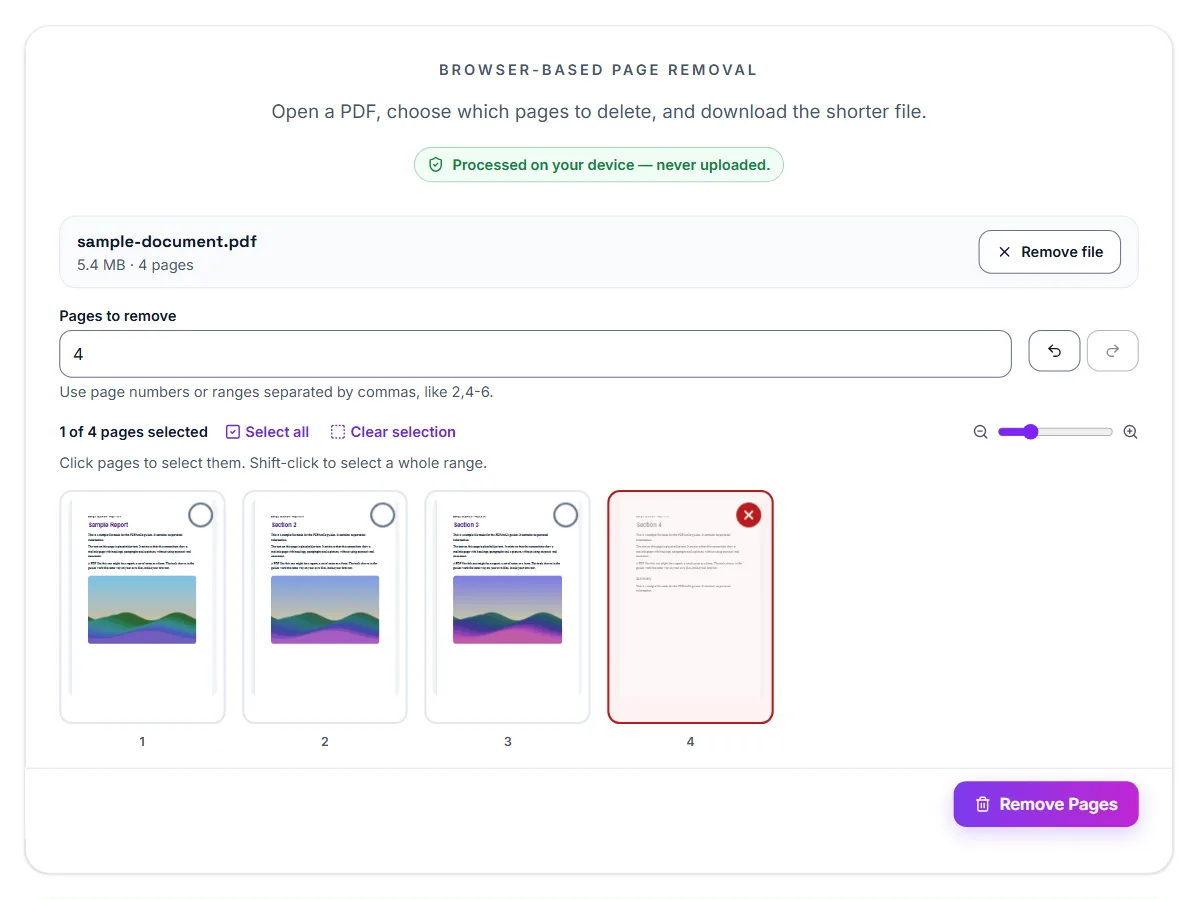
Remove Pages shows every page of the PDF as a thumbnail, so you can see which pages you are removing. Type their page numbers, or click the pages themselves: the pages you pick are marked in red with a cross, and the Pages to remove box lists them.
- Open Remove Pages and select Select PDF File, or drop the PDF onto the box
- Check the bar at the top: it shows the file name, its size and how many pages it has
- In Pages to remove, type the pages to delete, for example 4, or 2,4-6 for page 2 and pages 4 to 6. Or click the pages instead; shift-click marks a whole range
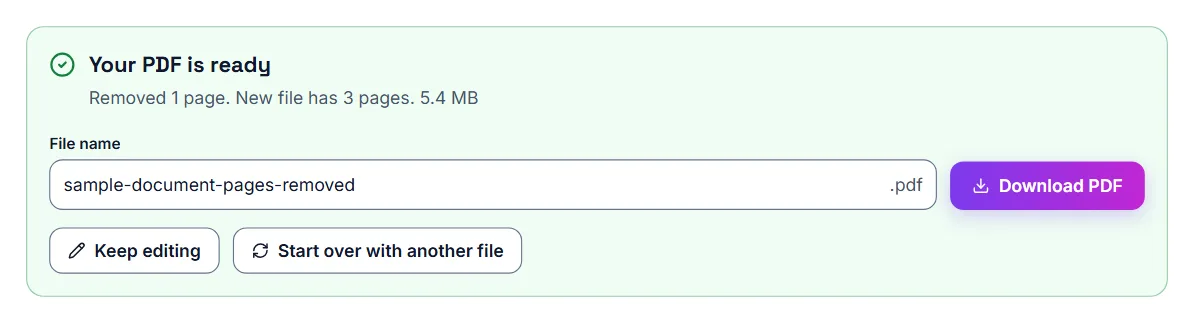
- Select Remove Pages. Under Your PDF is ready, it says how many pages were removed and how many the new file has
- Select Download PDF to save the shorter file
Writing page numbers and ranges
Separate pages and ranges with commas. A range is two page numbers joined by a hyphen and includes both ends, so 4-6 removes pages 4, 5 and 6. You can mix the two in any order, such as 1,3,7-9.
The numbers are the physical page positions in the file, counted from the first page. They are not the page numbers printed on the pages, which often differ when a document has a cover, a contents page or Roman-numbered front matter. If page 1 of your report is the fourth page of the PDF, type 4. The thumbnails help here: the number under each one is its position in the file.
Blank pages: why they show up in scanned PDFs
Most scanners default to duplex (two-sided) scanning even when your paper is only printed on one side, which adds a blank page for every sheet. Separator sheets, cover pages, and the occasional scanning glitch add a few more. In a 40-page scan, that can mean a dozen blank pages mixed in.
How to remove blank pages automatically
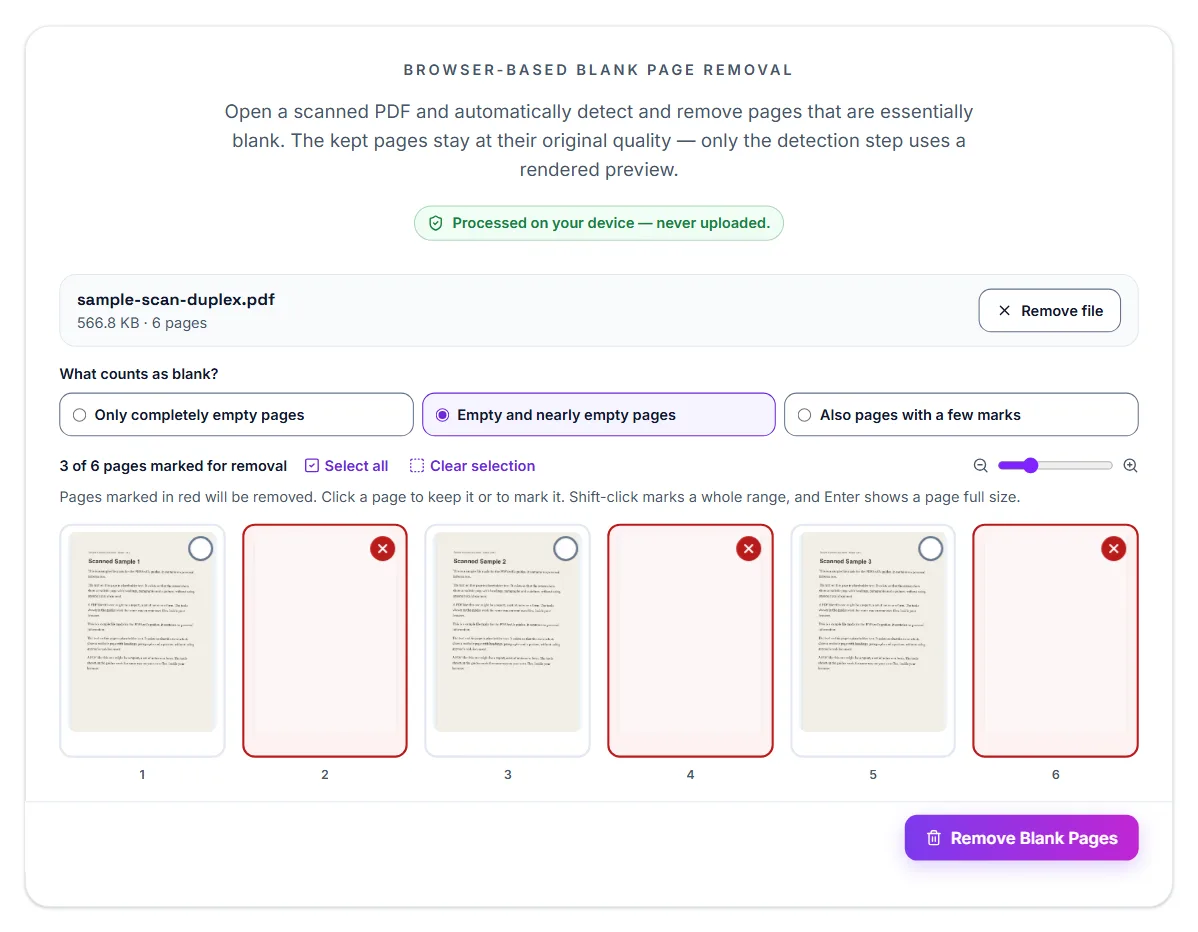
Remove Blank Pages checks every page as soon as the file opens and marks the ones that look blank, so you don't have to scroll through and check by hand. You see what it found before anything is removed.
- Open Remove Blank Pages and select Select PDF File, or drop the scanned PDF onto the box
- Wait while it checks each page. The line above the pages then says how many are marked for removal
- Look at the pages marked in red: those will be removed. Click a marked page to keep it, or click any other page to mark it
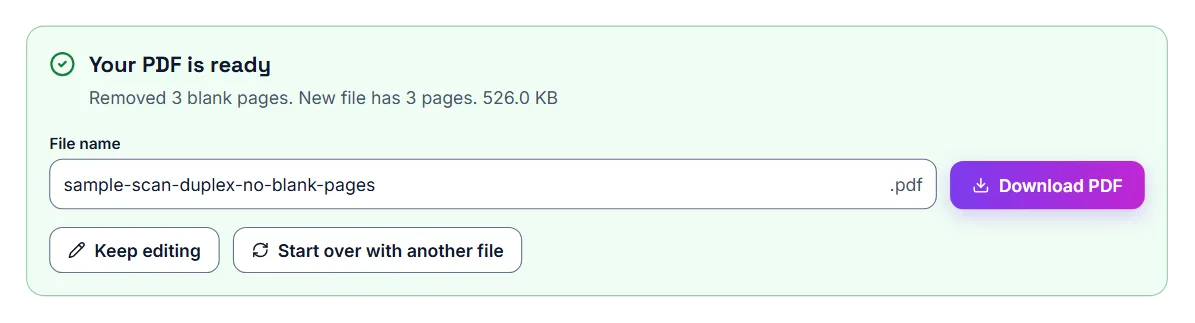
- Select Remove Blank Pages. Under Your PDF is ready, it says how many blank pages were removed
- Select Download PDF to save the cleaned-up file
What counts as "blank"
A page with a stray mark, a faint scanner line, or a bit of background noise from the glass isn't always perfectly empty, so the tool leaves out a narrow strip around the edges, where scanners leave shadows and punch holes, and measures how much of the rest has ink on it. Under What counts as blank? you choose how strict that is: Only completely empty pages, Empty and nearly empty pages (the setting it starts with), or Also pages with a few marks. The marked pages change as soon as you pick another setting.
A blank back scanned with a grey or yellow tint can look like a full page to the tool. If one is not marked, click it to mark it yourself. The remaining pages keep their original scan quality; nothing about them is re-compressed or altered.
Cropping: when it actually helps
Scanned pages often come with wide, uneven margins or a dark border from the scanner bed. Slide decks exported to PDF sometimes carry excess white space around the content. In both cases, cropping tightens the page so it reads better on screen and prints cleaner.
How to crop a PDF
Crop PDF trims a percentage from each edge of the page.
- Open your PDF
- Enter how much to trim from the top, bottom, left and right, as a percentage of the page
- The same trim is applied to every page
- Download the cropped PDF
Cropping vs. resizing
Cropping removes part of the page permanently — it doesn't shrink or scale the content, it cuts away what's outside the selected area. If you need to make a page smaller without losing any content, resizing or adjusting print settings is a better fit than cropping.
Frequently asked questions
Can I see all my pages before making changes?
Yes, the tool shows every page as a thumbnail so you can plan the new order visually before applying anything.
Can I delete pages and reorder pages at the same time?
Yes, reordering, deleting, and rotating can all be done in the same session before you download the final file.
Does this work for very long documents?
Yes, though for very long documents it can help to delete unneeded pages first so there's less to reorder visually.
Can I move a single page anywhere in the document?
Yes, you can drag any page to any position, including moving it to the very beginning or end.
Will reordering change the page content or quality?
No, reordering only changes the sequence of the pages. The content of each page stays exactly the same.
How do I reverse the page order of a scanned document?
Open the PDF in Reorder Pages and select Reverse page order, above the pages. It is useful when a stack of pages was scanned back to front.
Can I remove more than one page at a time?
Yes. In Remove Pages, list every page and range you want gone, separated by commas, such as 2,5,8-10, or click each page. They are all removed in one step.
Does removing pages affect the rest of the document?
No. The pages you keep stay as they were, in the same order. Only the pages you list are removed.