
PDF Guides
Compress a PDF to 500KB, 1MB, 2MB or 5MB
Upload forms rarely accept a PDF of any size. The limit is usually 5MB, 2MB, 1MB or even 500KB, and a scanned document can be several times that. This guide shows how to check your file, compress it to the size you need, and what to change when compression alone is not enough.
By GaryLast updated 5 min read
Compress a PDFWhy PDFs end up over the limit
PDFs become large when they include high-resolution images, scanned pages, signatures, logos, charts, or multiple combined documents. Even a short PDF can become large if it was scanned at a high quality setting.
How to check a PDF’s size before you submit
On Windows, right-click the file and choose Properties. On a Mac, select it and press Command+I. On Android or iPhone, the Files app shows the size under the file name or in its info panel.
Portals usually mean megabytes as your computer reports them, so compare against the exact figure on the upload page rather than rounding. A file shown as 5.2 MB is still over a 5MB limit.
How to compress a PDF to a target size
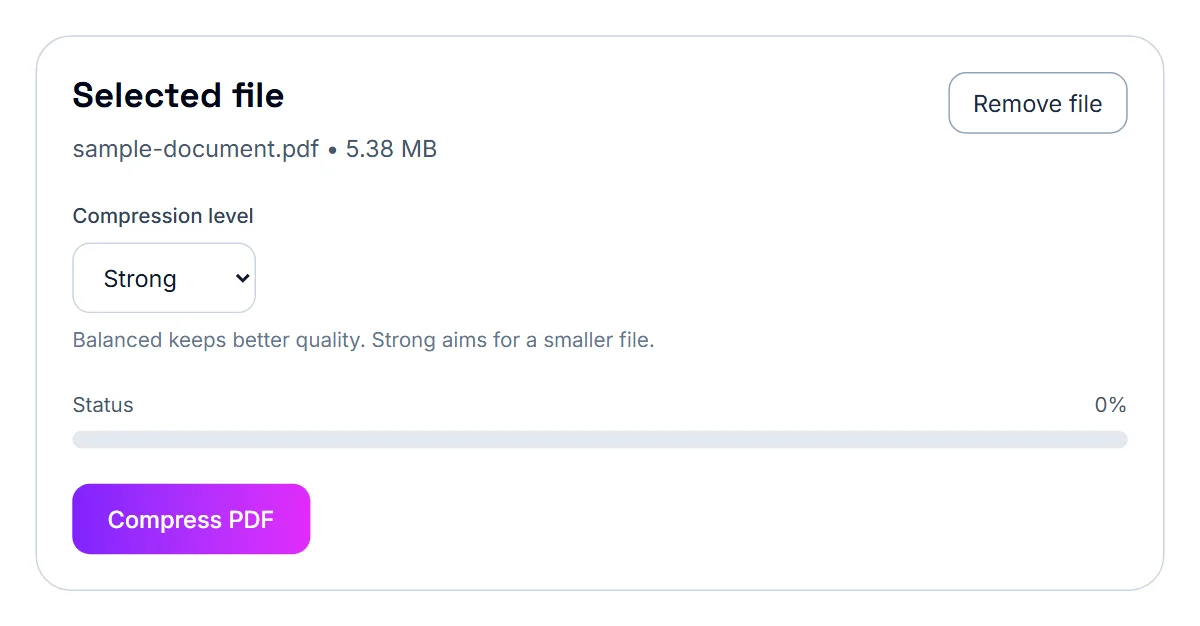
- Open Compress PDF and select Select PDF File, or drop the PDF onto the box. The tool shows the file's current size.
- Leave Compression level on Balanced for the first try; it keeps better quality.
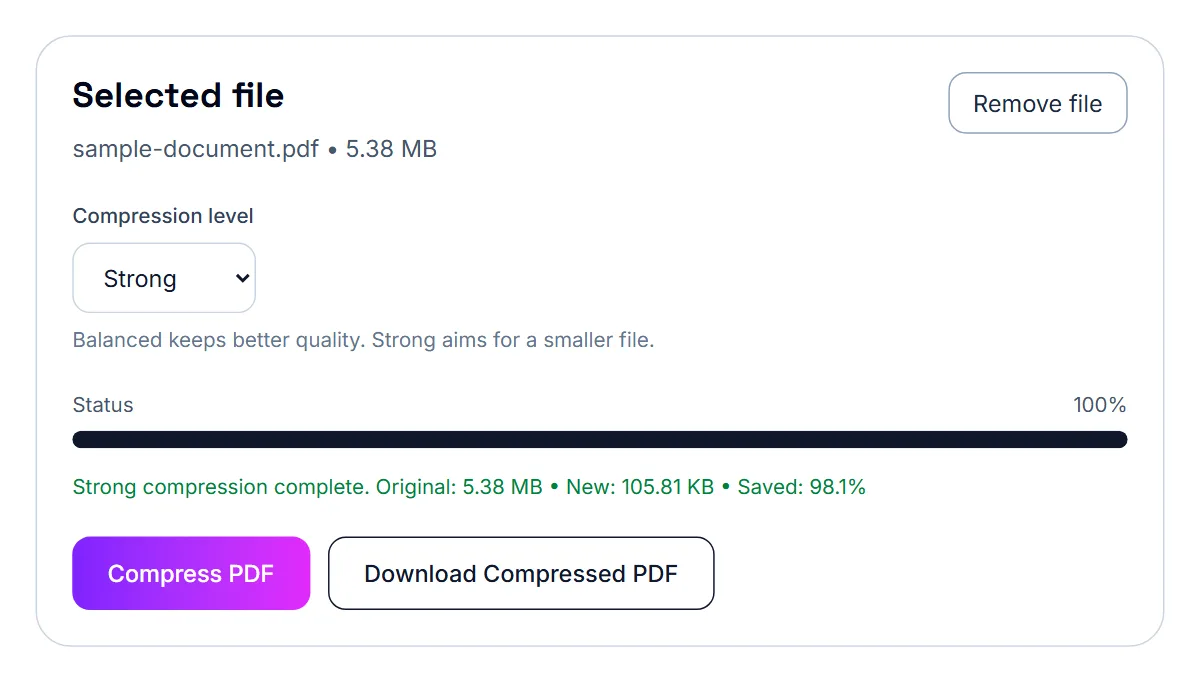
- Select Compress PDF and read the status line: it shows the original size, the new size and the percentage saved.
- If the new size is under your limit, select Download Compressed PDF. If not, change the level to Strong and select Compress PDF again.
- Open the downloaded copy (its name ends in -compressed), check every page is readable, then upload it.
Which compression level to use
The PDFAreUs compressor has two levels. Balanced keeps better image quality and is the right first try for most documents. Strong aims for a smaller file and is useful for long scans and photo-heavy PDFs that Balanced cannot bring under the limit.
After compressing, the tool shows the original size, the new size and how much was saved, so you know straight away whether the result fits.
Where size limits come up
Every site sets its own limit, so read the number next to the upload field. These are the kinds of places where a PDF size limit usually appears:
- Job application portals and company career pages
- School, university and scholarship portals
- Government forms and visa or immigration uploads
- Insurance, banking and real estate forms
- Email attachments
Around 500KB: the strictest portals
This usually comes up with job applications, online forms, school portals, visa uploads, and systems that reject larger files. A 500KB target is especially common when the PDF contains scanned pages or mobile photos.
What works best for very small limits
- Scanned PDFs: These often compress well because they contain image-heavy pages.
- Phone photo PDFs: PDFs made from photos can usually shrink more than text-based documents.
Files that are hard to shrink
Text-based PDFs exported from Word or Google Docs are usually small already. The difficult ones are scans and photos: every page is an image, so a 20-page packet scanned in colour at high resolution can be far larger than the text on it suggests.
- Rescan in greyscale if colour is not required.
- Remove blank pages and duplicate scans before compressing.
- Split the packet if the portal lets you upload several files.
- Convert photos to PDF once, then compress the combined file instead of each image separately.
Should you split the PDF first?
If you only need a few pages, split the PDF first. Removing extra pages reduces the file size before compression and may help you reach the limit more easily.
Common mistakes
- Uploading a very long scan and expecting one click to reduce it heavily.
- Keeping pages that are not required for the submission.
- Not checking the final size before uploading.
- Compressing a text-only PDF that is already optimized.
If it still doesn't work
- Still over the limit on Strong: remove pages the portal does not need with Remove Pages, or split the file with Split PDF if the portal accepts several uploads.
- “This PDF did not get smaller”: the file is mostly text, so it is probably small already. Check its size; if it is still over the limit, it is likely very long, and splitting is the answer.
- The portal still rejects the file: read the error. Many portals also limit the file type, the number of pages or the characters allowed in the file name; rename the file to letters, numbers and hyphens only.
- The compressed copy is blurry: go back to the original, use Balanced, and remove pages first so the lighter setting is enough.
- The portal needs selectable text: the compressor turns each page into an image, so the text in the copy cannot be selected. Upload the original if it is under the limit.
Your file stays on your device
Compression runs in your browser. The PDF is opened and processed on your own device and is never uploaded to a PDFAreUs server, which matters when the document is an ID, a tax form or a contract.
Frequently asked questions
Can I always get a PDF under 1MB?
Not always, but compression is the first and best step to try. Very long scans may also need splitting or fewer pages.
Why are scanned PDFs usually bigger?
They often contain image-heavy pages, which increases file size.
What should I do before submitting?
Compress the file, download the new version, and confirm the size before submission.
Can every PDF be reduced to 500KB?
No. Some files are already small or contain content that does not compress much.
What kind of PDF compresses best?
Scanned and image-heavy PDFs usually give the biggest size reduction.
Is 5 MB the same as 5,000 KB?
Not always. Some systems count 1 MB as 1,000 KB and others as 1,024 KB. Aim a little under the limit, for example 4.8 MB, so the file fits either way.
Will compressing change what my document says?
No. The pages look the same, though they are stored as images, so text can no longer be selected. Check the copy before you upload it.
Is my file uploaded to PDFAreUs?
No. Compression runs in your browser; the only upload is the one you make to the portal.