
PDF Guides
JPG to PDF Online Free: Photos, Scans and Receipts
If you have photos, scanned pages, receipts, notes, or documents saved as JPG images, you can convert them into one PDF file for easier sharing, printing, submitting, or emailing.
By GaryLast updated 5 min read
Convert JPG to PDFWhat does JPG to PDF mean?
JPG to PDF means turning one or more image files into a PDF document, with each image as a page. It helps when a website, school, employer, or office asks for a PDF instead of separate photos. Images are easy to capture, but one PDF is easier to submit, store, and keep in order.
When should you convert JPG to PDF?
- Sending receipts as one document
- Submitting photos of forms
- Combining scanned pages
- Turning screenshots into a document
- Submitting school assignments
- Saving ID or certificate scans
- Creating a simple printable file
How to convert JPG to PDF
- Open the JPG to PDF tool.
- Choose your JPG image files. They are read in your browser, not uploaded.
- Add them in the order you want the pages to appear; each new selection goes after the ones already added.
- Create the PDF.
- Download and review your final PDF file.
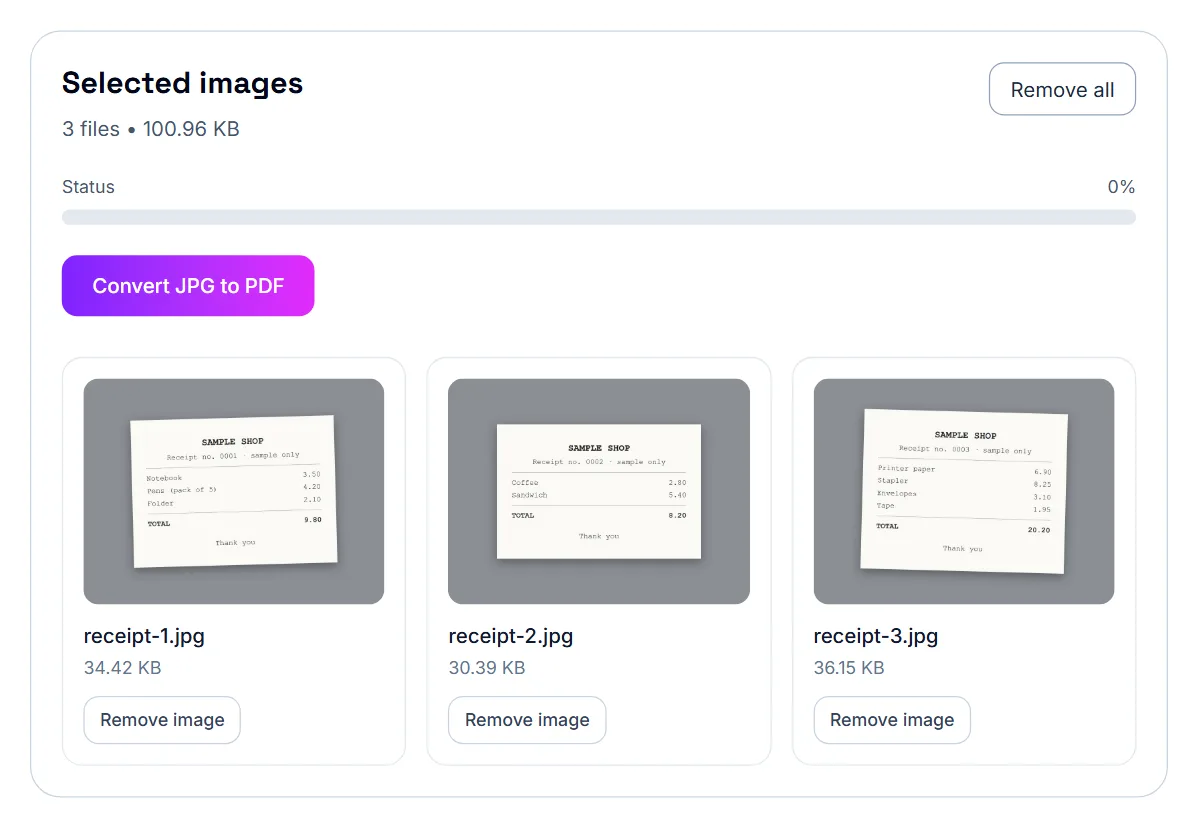
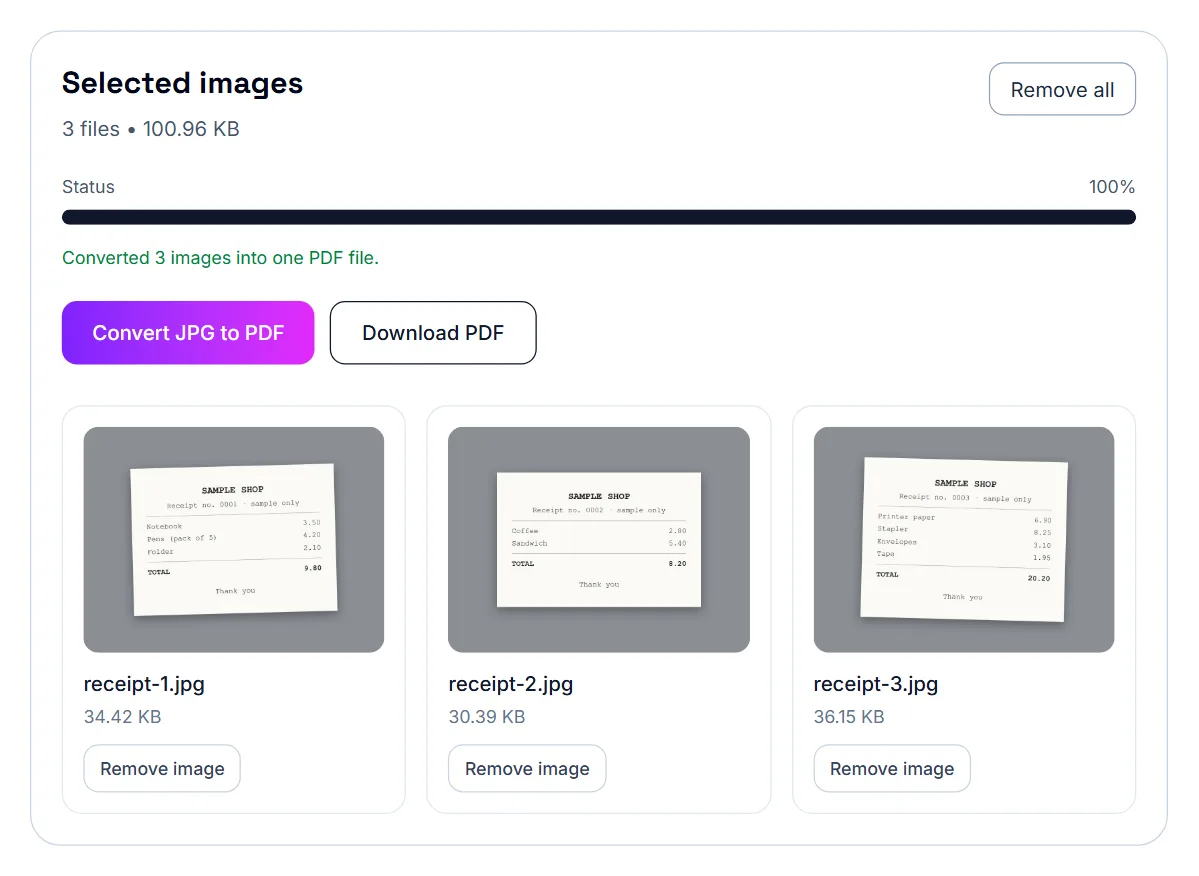
Why order matters
If you are combining receipt images, scanned pages, or photos of a form, put them in the correct order before creating the PDF. The reader sees the pages in exactly that sequence.
What image types work best?
Clear JPG photos usually work well for creating a PDF. For best results, use bright lighting, avoid blurry photos, and make sure the full document is visible before converting.
Turning phone photos into a PDF
Phone photos of receipts, handwritten notes, signed forms, ID pages or homework are the most common reason to make a PDF from images. The quality of the PDF is decided when you take the photo, so a few habits make a big difference:
Photos that your phone saved sideways (with a rotation flag rather than rotated pixels) are turned upright automatically when JPG to PDF builds the PDF.
- Lay the page flat on a dark, plain surface.
- Use daylight or even room light, and keep your own shadow off the page.
- Hold the phone directly above the page so it is not skewed.
- Fill the frame with the page and keep all four edges visible.
Scan with the camera or use photos you already have
Scan to PDF lets you capture pages with your phone camera one after another, or choose photos you have already taken. JPG to PDF does the same for image files you already have. Either way, all the pages end up in one PDF in the order you add them.
Getting a clean scan on the first try
Good lighting matters more than a good camera — a well-lit room with no harsh shadow across the page will give a cleaner result than a dim room with a high-end phone. Placing the document on a flat, plain surface keeps the edges of the page clear in the photo.
Receipts: photograph them so they stay readable
Receipts are small, often faded, and printed on thermal paper that darkens over time. Photograph them soon after you get them, flat and in good light, with the total, date and merchant name clearly visible.
Receipts: organise before you convert
JPG to PDF adds images in the order you select them, and file pickers usually sort by name. Renaming photos with the date first, such as 2026-09-14-taxi.jpg, keeps them in date order, so the person checking the claim can match each receipt to a line without searching.
- One PDF per trip, month or claim
- A file name that says what it covers, such as Receipts-2026-09-Client-Visit.pdf
- Compress the PDF if it will be emailed or uploaded
Receipts: keep the originals where required
A PDF of receipts is convenient for claims and records, but some employers and tax authorities have their own rules about keeping original paper receipts. Check the policy that applies to you before throwing the paper copies away.
JPG to PDF for school and forms
Students and applicants often need to submit scanned pages, ID images, signed forms, or certificates. Many websites, schools, employers, and portals prefer PDF files because they keep pages together in one clean document, and a PDF is easier to print and share than several separate image files.
Should you compress the final PDF?
Image-based PDFs can get large, especially when the photos are high resolution. If the final PDF is too big for a form or email, run it through Compress PDF after converting.
Take clear photos before converting. Good lighting and straight angles make the final PDF much easier to read.
Common mistakes
- Using blurry photos that become hard to read later.
- Mixing unrelated receipts into the same PDF.
- Not compressing the final PDF if the portal has a low size limit.
- Keeping large background space around each receipt image.
If it still doesn't work
- An iPhone photo will not add. iPhones can save photos as HEIC, which this tool does not accept. Export the photo as JPEG first, or set Settings › Camera › Formats to Most Compatible so new photos are saved as JPEG.
- The pages are in the wrong order. Use Remove all and add the images again one at a time in the order you want, or fix the order afterwards with Organize PDF.
- A page is sideways. Rotate that page with Rotate PDF after creating the file.
Frequently asked questions
Can I combine more than one JPG into one PDF?
Yes. Add the images in the order you want, and they become pages of a single PDF.
Is this useful for phone screenshots?
Yes. It is a simple way to turn a set of screenshots into one clean document.
Are my images uploaded anywhere?
No. The JPG to PDF tool runs in your browser, so the images stay on your device.
Can I combine multiple receipt photos into one PDF?
Yes. That is one of the most common uses for JPG to PDF tools.
What if the PDF is too large after conversion?
Compress the combined PDF before uploading it to the final system.
Do I need a scanning app to do this?
No, the scan tool works directly in your phone's browser — there's nothing to download or install.
Can I scan multiple pages into one PDF?
Yes, you can add each page one at a time and they'll be combined into a single multi-page PDF.
Will the scan straighten a crooked photo automatically?
Yes, the tool detects the document's edges and corrects the perspective so the page appears flat and straight.