
PDF Guides
How to Password Protect a PDF
Some documents shouldn't open for just anyone who gets the file — tax records, contracts, financial statements, medical information. Adding a password means the PDF stays locked until the correct password is entered, wherever the file ends up. This guide walks through the Protect PDF tool, how to choose and share the password, and what to check if something goes wrong.
By GaryLast updated 4 min read
Protect a PDFWhat password protection actually does
A password-protected PDF is encrypted so it can't be opened without the correct password — not just hidden behind a warning screen. If the file is forwarded, downloaded from a shared drive, or backed up somewhere, it stays locked for anyone without the password.
Protect PDF sets one password, and it is needed to open the file. It does not set separate permissions such as allowing people to open the file but blocking printing or copying. Once someone has the password, they can read the document like any other PDF.
How to password protect a PDF
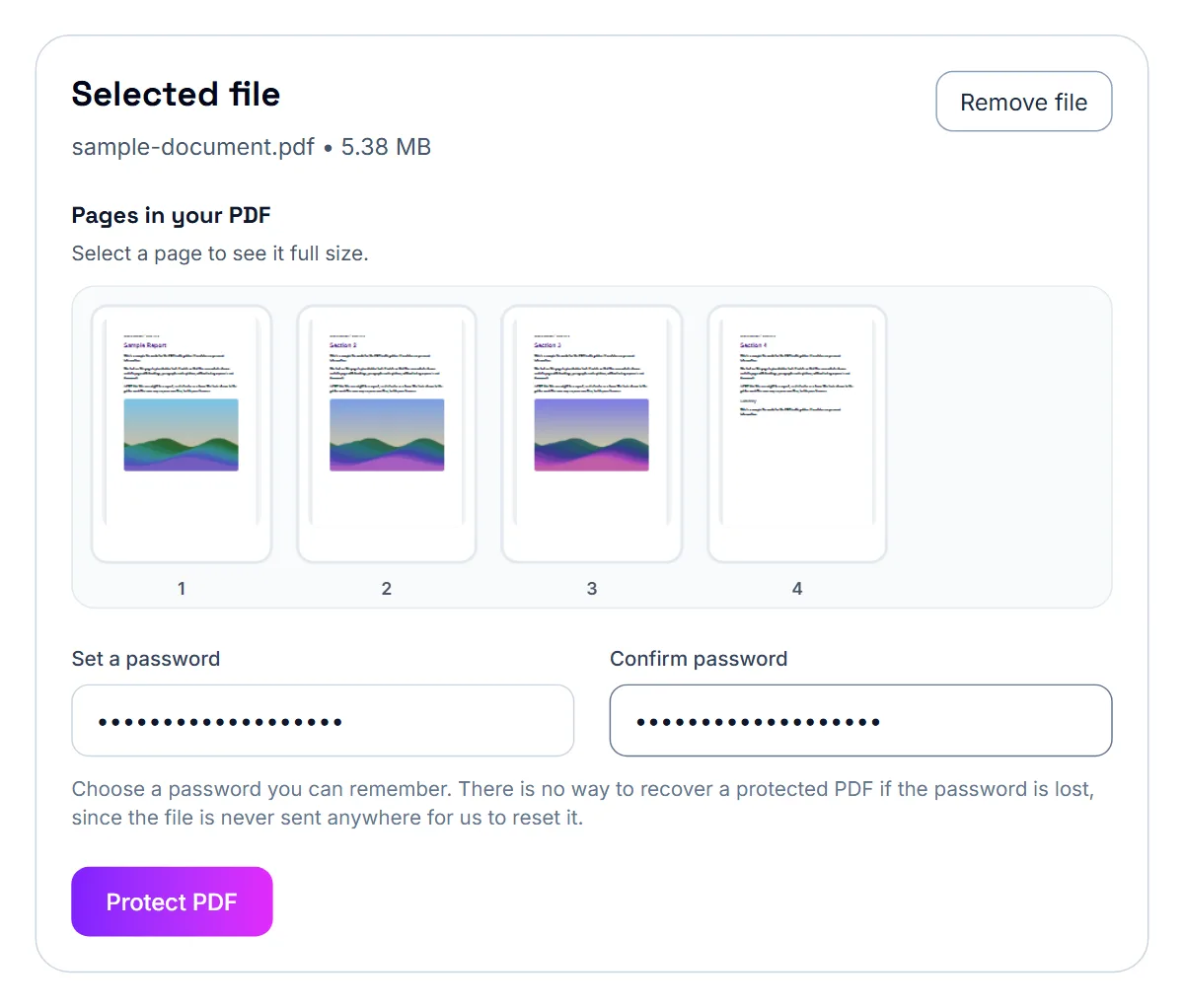
- Open Protect PDF and select Select PDF File, or drop the PDF onto the box
- Check the file name under Selected file
- Type a password of at least 4 characters in Set a password
- Type the same password again in Confirm password
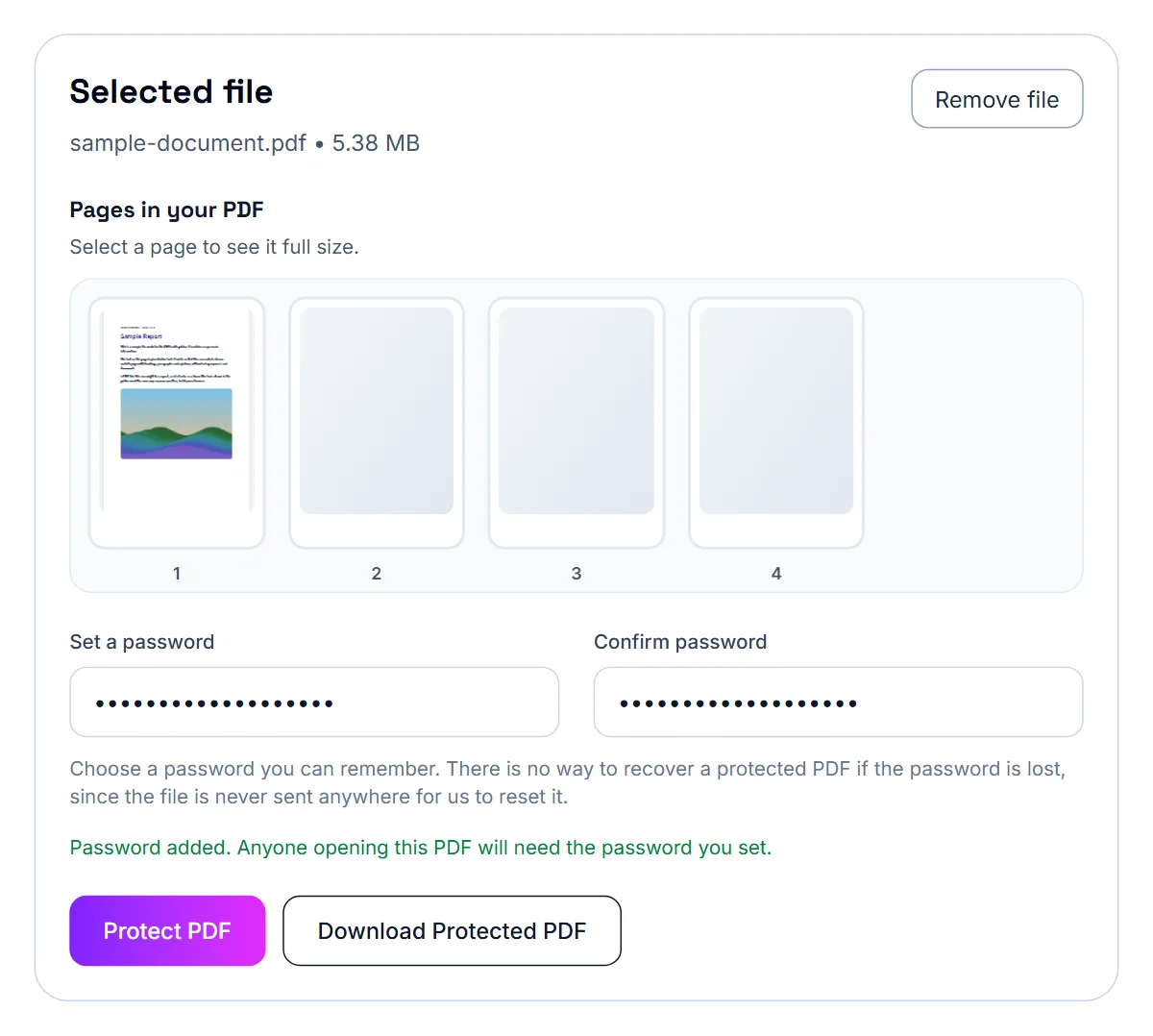
- Select Protect PDF. The status line confirms that anyone opening the file will need the password
- Select Download Protected PDF, then open the downloaded file once to check that it asks for the password
Choosing a password
Four characters is only the minimum the tool accepts. A longer password is much harder to guess: a short phrase of several unrelated words, or a long mix of letters and numbers, is a good choice for anything sensitive. Avoid names, dates of birth and anything printed in the document itself.
Write the password down somewhere safe or keep it in a password manager. There is no way to recover a protected PDF if the password is lost: the file never leaves your device, so there is nothing for anyone to reset. Keep your unprotected original until you are sure the protected copy opens.
Sharing the password safely
A password only protects a file if it's shared through a different channel than the file itself. If you email the PDF, send the password by text or a phone call instead — sending both together in the same email defeats the purpose.
Some organisations tell you which password to use, for example a date of birth or an ID number for a payslip. In that case follow their instructions exactly, since their system or staff will expect that password.
On a Mac: Preview's built-in encryption
Every Mac comes with Preview installed, and it has a genuine password-protect feature. Open the PDF in Preview, choose File > Export, click the Permissions button, check "Require Password To Open Document," and enter and confirm your password. Preview uses AES-128 encryption and everything happens locally on your Mac — nothing is uploaded anywhere.
- Open the PDF in Preview
- Choose File > Export
- Click Permissions, then check "Require Password To Open Document"
- Enter and confirm your password, then export
On a Mac: Preview or the browser tool?
Preview is a solid choice if you're already on a Mac and want a fully offline, built-in option. A browser tool is more convenient if you're switching between devices, want a quicker workflow without navigating Preview's export menu, or you're not on a Mac at all.
If it still doesn't work
- “Please use a password with at least 4 characters”: the password is too short
- “Passwords do not match”: the two boxes differ. Retype both carefully, watching for Caps Lock
- The file is too large to email after protecting: compress the original first with Compress PDF, then protect the compressed copy
- “Something went wrong while protecting the PDF”: the file may already have a password or be damaged. Remove the old password with Unlock PDF (you need to know it), or try Repair PDF, then protect it again
- The recipient can't open it: check they are typing the password exactly, including capital letters, and that they are opening the protected copy you sent
Your file stays on your device
The PDF is encrypted in your browser. Neither the file nor the password is sent to a server.
Frequently asked questions
What happens if someone without the password tries to open it?
They'll be prompted for a password and won't be able to view the content until they enter the correct one.
Can I remove the password later if I don't need it anymore?
Yes. Unlock PDF removes the password from a protected file as long as you know what it is.
Can I stop people printing or copying from the PDF?
Not with Protect PDF. It sets a password to open the file; anyone who has the password can print and copy.
Should I send the file and password in the same message?
No. Send them through separate channels — for example, email the file and text the password — so a single intercepted message doesn't expose both.
Do I need to buy anything to password protect a PDF on Mac?
No. Preview, which comes preinstalled on every Mac, can password protect a PDF for free using its Export and Permissions options.
What encryption does Preview use?
Preview uses AES-128 encryption when password-protecting a PDF through its Export options.
Is there a faster option than Preview's menus?
A browser-based password-protect tool can be quicker, and works the same way on any device, not just Mac.