
PDF Guides
How to Unlock a PDF: Remove a Password or Restrictions
If you have a PDF that asks for a password every time you open it — and you know that password — you can remove it permanently so the file opens freely from then on. This is different from bypassing a password you don't have; you need to know the current password to unlock the file.
By GaryLast updated 4 min read
Unlock a PDFWhen people need to unlock a PDF
This usually comes up with old bank or utility statements that are password-protected by default, documents a colleague locked and shared the password for, or files you protected yourself and no longer need locked.
How to unlock a PDF
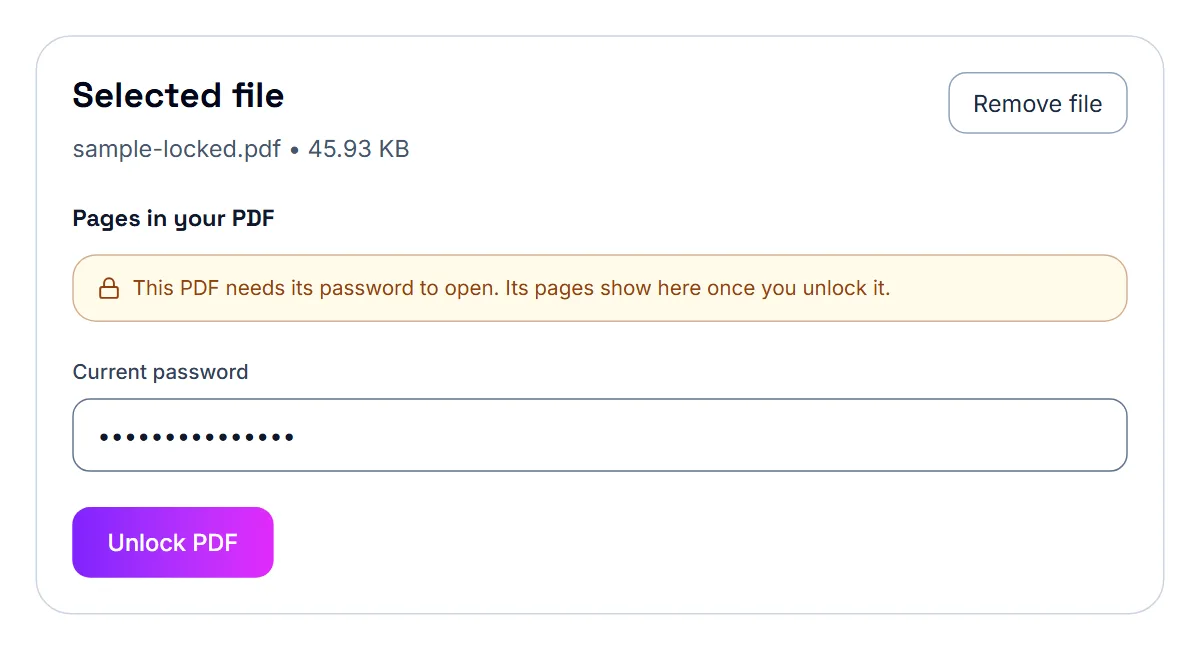
You'll need the current password on hand before you start.
- Open the password-protected PDF
- Enter the current password
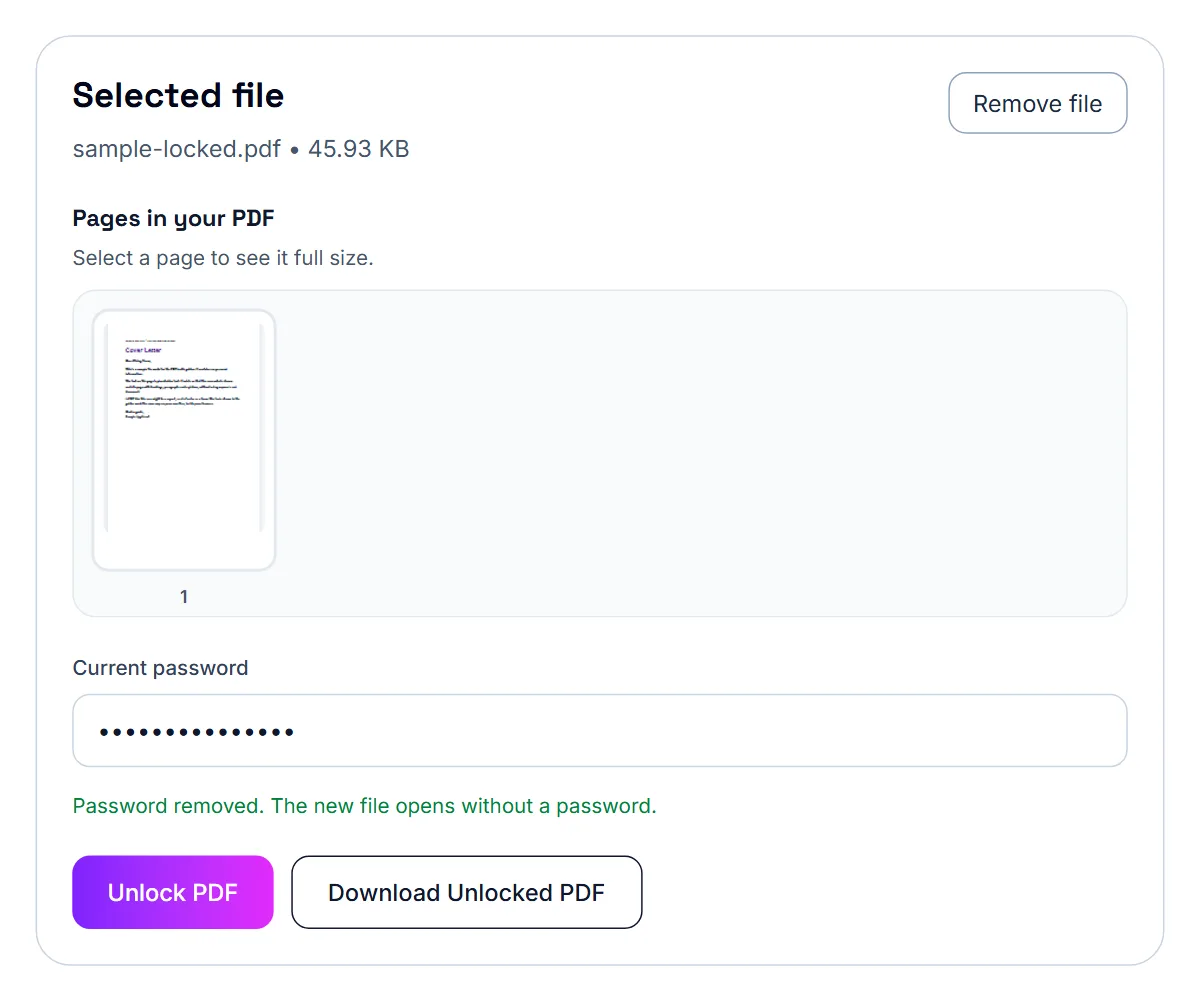
- Remove the protection
- Download the unlocked file
What this doesn't do
This process removes a password you already know from a file you're authorized to access. It isn't a way to open a document you don't have permission to view or a password you don't know.
Open password versus permissions password
PDFs can have two kinds of protection. An open password stops the file from opening at all; that is what the unlock tool removes, using the password you enter. A permissions password lets anyone open the file but restricts printing, copying or editing. If the tool says a file does not appear to be password protected, it may only have restrictions, and Remove PDF Restrictions is the tool for that case.
How to remove PDF restrictions
The process only works on files you can already open — it doesn't bypass an open password you don't know.
- Open the restricted PDF
- Let the tool lift the owner-set permissions
- Download the unrestricted file
- Confirm printing, copying, and editing now work as expected
When you should actually remove restrictions
Owner restrictions typically exist for a reason — to stop a document from being edited or its text copied without permission. Only remove them from a PDF you created yourself, or one you have clear rights to modify. If the file belongs to someone else, check with them first.
Forgot the password? Where to look first
Most forgotten passwords turn out to be recoverable without any special tool.
- Your browser's or password manager's saved passwords
- The email or message where the file was originally shared, which often includes the password
- A pattern you commonly reuse for protected documents
- Whoever sent or created the file, if it wasn't you
If the password is genuinely gone
If you can't recover the password and you're not authorized to bypass it, the right step is contacting whoever created or issued the document — a bank, an employer, or the original author — since they'll typically be able to reissue it or confirm the password on file.
Common reasons unlocking fails
The tool only works with the correct password. It cannot recover or bypass a password you do not know.
- The password is case-sensitive, so check Caps Lock.
- Bank and payroll statements often use a combination such as part of your name and date of birth; check the email that came with the file for the format.
- The file may be damaged rather than locked; Repair PDF can rebuild a file that will not open properly.
Keep the unlocked copy safe
The unlocked file opens for anyone who has it. Store it somewhere private, and if you need to send it on, consider adding a new password with Protect PDF. Unlocking runs in your browser, so neither the file nor the password is uploaded.
Frequently asked questions
Do I need to know the password to unlock the PDF?
Yes. You need the current password to remove the protection — this process doesn't recover or guess a lost password.
Will the unlocked PDF look any different?
No, the content is identical. Only the password requirement to open the file is removed.
Can I re-add a password later?
Yes, you can protect the unlocked file with a new password at any time using a PDF password tool.
What if the PDF only blocks printing or copying?
That is a permissions restriction rather than an open password. Use Remove PDF Restrictions instead of the unlock tool.
Can this tool crack or guess a password I don't know?
No. Removing protection requires entering the correct current password — it's meant for files you're authorized to access, not for bypassing a password you don't have.
Where do password-protected PDFs usually get their password from?
Often from whoever created or sent the file — check the original email, message, or document you received the file alongside.
What if the PDF was protected by someone else, like a bank?
Contact the organization directly. They can usually tell you the password format they use (often a birthdate or account number) or reissue the document.
Does this work on a PDF I don't have a password for?
No. This removes owner-set restrictions (printing, copying, editing locks) on a file you can already open. It doesn't unlock a PDF that requires a password just to view it.