
PDF Guides
Convert Your CV and Certificates to PDF for University and Job Applications
University admission portals and job application systems almost always want your CV, transcripts, and certificates as PDF files — not photos, not Word documents, and rarely as one file per page. Whether you're applying through a university portal after JAMB in Nigeria, a HEC-affiliated university in Pakistan, or an admission portal in Bangladesh, the document prep is largely the same.
By GaryLast updated 7 min read
Convert Word to PDFWhat most portals actually ask for
A typical application asks for a CV or resume, academic certificates (WAEC, SSC/HSC, matriculation, or board results depending on your country), a transcript, and sometimes a scanned ID or passport photo. Application systems generally expect these as PDF, and many limit each upload to a specific size — though the exact limit varies by institution and portal, so check the specific instructions for the application you're completing.
Start from a clean source document
Build the resume in a word processor and keep the design simple: readable fonts, clear headings and consistent spacing. Heavily styled layouts with text boxes and tables can confuse the software some employers use to read applications. Proofread the whole document, including phone number and email address, before converting.
Turning a CV into a PDF
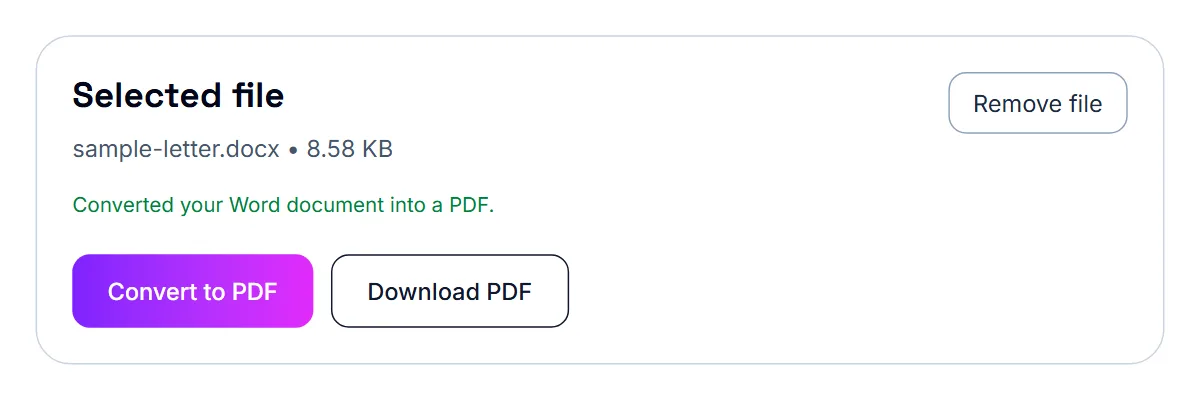
If your CV is a Word document, convert it to PDF before uploading. This keeps the formatting exactly as you designed it — fonts, spacing, and layout won't shift depending on what software or device opens it, which matters when an admissions officer or recruiter is the one viewing it.
Convert and check the PDF
Open your Word file in the Word to PDF tool and download the result. Open the PDF and scroll through it on screen. Confirm that nothing has moved, every line is visible, and any links still work. Try selecting a few words with your cursor: if you can highlight the text, the PDF has a real text layer that applicant systems can read.
- Keep the layout simple and the fonts standard
- Convert with the Word to PDF tool
- Open the PDF and check all pages
- Select some text to confirm it is real, selectable text
Avoid image-only resumes
A resume that was scanned or exported as a picture looks fine to a person but contains no text for systems to read. If you only have a scanned copy, OCR PDF can read the words (English text) and give them to you as text to paste into a new document, or better, rebuild the resume from the original file. Text-based PDFs are also smaller, which makes email attachments easier.
Turning certificates and photos into PDF
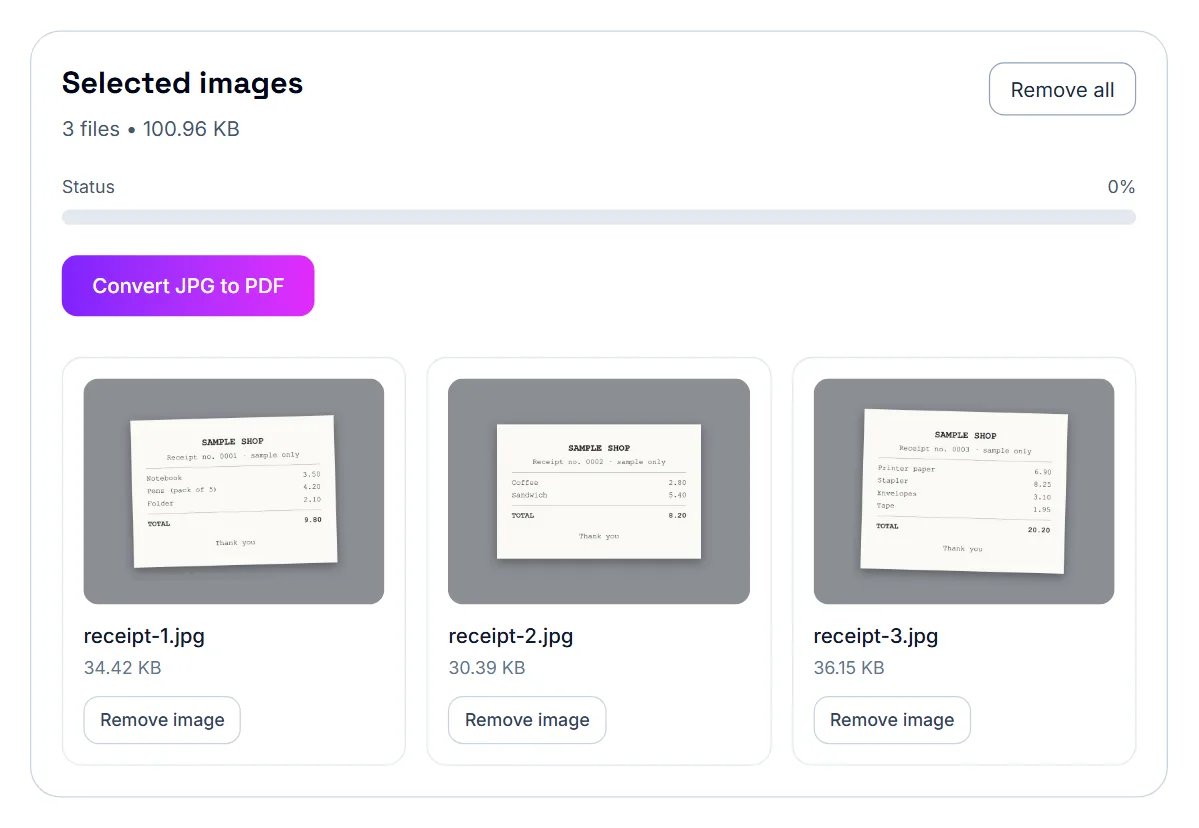
Physical certificates — a WAEC result slip, a board certificate, a degree transcript — usually need to be photographed or scanned and converted into a PDF. A phone photo works fine as a starting point as long as the lighting is even and the certificate is flat and fully visible in the frame.
- Photograph or scan each certificate clearly
- Convert the image (or images) into a PDF
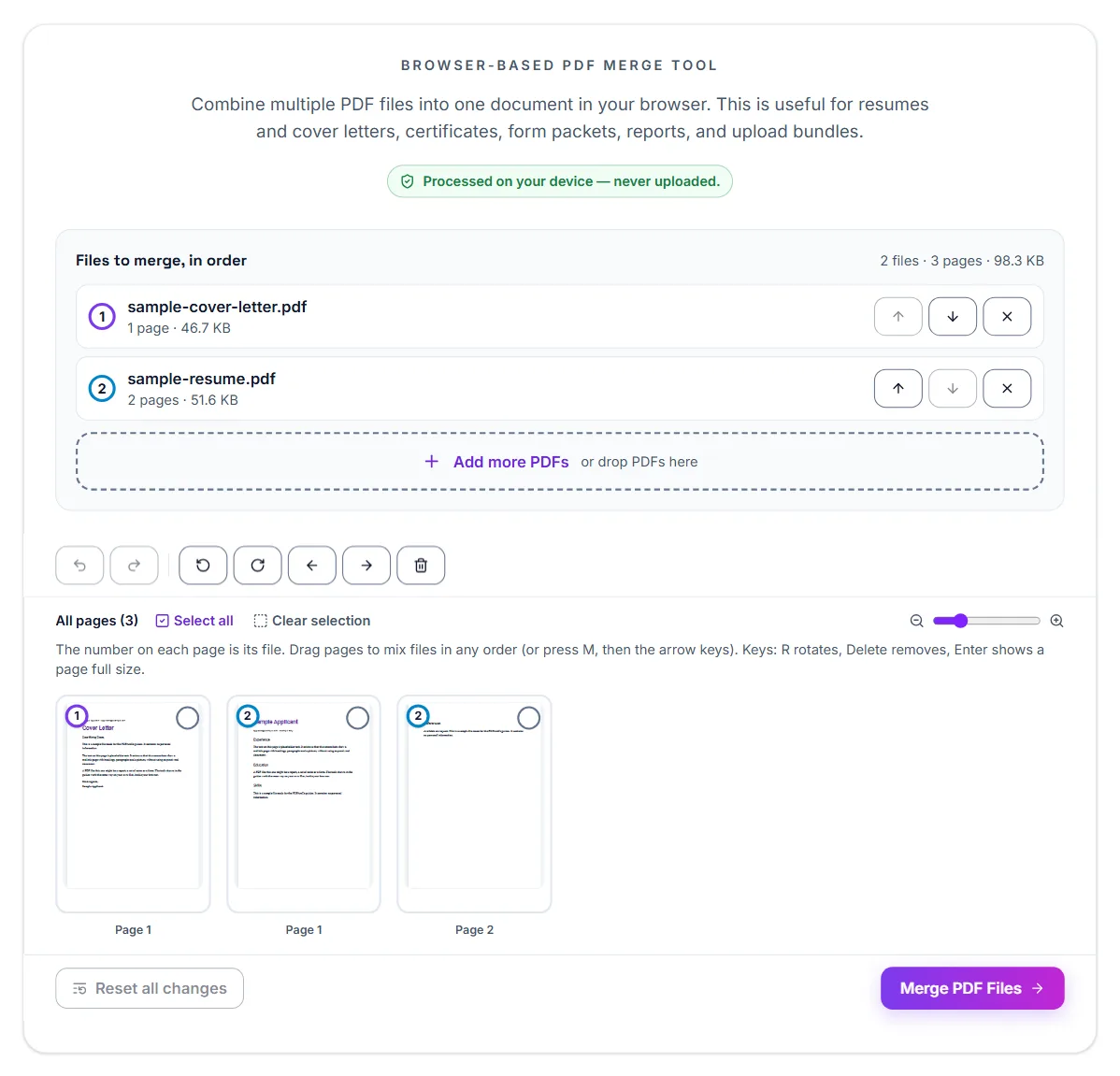
- Merge multiple certificates into one PDF if the portal expects a single combined file
- Compress the result if it's larger than the portal's stated limit
Photographing multi-page documents consistently
A transcript or marksheet is often more than one page, so the biggest practical challenge isn't image quality — it's keeping every page consistent in size, orientation, and lighting so the final PDF looks like one coherent document rather than a mismatched stack of photos.
- Photograph every page from the same distance and angle
- Keep consistent lighting across all pages to avoid some looking washed out and others too dark
- Convert all the photos into a single PDF in the correct page order
- Review the finished PDF page by page before submitting it anywhere
One file or several?
Some portals want every supporting document combined into a single PDF; others want each document uploaded separately into its own field. Read the application instructions carefully before merging everything into one file — undoing that means splitting it back apart later.
When an employer simply asks you to email your 'CV and supporting documents', one combined PDF is usually the better choice. It is easier for a recruiter to open, forward, print, and file than several attachments of mixed formats, and nothing gets overlooked.
Putting the combined file in the right order
If you do combine everything, convert each document to PDF first, then merge them in an order that reads naturally. A logical order makes the file feel intentional rather than a random stack of scans.
- CV or resume first
- Cover letter next, if included
- Certificates and qualifications, most relevant first
- Any other requested documents last
Naming the final file clearly
A file named with your name and the word "CV" or "application" is far easier for a recruiter or admissions office to find later than a generic name like "scan001.pdf".
Keep it to a sensible length and size
Most recruiters prefer a CV that is easy to scan. A clean, well-structured document with clear headings tends to serve you better than a dense one. A text-based CV is normally small, but a CV with large images or a photo can become heavy. If your file is too big for an email attachment or an application portal, compress it and confirm the text is still sharp.
When the file is rejected as too large
A rejected upload is almost always a size problem, especially with photographed certificates that can come out several megabytes each. Compressing the PDF before resubmitting solves this in the vast majority of cases without making the certificate hard to read.
Mistakes that hurt an application
Common errors include sending a resume with heavy graphics that are hard to read, attaching a low-resolution scan, and using a file name that does not identify you. Another is sending an out-of-date version because several copies are saved in different places.
Keep one current master file, and delete or clearly label old versions. Before each application, spend a minute tailoring the top section to the job and re-check the contact details.
It also helps to open your PDF in a second program, such as a browser, before sending it. If it looks the same everywhere you open it, it will most likely look the same to the recruiter, and you can send it with confidence.
If a job posting gives specific instructions, such as a subject line or a file name format, follow them exactly. Small signs of attention to detail are noticed, and ignoring instructions can move an otherwise good application down the pile.
Update it when your details change
Keep the original Word file, not just the PDF. When you get a new role or qualification, edit the source document and convert again. That is far more reliable than trying to edit a finished PDF, and it keeps your latest version consistent everywhere you apply.
Keep the original alongside the PDF
Academic records tend to be requested again for future applications — a further degree, a professional license, or a different employer. Keeping one well-organized, clearly named PDF on hand from the start saves you from re-converting the same document repeatedly over the years.
Frequently asked questions
Do I need a scanner, or is a phone photo good enough?
A phone photo is fine for most applications, as long as the certificate is flat, well-lit, and fully in frame. Scan to PDF lets you capture the pages with your phone camera and puts them into one PDF.
Should I combine my CV and certificates into one PDF?
Only if the application instructions ask for one combined file. Many portals have separate upload fields for the CV, transcript, and certificates — check before merging everything together.
What order should documents go in?
CV first, then a cover letter if included, then certificates and other documents in order of relevance.
What if the portal doesn't state a file size limit?
When no limit is published, aim for the smallest file size that keeps the document clearly legible. A few hundred KB to a couple of MB per document is a reasonable, uploads-smoothly range for most systems, though you should follow any specific instructions the portal does provide.
Will converting my Word CV to PDF change how it looks?
No — converting to PDF locks in your exact formatting, fonts, and layout, so it will look the same for whoever opens it, unlike a Word file which can shift depending on the software viewing it.
How do I combine multiple photographed pages into one PDF?
Convert each photo to a PDF page in the correct order, then merge them into a single file so the whole transcript reads as one document.
Should I include my transcript and certificate in the same file?
Many applications prefer a single combined PDF rather than several attachments, but always check the specific requirements of the application you're submitting.
Should I upload my resume as a PDF or a Word file?
PDF is usually safer for keeping layout, but follow the job posting if it asks for a specific format.