
PDF Guides
PDF to JPG or PNG Online Free
Sometimes you need a PDF page as an image. Converting PDF to JPG can help when you want to share a page, submit an image where a PDF is not accepted, save a document snapshot, or use a PDF page in a design or message.
By GaryLast updated 6 min read
Convert PDF to JPGWhat does PDF to JPG mean?
PDF to JPG conversion turns PDF pages into image files. Instead of one document, you get an image of each page that can be opened, attached, or shared like a regular photo.
When should you convert PDF to JPG?
- When a website or form accepts images but not PDFs
- Sharing one PDF page as an image
- Creating thumbnails or previews
- Saving a page for quick viewing
- Using PDF content in a presentation, slideshow, or post
- Keeping a quick visual copy of a form or receipt
How to convert PDF to JPG
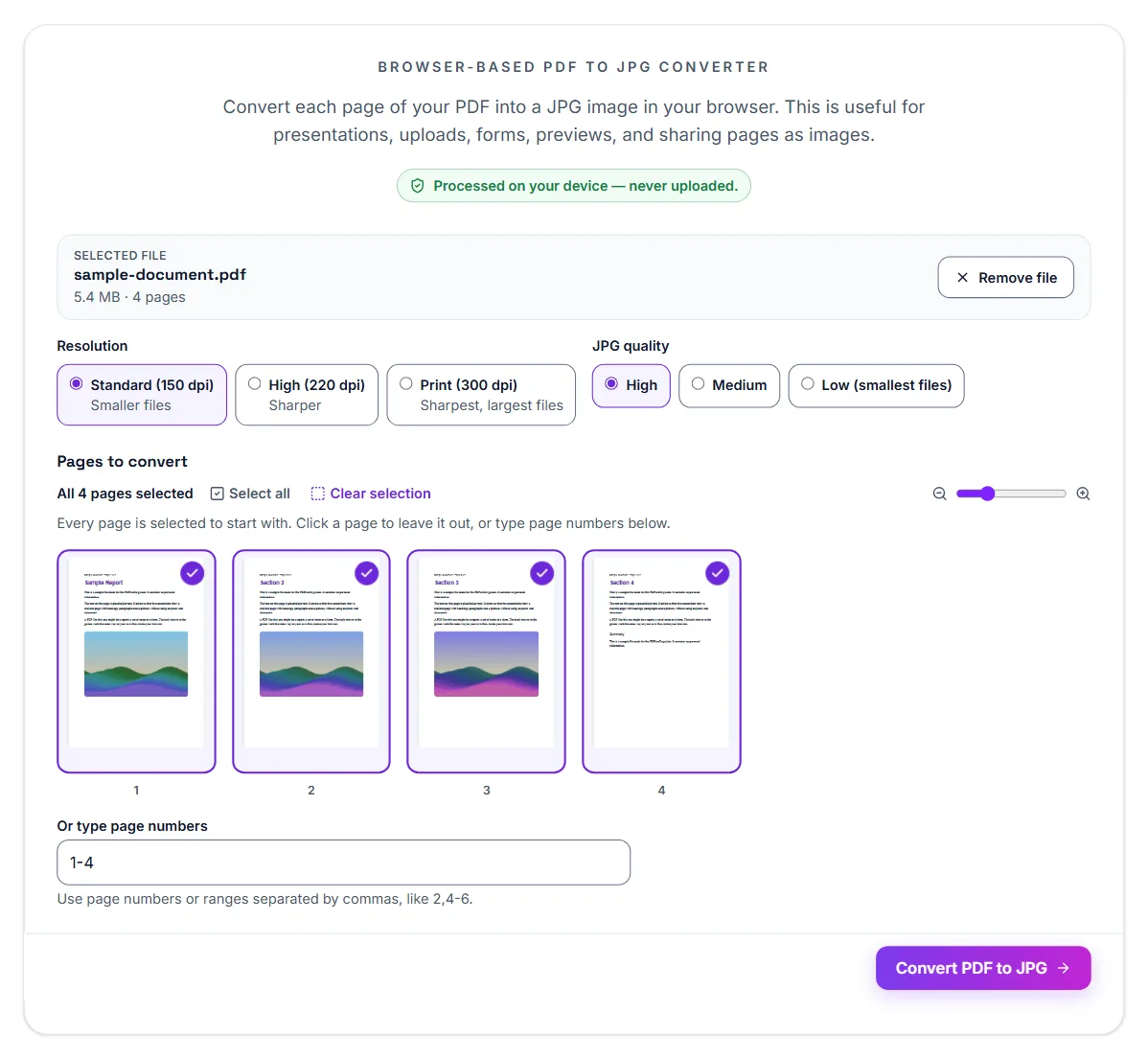
- Open PDF to JPG and select Select PDF File, or drop the PDF onto the box. It is opened in your browser, not uploaded.
- Under Resolution, keep Standard (150 dpi) for smaller files, or choose High (220 dpi) or Print (300 dpi) for sharper images.
- Under JPG quality, keep High, or choose Medium or Low (smallest files) if the images must be small.
- Under Pages to convert, every page is selected to start with. Click a page to leave it out.
- Select Convert PDF to JPG.
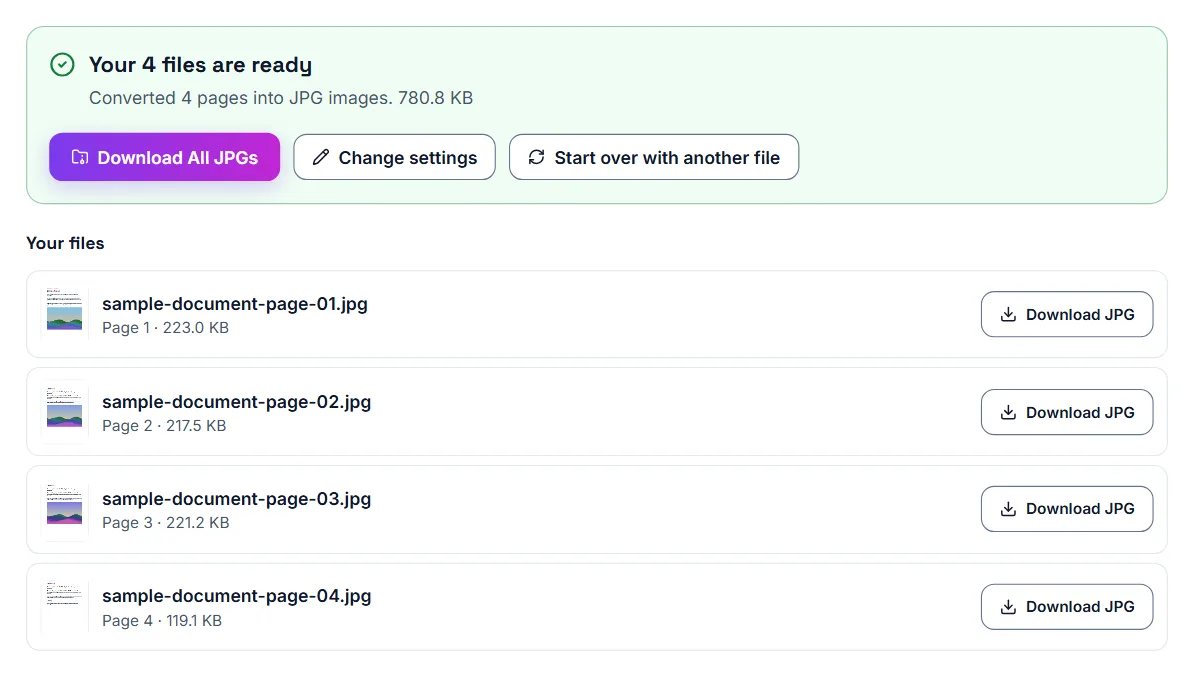
- Select Download All JPGs to save every image in one ZIP file, or Download JPG next to a single page under Your files.
- Check the image quality before you share or submit them.
On a phone: where the images are saved
Each page becomes its own JPG. On a phone, downloads usually land in the Downloads folder (Android) or the Files app (iPhone), not straight in your photo gallery. From there you can share an image to a chat, or save it to Photos.
Download All JPGs gives you one ZIP file, which you open in the Files app to get the images out. If you only need one or two pages, the Download JPG button next to each page saves that image on its own.
On a phone: no app to install
The conversion runs in your phone’s browser, so there is nothing to install and the PDF is not uploaded anywhere. That makes it a reasonable option for IDs and certificates you would rather not send to an unknown app.
Converting only some pages
You do not need to split the PDF first. Every page is selected when the file opens: click the pages you don't need to leave them out, or select Clear selection and then click just the pages you want. You can also type them under Or type page numbers, such as 2 or 1,3-4. Only the selected pages are converted, which keeps you from downloading a long document’s worth of images on a phone with limited storage.
Getting a sharp result
The image can only be as clear as the PDF. A text-based PDF converts to crisp images; a blurry scan stays blurry. If a form asks for an image of a document, start from the clearest copy you have.
Resolution decides how many pixels each page gets. Standard (150 dpi) is plenty for viewing on a screen; High (220 dpi) or Print (300 dpi) suits small print, zooming in and printing, at the cost of larger files. JPG quality trades a little sharpness for size: High keeps text cleanest, and Low makes the smallest files.
PNG and JPG in plain terms
PNG is a lossless format: it stores the image without discarding detail, so lines and text stay crisp. It also supports transparency. JPG is a lossy format that shrinks files by discarding detail the eye is less likely to notice, which works well for photographs but can leave visible blur around text and sharp edges.
When PNG is the better choice
Choose PNG for pages that are mostly text, diagrams, tables, charts, logos and screenshots. These have hard edges and flat colours, which PNG reproduces cleanly and often compresses efficiently. If you plan to zoom in, crop a section or place the image into a slide or design, PNG holds up better.
- Text-heavy pages, forms and tables
- Charts, diagrams and logos
- Images you will crop or zoom into
- Anything that needs a transparent or clean background
When JPG is the better choice
For pages dominated by photographs, JPG produces much smaller files with little visible loss. If you are sharing a photo-heavy brochure by messaging app or uploading it to a form with a size limit, use the PDF to JPG tool instead. A quick way to decide is to try both on one page and compare the file size and sharpness.
Converting a PDF to PNG
PDF to PNG works the same way. It starts on High (220 dpi); choose another Resolution if you need to, leave out the pages you don't need, and select Convert PDF to PNG. Tick Transparent background if the empty parts of the page should be see-through instead of white, for example to place the page on a coloured slide. Download All as ZIP saves every image in one ZIP file, or use Download PNG for a single page. Open a few of the images at full size and check that text is sharp and nothing is cut off.
Keeping the file sizes reasonable
High-resolution PNGs can be large, especially for pages with photographs or gradients. Select only the pages you need before converting, and choose Standard (150 dpi) unless you need more detail. If the images will end up back in a document, consider building a PDF from them and compressing it, which is often smaller than a folder of full-size PNGs.
A quick way to choose
If the page is mostly words, lines or flat colours, start with PNG. If it is mostly photographs, start with JPG. If you are unsure, convert one page both ways and compare the file sizes and how sharp the text looks when zoomed in.
Remember that converting to an image removes the text layer, so the text can no longer be searched or copied. Keep the original PDF for anything you may need to search or edit later.
The same idea applies when you paste pages into slides or documents. Use PNG for crisp diagrams and tables so they stay sharp when projected on a large screen, and JPG for photo pages where a smaller file matters more than perfect edges.
PDF to JPG for forms and applications
Some online forms ask for an image instead of a PDF, for example a certificate or ID page. Converting that page to JPG gives the form the file type it expects.
PDF to JPG for sharing
JPG images preview instantly on phones, in messaging apps, and on most platforms. If someone only needs to see one page, a JPG can be more convenient than sending the full PDF.
PDF vs JPG: which should you use?
Use PDF when you need a document format with pages. Use JPG when you need an image file for previews, photo-only forms, quick sharing, or image-based platforms. JPG to PDF does the opposite job: it turns photos back into one PDF document.
If the image looks blurry, start with a clearer PDF. A low-quality scan usually produces a low-quality JPG.
Frequently asked questions
Can I do this directly in a phone browser?
Yes. A browser-based tool is often the easiest way.
Why use JPG instead of PDF?
JPG files are easier to preview and share in many mobile situations.
Is PNG better than JPG for text?
Usually yes. PNG is lossless, so text and lines stay sharp, while JPG can blur edges.
Why are my PNG files so big?
PNGs are lossless, so pages with photographs can be large. Choose a lower resolution, or use JPG for photo-heavy pages.
Can I convert only some pages?
Yes. Every page is selected when the file opens; click the pages you don't need to leave them out, or type the page numbers you want, before you convert.
Is my PDF uploaded to a server?
No. Conversion runs in your browser, so your file stays on your device.
Can I search text in a PNG made from a PDF?
No. An image has no text layer. Keep the original PDF, or use OCR if you need the text back.